Working with Tabs
JSONFiddle supports up to 10 simultaneous tabs. Each tab is an independent workspace with its own content, format, view state, and name. You can work with multiple JSON documents, YAML files, CSV datasets, and Mermaid diagrams at the same time.
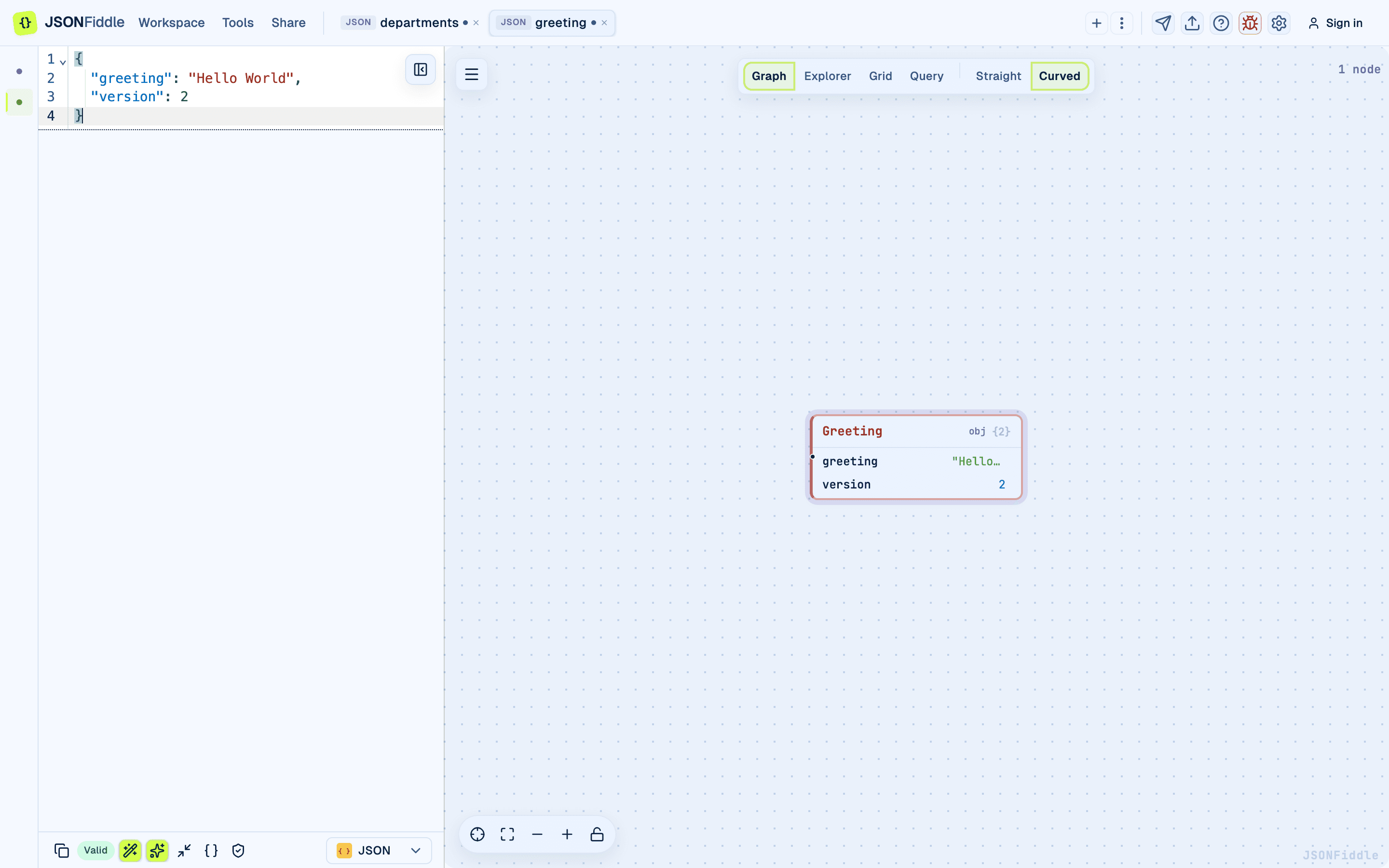 Screenshot: The tab bar showing multiple tabs with different format badges (JSON, YAML, CSV, MMD).
Creating Tabs
Method 1: From the Workspace Menu
Click Workspace > New tab.
Method 2: Keyboard Shortcut
Press Alt+N.
Method 3: From the Tab Bar
Click the + button at the right end of the tab bar.
Method 4: By Importing a File
When you import a file with Workspace > Add file/data source, JSONFiddle creates a new tab automatically. The tab name is set to the filename, and the format is detected from the extension.
Screenshot: The tab bar with multiple tabs open.
Note: When you have 10 tabs open, the + button is disabled and shows a "Maximum tabs reached" tooltip.
Maximum Tabs
When the 10-tab limit is reached:
- The + button is disabled.
- Workspace > New tab does not create a new tab.
- Workspace > Add file/data source does not open a new tab.
- Pressing Alt+N does nothing.
Close unused tabs to free up slots.
Tab Names
Auto-Derived Names
When you paste or type content, JSONFiddle automatically derives a meaningful tab name from the data:
| Content Type | Name Derivation |
|---|---|
JSON with a "name" or "title" key | Uses the value of that key (e.g., "Acme Corp"). |
| Array of objects | Uses a descriptive name based on the structure. |
| Mermaid diagrams | Derives from the diagram type and direction (e.g., "flowchart LR"). |
| Sequence diagrams | Includes the first participant name. |
| Empty tab | Named "Untitled". |
Auto-derived names update as you edit, unless you have manually renamed the tab.
Renaming Tabs
- Double-click the tab name.
- Type the new name.
- Press Enter to confirm, or Escape to cancel.
Screenshot: The tab bar with a tab name being edited.
Note: Once you manually rename a tab, auto-derivation stops for that tab.
Tab Format Badge
Each tab displays a colored format badge to the left of its name.
| Format | Badge Text | What It Tells You |
|---|---|---|
| JSON | JSON | Structured JSON or JSONC-style content. |
| YAML | YAML | YAML content. |
| XML | XML | XML content. |
| CSV | CSV | Comma-separated tabular data. |
| Mermaid | MMD | Mermaid diagram syntax. |
| JFDG | JFDG | JSONFiddle custom diagram content. |
Screenshot: The tab bar showing tabs with each format badge color side by side.
Switching Tabs
Click any tab to make it active. When you have many tabs open, the tab bar scrolls horizontally. Scroll left or right to find the tab you need.
Closing Tabs
Close a Single Tab
Click the X button on the right side of the tab.
If the tab has unsaved changes (dirty dot visible), a confirmation dialog appears:
| Button | Action |
|---|---|
| Cancel | Keeps the tab open. |
| Don't Save | Closes the tab and discards all changes. |
| Save & Close | Exports the diagram as an image (PNG or JPEG) and then closes the tab. |
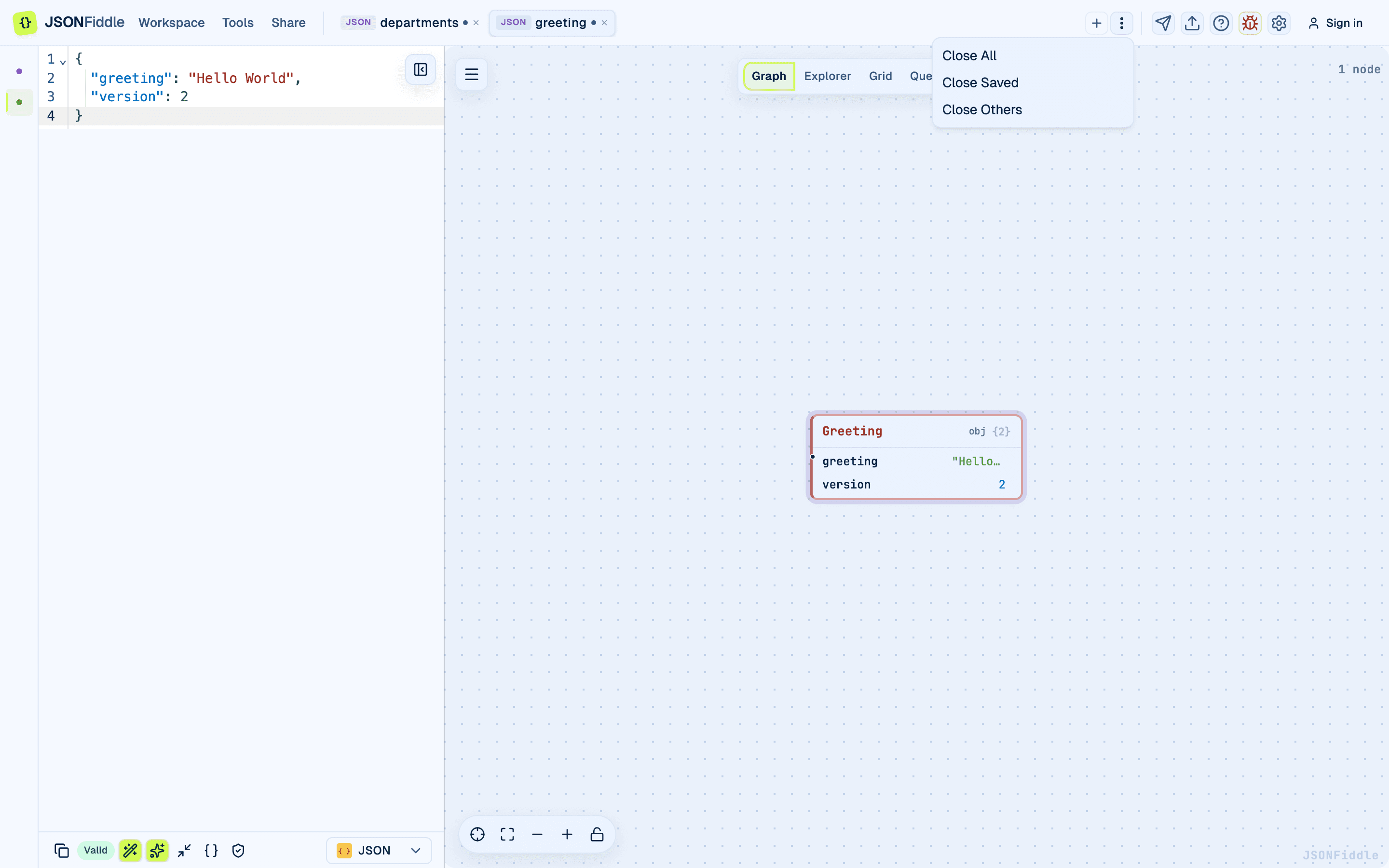 Screenshot: The tab bar three-dot menu showing bulk close options.
Close with Keyboard
Press Alt+W to close the current active tab. The same confirmation dialog appears if the tab has unsaved changes.
Closing the Last Tab
When you close the last remaining tab, JSONFiddle resets to a fresh state with a new empty tab.
Bulk Close Actions
Click the three-dot menu at the far right of the tab bar:
| Action | Description | Confirmation Required? |
|---|---|---|
| Close All | Closes all tabs. A new empty tab is created. | Yes, if any tabs have unsaved changes. |
| Close Saved | Closes only tabs with no unsaved changes. | No. |
| Close Others | Closes all tabs except the active one. | Yes, if any other tabs have unsaved changes. |
Screenshot: The three-dot menu open with Close All, Close Saved, and Close Others options.
Tip: Use Close Saved to quickly clean up tabs while keeping in-progress work.
Unsaved Changes Indicator
Each tab shows a small dot next to its name when it has unsaved changes. The dot appears when:
- You type or paste new content.
- You apply a query transformation.
- You edit a cell in the Grid view.
- You edit a field from the Graph view context menu.
- You change the format (e.g., JSON to YAML).
The dot disappears when you export the file.
Tab State Preservation
JSONFiddle persists tab state using session storage.
| Scenario | Tabs Preserved? |
|---|---|
| Refresh the page (F5) | Yes |
| Close the browser tab | No |
| Open JSONFiddle in a new browser tab | Separate, independent state |
| Navigate away and back | Yes (if the browser tab is still open) |
What is Preserved
- Tab content (the text in the editor).
- Tab format (JSON, YAML, XML, etc.).
- Tab name and whether it was manually renamed.
- The active tab selection.
- Tab order.
- Attached JSON Schema (if any).
- Animation speed per tab.
What is NOT Preserved
- View-specific state (expand/collapse in Graph, sort/filter in Grid).
- Query tab expressions and results.
- Animation playback state.
Note: Each browser tab runs its own independent JSONFiddle instance.
Tips and Best Practices
| Tip | Why |
|---|---|
| Name your tabs descriptively | "API Response", "Config", "Test Data" are easier to navigate than "Untitled" x10. |
| Use Close Saved regularly | Prevents tab clutter while preserving in-progress work. |
| Open related files in adjacent tabs | Switch between a JSON schema and a JSON document, or compare two API responses side by side. |
| Import files instead of pasting | Importing auto-creates a tab with the correct format and filename. |
| Keep the tab count low | Even though you can have 10 tabs, 3-5 active tabs is easier to manage. |
Troubleshooting
"The + button is disabled"
You have reached the 10-tab maximum. Close one or more tabs.
"My tabs disappeared after reopening the browser"
Tab state is stored in session storage, scoped to the browser tab. Closing the browser tab clears the state.
"The auto-derived name is wrong"
Double-click the tab to rename it manually. Once renamed, auto-derivation stops for that tab.
"Closing a tab lost my data"
If you chose "Don't Save", the tab content is gone. Use "Cancel" next time, or always export important work before closing.
FAQ
Q: Can I reorder tabs by dragging? A: Not currently.
Q: Can I duplicate a tab?
A: Not directly. Create a new tab (Alt+N), then copy and paste the content from the original.
Q: Does each tab have its own undo history? A: Yes. Each tab has an independent editor undo history.
Q: Can I pin a tab to prevent accidental closing? A: Not currently.
Related Guides
- Getting Started -- overview of the editor layout, including the tab bar.
- Keyboard Shortcuts -- shortcuts for creating (
Alt+N) and closing (Alt+W) tabs. - Format Conversion -- importing files creates new tabs automatically.
- Export Options -- exporting tab content as files or images.
- Bottom Bar -- format selector changes the tab's format.