Export Options
JSONFiddle provides multiple export paths depending on what you need:
| What You Want | How |
|---|---|
| Download the raw data as a file | Export icon > Export file |
| Download a workspace package | Workspace > Export workspace package |
| Download a diagram/graph as an image | Export icon > Export diagram image |
| Copy a route without data | Share > Copy editor link or Copy tool link |
| Create a secure data snapshot | Share > Create share snapshot |
| Download filtered CSV from the grid | Grid toolbar > CSV |
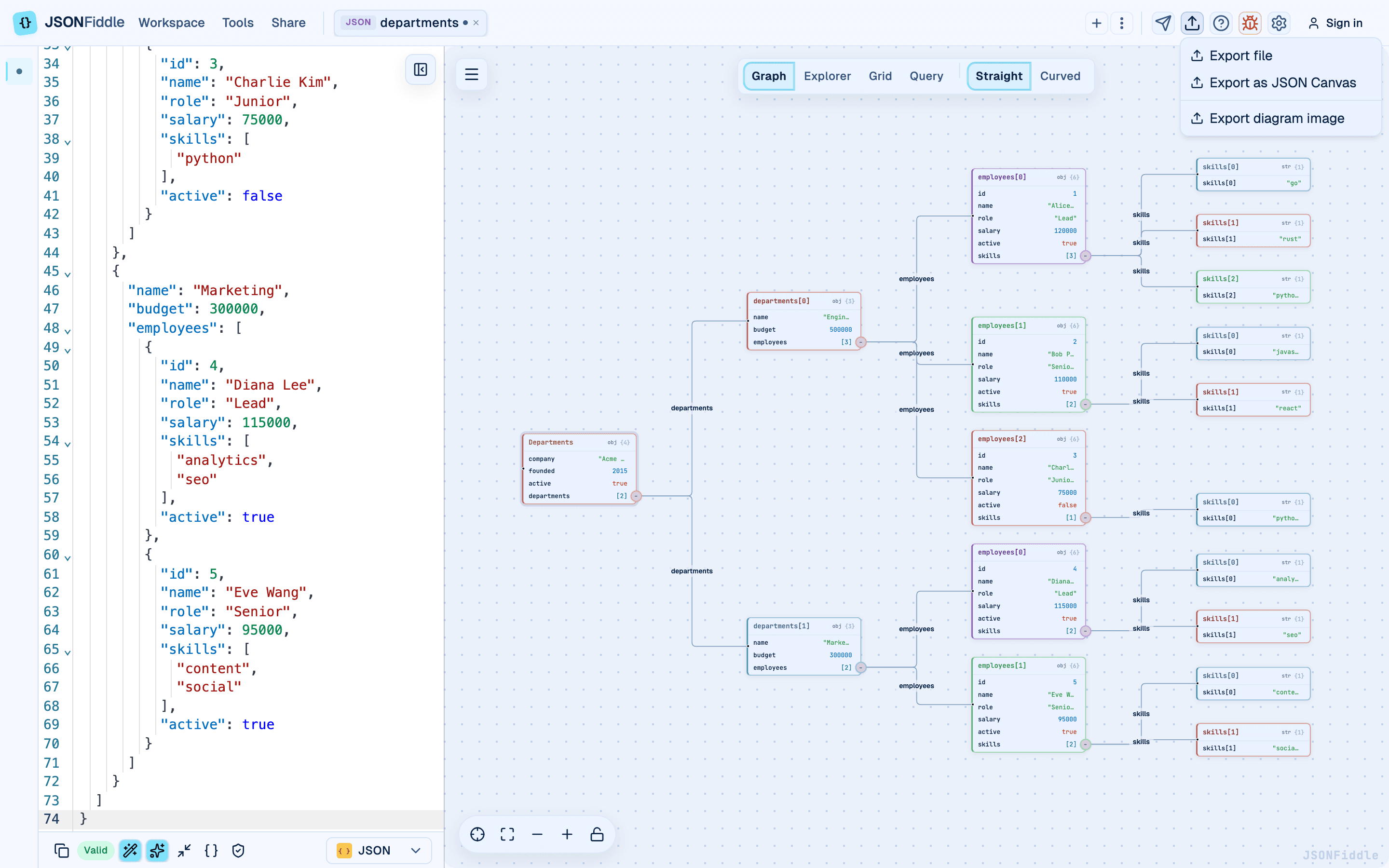 Screenshot: The Export dropdown showing "Export file" and "Export diagram image" options.
Prerequisites
- Content in the active tab.
- For image export: a graph, Mermaid diagram, or JFDG diagram visible in the right panel.
Export as File
How to Export
- Open the Export menu in the workbench header.
- Click Export file.
- A file downloads to your computer.
Keyboard Shortcut
Press Cmd+S (Mac) or Ctrl+S (Windows/Linux) to trigger the export modal.
Filename and Extension
| Component | Source |
|---|---|
| Filename | The tab name (e.g., "Acme Corp", "my-config"). If the tab is unnamed, it uses "jfdg". |
| Extension | Based on the current format. |
| Format | Extension |
|---|---|
| JSON | .json |
| YAML | .yaml |
| XML | .xml |
| CSV | .csv |
| Mermaid | .mmd |
| JFDG | .jfdg |
Screenshot: The Export menu with the file export option.
Tip: Rename your tab before exporting so the downloaded file has a meaningful name.
Export Diagram Image
How to Export
- Open the Export menu.
- Click Export diagram image.
- The Export Diagram modal opens.
The Export Modal
Screenshot: The export modal with filename input, format selection (PNG/JPEG/SVG), and Export button.
| Element | Description |
|---|---|
| Filename input | Pre-filled with the tab name. Edit to change the exported filename. |
| Format selector | Radio buttons for PNG, JPEG, SVG, and MP4 (Pro). |
| Info text | "The diagram canvas will be captured as-is, including the current zoom level." |
| Cancel button | Close the modal without exporting. |
| Export button | Download the image in the selected format. |
Image Formats
| Format | Description | Best For | Available For |
|---|---|---|---|
| PNG | Lossless raster image. | Presentations, documentation. | All diagram types. |
| JPEG | Compressed raster image. Smaller file. | Web sharing, email. | All diagram types. |
| SVG | Scalable vector format. | Print, high-DPI displays. | Mermaid and JFDG diagrams only. |
| MP4 | Animated video export. | Recording animations. | Pro feature (coming soon). |
Note: SVG export for Graph view (React Flow) is a Pro feature. For Mermaid and JFDG diagrams, SVG is available for free.
What Gets Captured
The image captures the diagram canvas as you see it, including:
- The current zoom level.
- The current pan position.
- Visible nodes and edges.
- Node colors and styles (light or dark mode).
Excluded from the capture:
- The minimap control.
- The zoom control buttons.
- The canvas background pattern.
Screenshot: The export modal ready to capture the current diagram view.
Share Menu
The Share menu separates safe links from data-bearing snapshots.
| Action | What it shares | Use when |
|---|---|---|
| Copy editor link / Copy tool link | The current route only, without source data | You want to point someone to the same editor or tool view |
| Create share snapshot | A frozen snapshot of the selected file, query, result, or workspace | Someone needs to inspect your actual work |
Create a Share Snapshot
- Open Share > Create share snapshot.
- Choose what to include: current file, full workspace, or query plus result.
- Decide whether source data should be included.
- Choose an expiry window.
- Confirm creation.
Security note: Snapshot creation uploads the selected data to JSONFiddle cloud storage. The snapshot is immutable and does not update when the original workspace changes.
Use Workspaces & Sharing for the complete privacy and sharing model.
CSV Export from Grid View
The Grid view has its own dedicated CSV export that respects filters, sorting, and column selection.
- Switch to Grid view (Alt+3).
- Apply any filters, sorting, or column selection you want.
- Click CSV in the grid toolbar.
- Save the downloaded file.
The CSV export includes:
- Only visible columns.
- Only rows matching active filters.
- The current sort order.
- Flattened columns (if Flatten Objects is enabled).
See the Grid View Guide for details.
Tips for Better Image Exports
Framing the Diagram
Before exporting, frame the content exactly how you want it:
| Tip | How |
|---|---|
| Fit all nodes | Press Shift+2 to fit all nodes into the viewport. |
| Center on a specific area | Pan and zoom to frame the area of interest. |
| Collapse branches | Press Alt+C to collapse all, then expand only the branches you want visible. |
| Choose the right edge style | Switch between Straight and Curved edges. |
| Toggle edge labels | Press Alt+E to show or hide edge labels. |
| Change layout direction | Press Cmd+Shift+D to try different orientations. |
Choosing the Right Format
| Need | Format | Why |
|---|---|---|
| Highest quality, any size | PNG | Lossless. No compression artifacts. |
| Smallest file size | JPEG | 95% quality compression. Good for web. |
| Embed in a document / resize freely | SVG | Vector format scales to any size. |
| Include in a PDF | PNG or SVG | Both work well in PDF generators. |
| Share on Slack/Teams | PNG | Universal support. |
Light vs. Dark Mode
The export captures the current theme. Switch to light mode before exporting for documents or presentations with white backgrounds.
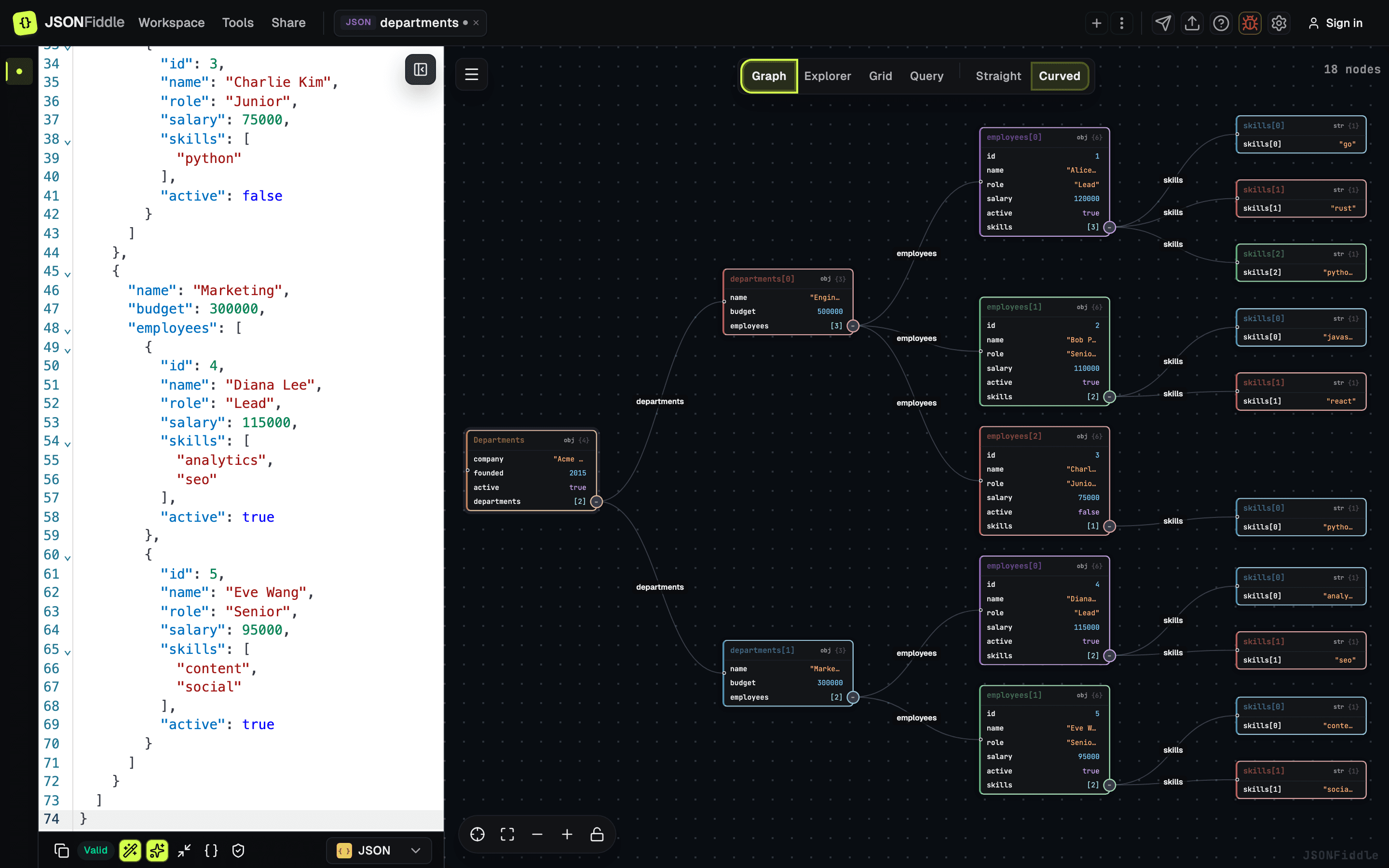 Screenshot: The full interface in dark mode, showing how a dark export would appear.
How Image Export Behaves
Image export captures the visible diagram area at the current zoom and pan position. Frame the canvas before exporting if you need a specific crop.
- PNG is best for screenshots, presentations, and documentation.
- JPEG creates smaller files for quick sharing.
- SVG keeps Mermaid and JFDG diagrams scalable where available.
- Canvas controls, minimaps, and background patterns are excluded from the exported image.
Troubleshooting
"The exported image is blank"
Make sure a diagram is visible in the right panel. If the Graph view is empty (no valid data) or you are in the Explorer/Grid/Query view, the image export captures an empty container.
"The exported image is too small"
The image captures the visible canvas at the current zoom level. Zoom in before exporting.
"The exported image has a white background in dark mode"
The export uses a white background by default. This is a known limitation for dark mode exports.
"SVG export is greyed out"
SVG export is available for Mermaid and JFDG diagrams. For Graph view (React Flow), SVG export is a Pro feature.
"The export button spins but nothing downloads"
Check your browser's download settings, try a smaller export area, and submit a bug report if it keeps happening.
FAQ
Q: Can I export the code editor content as a formatted PDF? A: Not directly. Export as a file, then use a separate tool to convert to PDF.
Q: Can I export all tabs at once? A: Not currently. Export each tab individually.
Q: Does the image export include the code editor? A: No. Only the diagram/graph in the right panel is captured.
Q: Can I change the image quality? A: JPEG quality is fixed at 95%. PNG is lossless. These settings are not configurable.
Q: Can I export a specific node or subtree? A: Not directly. Zoom and pan to frame the node, then export. Or use a query to extract the subtree first, then export the smaller graph.
Related Guides
- Getting Started -- overview of the Export menu in the toolbar.
- Graph View -- framing the graph before export.
- Grid View -- CSV export from the grid.
- Mermaid Diagrams -- exporting Mermaid diagrams as PNG/JPEG/SVG.
- Tab Management -- Save & Close exports before closing.
- Dark Mode & Theming -- theme affects exported image colors.