Format Conversion
JSONFiddle supports six formats. The first four (JSON, YAML, XML, CSV) are data formats you can convert between freely. The last two (Mermaid, JFDG) are diagram formats with their own rendering pipelines.
Format conversion happens instantly in the browser. Your data is parsed from the source format, held in memory as a JavaScript object, and serialized into the target format.
Prerequisites
- Valid content in the editor (the "Valid" badge should be green).
- Some conversions are lossy (see the Conversion Matrix below).
Supported Formats
| Format | Extensions | Best For | Notes |
|---|---|---|---|
| JSON | .json | API responses, webhook payloads, logs, and structured data. | JSONC-style trailing commas and comments are accepted while editing. |
| YAML | .yaml, .yml | Configuration files and readable nested data. | Good for converting JSON config into a more human-friendly format. |
| XML | .xml | XML APIs, feeds, and legacy integrations. | Attributes are represented with the @_ prefix when converted to JSON. |
| CSV | .csv | Flat tables and spreadsheet-style exports. | Nested objects are flattened when needed. |
| Mermaid | .mmd | Text-based diagrams. | Rendered as a diagram; not converted as a data format. |
| JFDG | .jfdg, .diagram | JSONFiddle custom diagrams. | JSON-based diagram files with nodes and edges. |
How to Switch Formats
Using the Format Dropdown
The format dropdown is in the bottom-right corner of the bottom bar. Click it and select the target format.
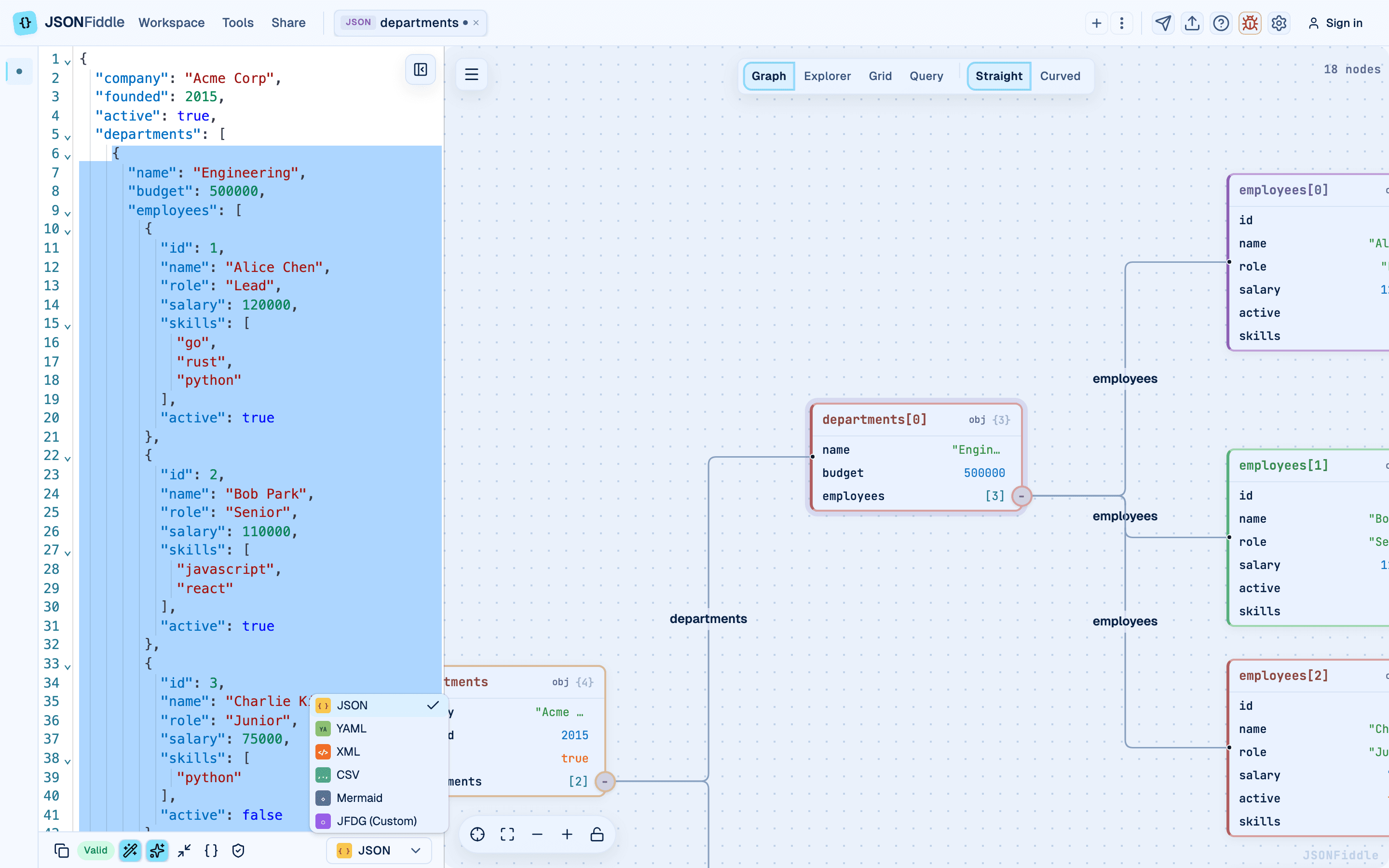 Screenshot: The format dropdown open showing all available format options.
When you switch formats:
- JSONFiddle parses the current content from the source format.
- It serializes the parsed data into the target format.
- The editor content updates to show the converted output.
- All views refresh to reflect the data.
- The format badge on the tab updates to show the new format.
Note: If the content is invalid (red "Invalid" badge), format conversion will fail. Fix the syntax errors first.
Conversion Examples
JSON to YAML
Before (JSON):
{
  "server": {
    "host": "localhost",
    "port": 8080,
    "debug": true,
    "allowed_origins": ["https://example.com", "https://api.example.com"]
  }
}
After (YAML):
server:
  host: localhost
  port: 8080
  debug: true
  allowed_origins:
    - https://example.com
    - https://api.example.com
JSON to XML
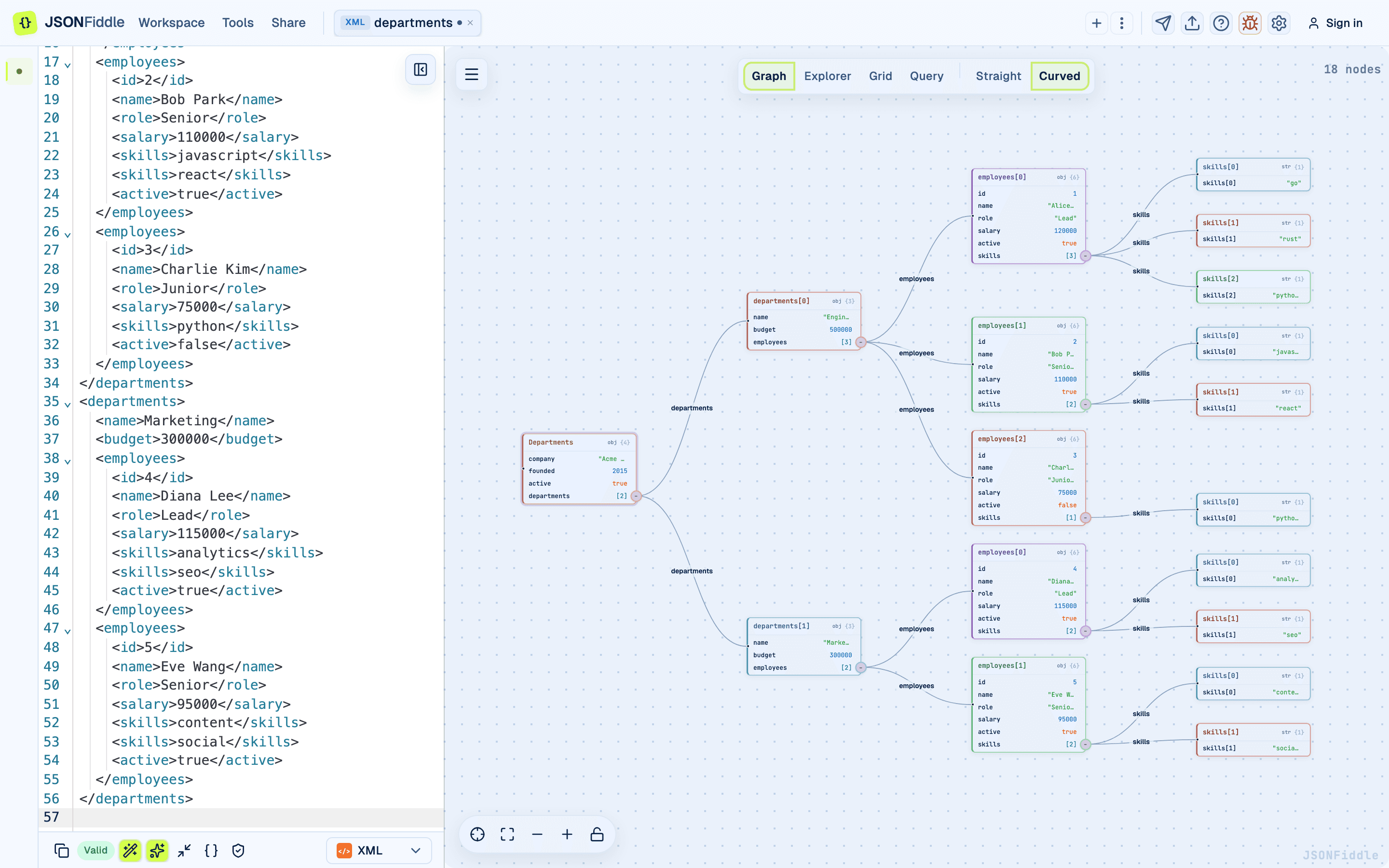 Screenshot: XML output in the editor after converting from JSON.
Before (JSON):
{
  "server": {
    "host": "localhost",
    "port": 8080,
    "debug": true
  }
}
After (XML):
<server>
  <host>localhost</host>
  <port>8080</port>
  <debug>true</debug>
</server>
JSON to CSV
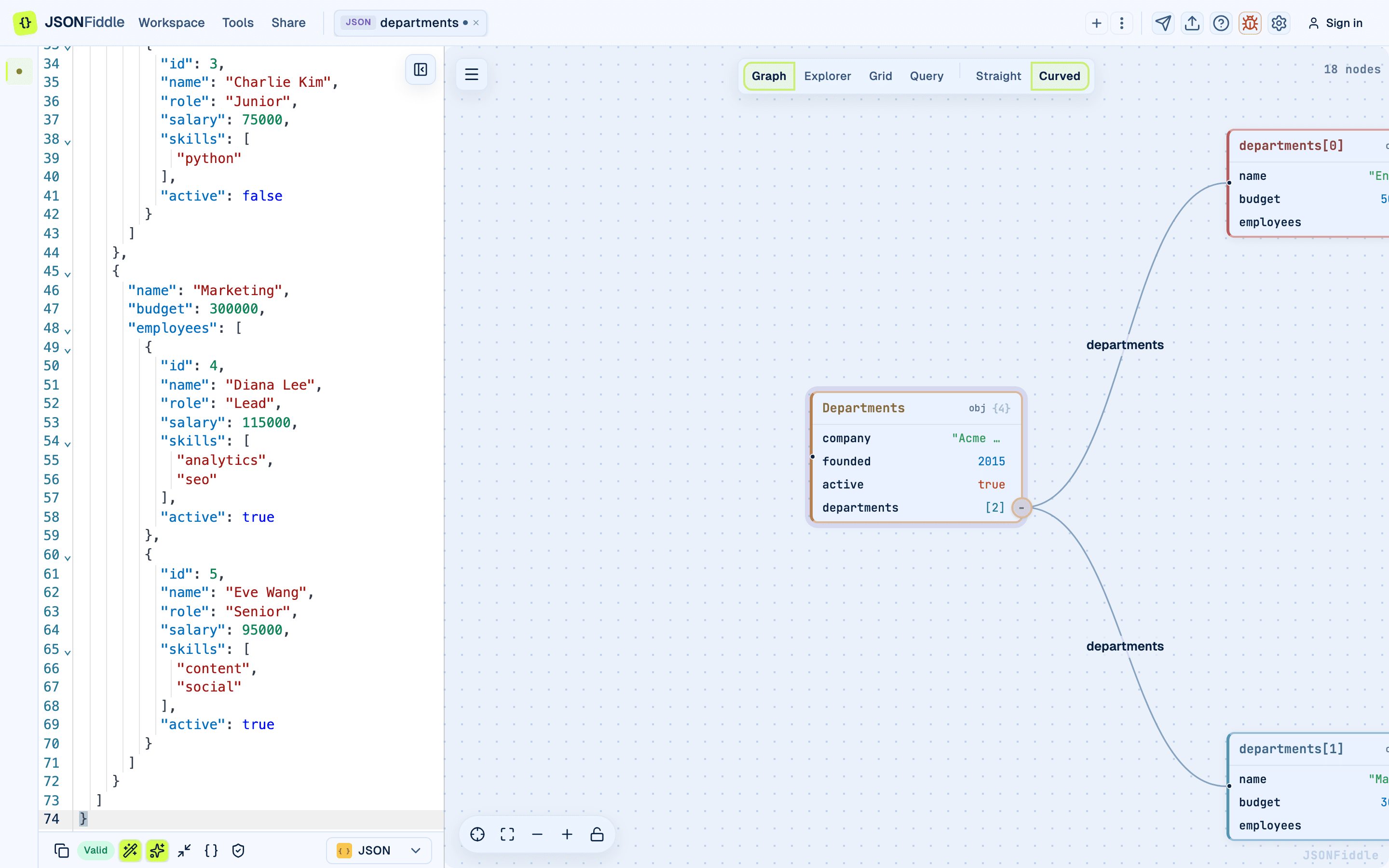 Screenshot: The editor showing JSON data ready for CSV conversion.
Before (JSON):
[
  { "name": "Alice", "age": 30, "city": "Seattle" },
  { "name": "Bob", "age": 25, "city": "Portland" },
  { "name": "Charlie", "age": 35, "city": "Denver" }
]
After (CSV):
name,age,city
Alice,30,Seattle
Bob,25,Portland
Charlie,35,Denver
YAML to JSON
Before (YAML):
database:
  host: db.example.com
  port: 5432
  credentials:
    username: admin
    password: not-a-real-password
After (JSON):
{
  "database": {
    "host": "db.example.com",
    "port": 5432,
    "credentials": {
      "username": "admin",
      "password": "not-a-real-password"
    }
  }
}
CSV to JSON
Before (CSV):
product,price,quantity
Widget,9.99,100
Gadget,24.99,50
Doohickey,4.99,200
After (JSON):
[
  { "product": "Widget", "price": "9.99", "quantity": "100" },
  { "product": "Gadget", "price": "24.99", "quantity": "50" },
  { "product": "Doohickey", "price": "4.99", "quantity": "200" }
]
Note: CSV values are always imported as strings. To fix numeric types, run a JQ transformation:
.[] | .price = (.price | tonumber) | .quantity = (.quantity | tonumber).
Conversion Matrix
| From \ To | JSON | YAML | XML | CSV |
|---|---|---|---|---|
| JSON | -- | Lossless | Good | Lossy (flat only) |
| YAML | Lossless | -- | Good | Lossy (flat only) |
| XML | Good | Good | -- | Lossy (flat only) |
| CSV | Good (all strings) | Good (all strings) | Good (all strings) | -- |
Legend
- Lossless: Perfect round-trip. Convert back and forth with no data loss.
- Good: Works well but some edge cases exist (see below).
- Lossy: Significant data loss possible. Nested structures are flattened or truncated.
Auto-Detection
When you paste content into the editor, JSONFiddle auto-detects the format using this priority order:
| Priority | Detected As | Detection Rule |
|---|---|---|
| 1 | XML | Content starts with <?xml or an opening XML/HTML tag. |
| 2 | JFDG | JSON with top-level nodes and edges arrays. |
| 3 | JSON | Content starts with { or [ and parses as valid JSON. |
| 4 | CSV | Two or more lines with a consistent number of commas per line. |
| 5 | Mermaid | Content starts with a Mermaid keyword (flowchart, sequenceDiagram, etc.). |
| 6 | YAML | Content with key-value lines using colon syntax. |
If auto-detection picks the wrong format, manually select the correct one from the format dropdown.
Escaped JSON Detection
When you paste JSON that has been stringified (escaped), JSONFiddle detects this automatically and shows a banner.
Example of escaped JSON:
"{\"name\":\"Alice\",\"age\":30,\"city\":\"Seattle\"}"
- Paste the escaped JSON.
- JSONFiddle shows a banner: "This looks like escaped JSON. Click to unescape."
- Click the banner to unescape.
JSONFiddle detects up to three levels of escaping. See the Escaped JSON Guide for a deep dive.
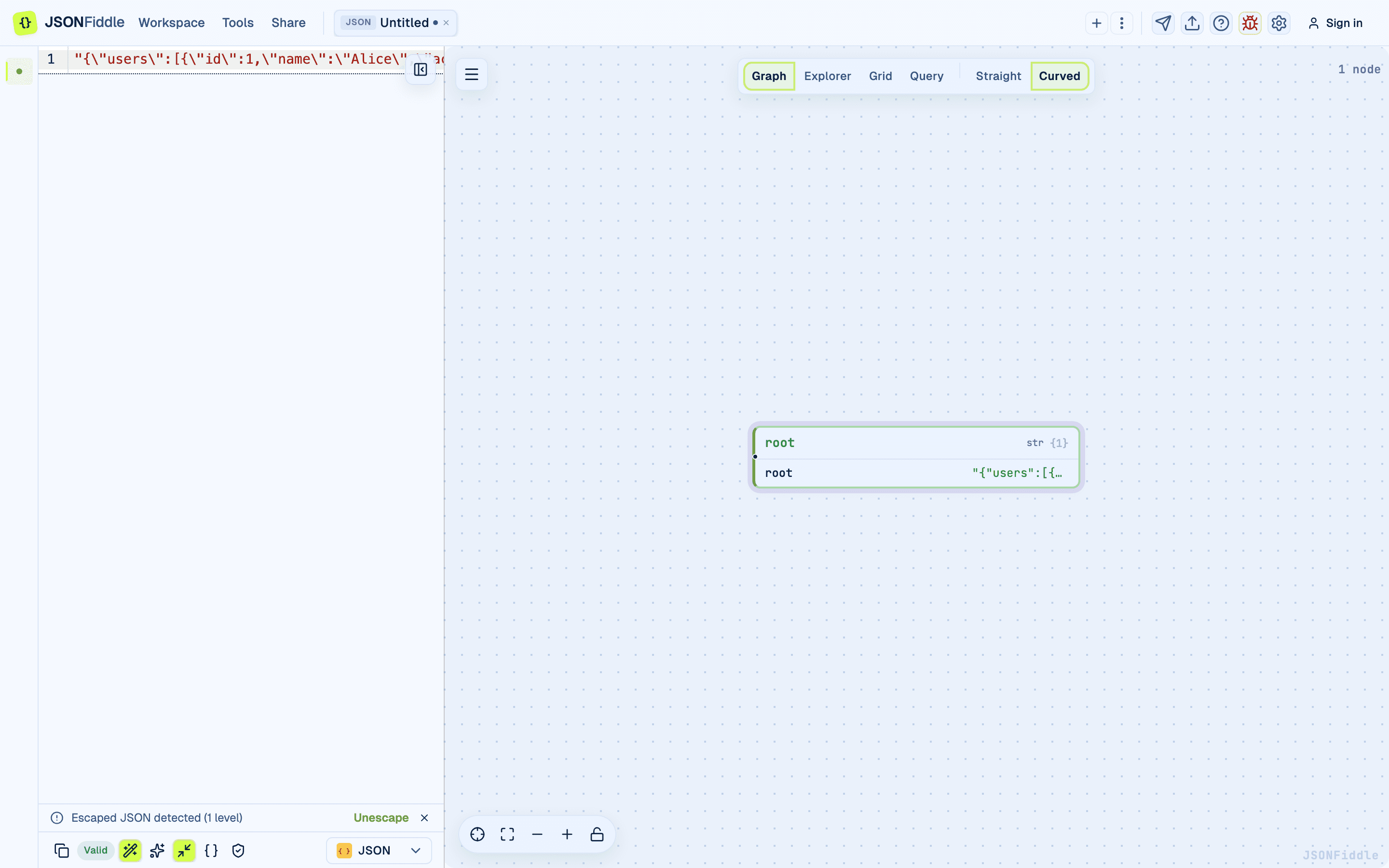 Screenshot: The editor with the escaped JSON detection banner visible.
Edge Cases
Deeply Nested Data to CSV
CSV is a flat format. When you convert deeply nested JSON to CSV, nested objects become flattened into dot-notation columns.
Example:
[{ "user": { "name": "Alice", "address": { "city": "Seattle" } } }]
Converted to CSV:
user.name,user.address.city
Alice,Seattle
Tip: Use the Grid view's Flatten Objects control to create dot-notation columns before exporting to CSV.
XML Attributes
XML attributes are represented with the @_ prefix in JSON.
XML:
<book id="123" isbn="978-0-123456-78-9">
  <title>Clean Code</title>
</book>
Converted to JSON:
{
  "book": {
    "@_id": "123",
    "@_isbn": "978-0-123456-78-9",
    "title": "Clean Code"
  }
}
Converting back to XML restores the attributes correctly.
Special Characters
| Character | JSON | XML | CSV | YAML |
|---|---|---|---|---|
Quotes " | Escaped as \" | Preserved | Escaped by doubling "" | Preserved |
| Newlines | Escaped as \n | Preserved | Enclosed in quotes | Preserved with | block |
| Commas | Preserved | Preserved | Enclosed in quotes | Preserved |
Ampersand & | Preserved | Escaped as & | Preserved | Preserved |
Less-than < | Preserved | Escaped as < | Preserved | Preserved |
Empty Arrays and Null Values
| Value | JSON | YAML | XML | CSV |
|---|---|---|---|---|
null | null | null | Empty tag | Empty cell |
[] (empty array) | [] | [] | No child tags | No rows |
"" (empty string) | "" | '' | Empty tag | Empty cell |
Importing Files
- Click Workspace in the top menu bar.
- Click Add file/data source.
- Select a file from your filesystem.
JSONFiddle opens the file in a new tab with the format set based on the file extension.
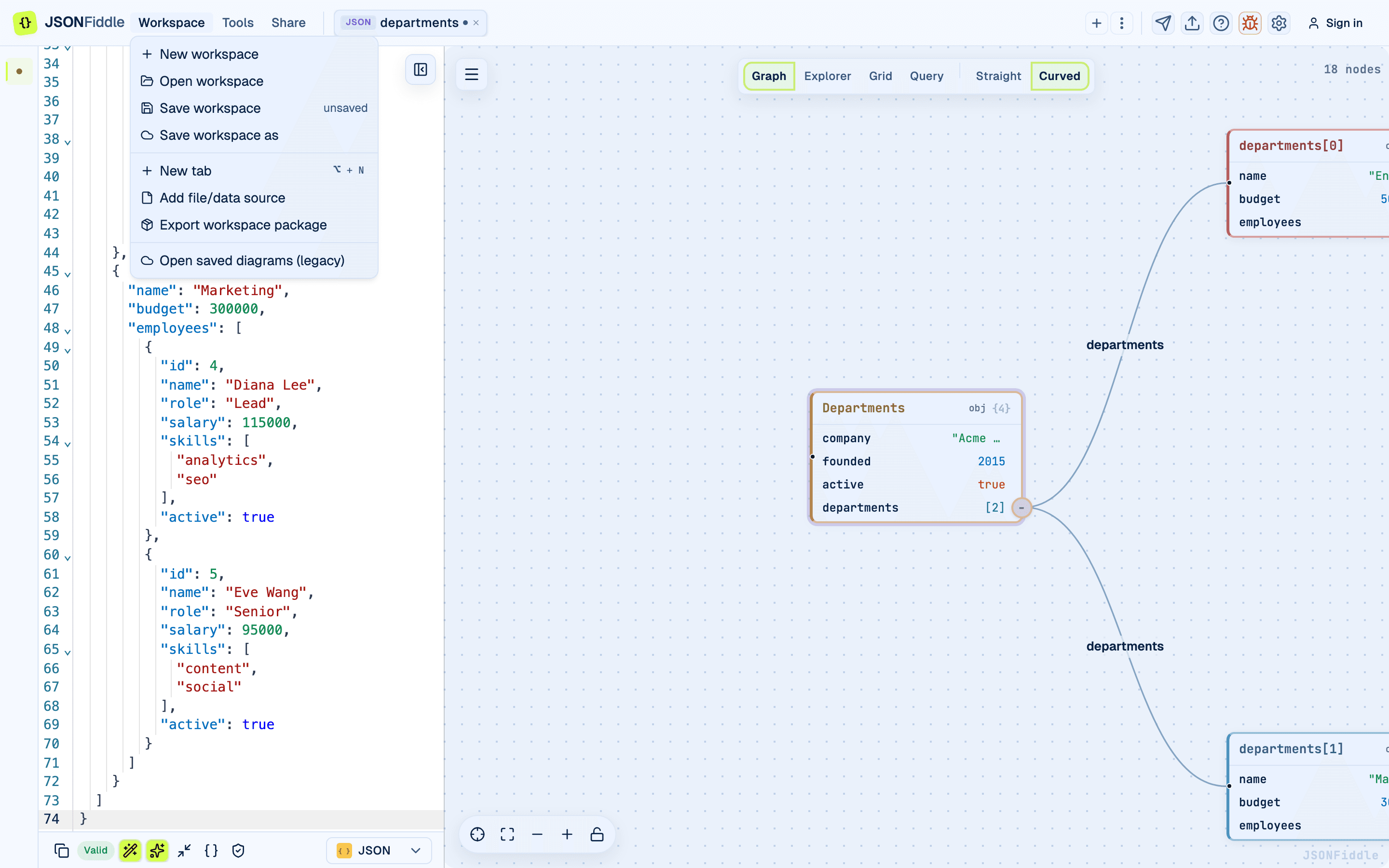 Screenshot: The Workspace menu with file import actions.
Supported File Extensions
| Extension | Detected Format |
|---|---|
.json | JSON |
.yaml, .yml | YAML |
.xml | XML |
.csv | CSV |
.mmd | Mermaid |
.jfdg, .diagram | JFDG |
Tip: You can also copy the contents of a file and paste directly into the editor. Auto-detection handles the rest.
Exporting Files
- Click the Export icon (upload arrow) in the top-right corner.
- Click Export file.
The file downloads with a name based on your tab name and the correct extension:
| Format | Extension | Example Filename |
|---|---|---|
| JSON | .json | my-data.json |
| YAML | .yaml | my-data.yaml |
| XML | .xml | my-data.xml |
| CSV | .csv | my-data.csv |
| Mermaid | .mmd | my-diagram.mmd |
| JFDG | .jfdg | my-diagram.jfdg |
For diagram image exports, see the Export Options Guide.
Format and Beautify
After converting, click Format / Beautify in the bottom bar to pretty-print the output:
- JSON: 2-space indentation.
- YAML: 2-space indentation.
- XML: Formatted with nested indentation.
- CSV: No beautification (already tabular).
Click Minify to compress JSON to a single line -- useful for API request bodies, compact config files, or clipboard sharing.
Troubleshooting
"My conversion looks wrong"
- Check the "Valid" badge. Invalid content cannot convert correctly.
- Check for encoding issues. Unusual Unicode characters may not survive a round-trip.
- For CSV, ensure your data is an array of objects.
"I lost data types after converting to CSV and back"
CSV does not preserve data types. Use a JQ transformation to fix types:
.[] | .age = (.age | tonumber) | .active = (.active == "true")
"XML attributes disappeared"
Make sure the @_ prefix is present in the JSON. Without it, the value becomes a child element instead of an attribute.
"Auto-detection keeps picking the wrong format"
Some content is ambiguous. Override the detection by manually selecting the format from the dropdown.
FAQ
Q: Can I convert between Mermaid and JSON? A: No. Mermaid is a diagram syntax, not a data format.
Q: Does converting JSON to YAML lose comments? A: JSON does not support comments (though JSONFiddle's parser allows them). Converting from JSON to YAML does not add comments.
Q: What happens if my CSV has inconsistent columns? A: Missing values become empty strings. Extra values are ignored.
Q: Can I convert JSON to TOML? A: Not currently. JSONFiddle supports JSON, YAML, XML, and CSV as data formats.
Related Guides
- Getting Started -- overview of the editor layout and supported formats.
- Working with Tabs -- importing files creates new tabs automatically.
- Grid View -- the Grid view is especially useful for CSV-like tabular data.
- Mermaid Diagrams -- details on Mermaid format rendering and export.
- Bottom Bar -- Format/Beautify and Minify buttons.
- Escaped JSON -- handling stringified JSON from APIs and logs.
- Export Options -- exporting files and diagram images.