Explorer View
The Explorer view presents your JSON as a navigable tree or column-based browser. It is the best view for drilling into deeply nested objects and understanding data hierarchy one level at a time.
Switch to Explorer view by clicking "Explorer" in the view selector or pressing Alt+2.
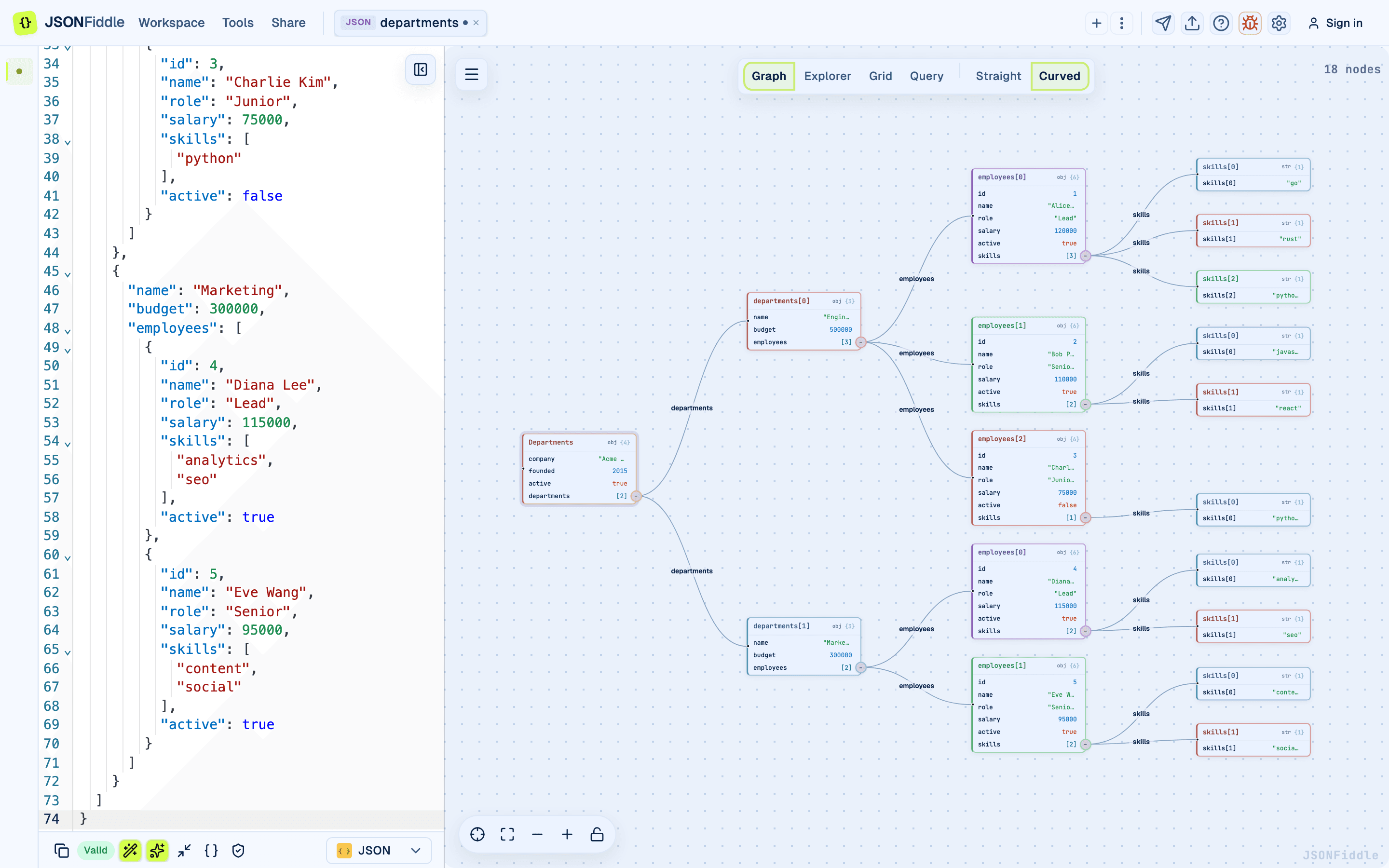 Screenshot: The Explorer view showing a nested JSON document as a tree.
Prerequisites
- Valid JSON, YAML, XML, or CSV content in the editor.
- Explorer view supports all data formats except Mermaid and JFDG.
Two Layouts: Tree and Column
The Explorer view offers two layout modes, selectable via the segmented control that appears when Explorer is active.
Tree Layout
The Tree layout displays your JSON as an expandable, indented tree -- similar to a file system tree or the Elements panel in browser DevTools.
| Feature | Description |
|---|---|
| Expand/Collapse | Click the arrow next to an object or array to expand or collapse it. |
| Indentation | Each nesting level is indented further to the right. |
| Type icons | Each value shows a colored icon indicating its type. |
| Inline values | Primitive values (string, number, boolean, null) display inline next to their key. |
Column Layout
The Column layout is inspired by macOS Finder's column view. Each level of nesting gets its own vertical column. Clicking a key in one column reveals its children in the next column to the right.
| Feature | Description |
|---|---|
| Column-per-level | Each nesting depth gets a column. |
| Click to drill down | Click a key to populate the next column with its children. |
| Breadcrumb trail | The path you have navigated is visible across the column headers. |
| Horizontal scrolling | Deep nesting adds more columns; scroll horizontally to see them. |
Switching Layouts
Click the Tree or Column button in the segmented control next to the view selector when Explorer is active.
Type Icons
Each value displays a small colored icon indicating its JSON type.
| Type | Icon Color | Description |
|---|---|---|
| String | Green | Text values enclosed in quotes. |
| Number | Blue | Integer or floating-point values. |
| Boolean | Orange | true or false values. |
| Null | Gray | Explicit null values. |
| Object | Purple | Objects {} with named keys. |
| Array | Teal | Arrays [] with indexed elements. |
Tip: Type icons use the same color scheme in both light and dark mode, with adjusted tones for readability on each background.
Keyboard Navigation
Tree Layout Navigation
| Key | Action |
|---|---|
Up Arrow | Move to the previous row. |
Down Arrow | Move to the next row. |
Right Arrow | Expand the selected node (if collapsed), or move to the first child. |
Left Arrow | Collapse the selected node (if expanded), or move to the parent. |
Home | Jump to the first row in the tree. |
End | Jump to the last visible row in the tree. |
Column Layout Navigation
| Key | Action |
|---|---|
Up Arrow | Move up within the current column. |
Down Arrow | Move down within the current column. |
Right Arrow | Move to the next column (drill into the selected item). |
Left Arrow | Move to the previous column (drill out one level). |
Search
Press Cmd+F (Mac) or Ctrl+F (Windows/Linux) to open the search bar.
- Type a search term.
- The Explorer filters to show only nodes that match the term in their key or value.
- Matching text is highlighted.
- Press Esc to close the search bar and restore the full tree.
 Screenshot: The Explorer tree with search results highlighted.
History Navigation
As you drill into nested objects (especially in Column layout), JSONFiddle tracks your navigation path.
| Shortcut | Action |
|---|---|
Alt+Left Arrow | Go back to the previous location. |
Alt+Right Arrow | Go forward (after going back). |
Tip: History navigation is especially useful in Column layout when drilling deep. Go back to reset without scrolling.
Context Menu
Right-click any key or value to open the context menu.
Menu Options
| Action | Description |
|---|---|
| Copy | Copies the JSON content of the selected node to your clipboard. |
| Copy As... | Opens a submenu to copy the path in a specific format. |
| Transform this... | Switches to the Query tab with the path pre-filled. |
| Edit | Opens the Edit Field or Edit Object modal. |
Copy As Submenu
| Option | Example |
|---|---|
| Copy as JSONPath | $.users[0].email |
| Copy as JQ | .users[0].email |
| Copy as JSONata | users[0].email |
| Copy as XPath | /users/0/email |
Screenshot: The Explorer tree with the right-click context menu open.
Editor Synchronization
The Explorer view syncs with the code editor:
- Click a node in the Explorer -> The editor scrolls to the matching line and highlights it.
- Move your cursor in the editor -> The Explorer highlights and scrolls to the corresponding node (when Auto Sync is enabled).
Real-World Examples
Example 1: Navigating an API Response
Paste a complex API response (e.g., from the GitHub API). Use the Tree layout to expand data -> repository -> issues -> nodes -> [0] to find the first issue. Right-click the issue title and select Copy as JSONPath to use in your code.
Example 2: Comparing Nested Config Structures
Open two tabs with different YAML config files. Switch to Explorer view in each tab and expand the same sections to visually compare the structure side by side.
Example 3: Finding a Specific Value
Press Cmd+F and type the value you are looking for. The tree filters to show only the matching paths. This is faster than scrolling through hundreds of nodes.
Troubleshooting
"The tree is empty"
Check the "Valid" badge in the bottom bar. If the content is invalid, the Explorer cannot render it.
"Keyboard navigation is not working"
Make sure the Explorer view is focused (click on it first). If your cursor is in the code editor, keyboard events go to the editor instead of the Explorer.
"The Column layout has too many columns"
Deeply nested data creates many columns. Scroll horizontally, or use the Tree layout instead for deep structures.
"I cannot edit from the Explorer"
Right-click to open the context menu, then select "Edit". Arrays and objects open the Edit Object modal; primitive values open the Edit Field modal.
FAQ
Q: Can I drag and drop nodes to rearrange the tree? A: No. Use the code editor to rearrange data.
Q: Can I search with regular expressions? A: Not currently. The search is a plain text, case-insensitive match.
Q: Which layout should I use -- Tree or Column? A: Use Tree for a quick overview of the full structure. Use Column when you want to focus on one level at a time and navigate step by step.
Q: Does the Explorer work with CSV data? A: Yes. CSV rows appear as an array of row objects, so you can browse columns, row values, and nested values the same way you browse JSON.
Q: Can I expand all nodes at once?
A: Not with a single shortcut in Explorer view. Use the Graph view's Alt+X (expand all) for that, or click through individual nodes.
Related Guides
- Getting Started -- overview of all four views.
- Keyboard Shortcuts -- Explorer view navigation shortcuts.
- Graph View -- alternative visual navigation with node graph.
- Grid View -- table view for arrays of objects.
- Query & Transform -- use Copy As and Transform this... from the Explorer context menu.
- Editing Data -- edit values from the Explorer context menu.