Bottom Bar
The bottom bar sits below the code editor and provides quick-access tools for validation, formatting, type generation, schema validation, and format switching.
 Screenshot: The bottom bar from left to right.
Button Reference (Left to Right)
1. Copy Button
| Property | Value |
|---|---|
| Icon | Clipboard |
| Tooltip | "Copy content" |
| Action | Copies the entire editor content to your clipboard. |
| Feedback | The icon changes to a checkmark for 2 seconds. |
| Disabled when | Never. Always available, even for empty content. |
Screenshot: The bottom bar with the Copy button highlighted.
2. Valid / Invalid Badge
| Property | Value |
|---|---|
| Appearance | Green "Valid" badge or red "Invalid" badge. |
| Behavior | Updates in real time as you type. |
| Visible when | Content is not empty and the format is not Mermaid. |
| Hidden when | The editor is empty or the format is Mermaid (Mermaid uses its own error display). |
When "Valid": Content parses without errors in the current format.
When "Invalid": There is a syntax error. The code editor shows a red underline at the error location. Hover over the underline to see the error message.
Tip: If the badge shows "Invalid" after a format switch, the content may not be valid in the new format. For example, switching from JSON to CSV when the content is a single object (not an array) produces an error.
3. Auto Sync Toggle
| Property | Value |
|---|---|
| Icon | Wand |
| Tooltip / accessible label | "Auto Sync: On" or "Auto Sync: Off" |
| Style | Accent-filled when ON, subtle when OFF. |
| Action | Toggles live synchronization between the editor and the visual views. |
When ON (default): Every keystroke updates the views in real time.
When OFF: Views update only when you stop typing (debounced) or switch tabs. This improves performance for large documents.
Screenshot: The Auto Sync toggle in the bottom bar.
Tip: Turn off Auto Sync when working with large JSON (1MB+) to prevent lag from continuous re-rendering.
4. Format / Beautify Button
| Property | Value |
|---|---|
| Icon | Sparkles |
| Tooltip / accessible label | "Format / Beautify" |
| Style | Accent-filled when content is already formatted, subtle otherwise. |
| Action | Pretty-prints the content with consistent indentation. |
| Disabled when | Content is invalid. |
Beautification rules:
- JSON: 2-space indentation, one key per line.
- YAML: 2-space indentation.
- XML: Formatted with nested indentation.
- CSV: No change (already flat).
Screenshot: The Format/Beautify button in the bottom bar.
5. Minify Button
| Property | Value |
|---|---|
| Icon | Compress (arrows pointing inward) |
| Tooltip / accessible label | "Minify" |
| Style | Accent-filled when content is already minified, subtle otherwise. |
| Action | Compresses JSON to a single line with no whitespace. |
| Disabled when | Content is invalid. |
Screenshot: The Minify button in the bottom bar.
Note: Minify converts the data to JSON format regardless of the current format. If you are in YAML mode and click Minify, the result is minified JSON.
6. Generate Types Button
| Property | Value |
|---|---|
| Icon | Braces {} |
| Tooltip / accessible label | "Generate Types" |
| Action | Opens the Type Generation modal. |
| Disabled when | Content is invalid. |
The modal lets you generate type definitions from your JSON in multiple languages:
- TypeScript interfaces
- Zod schemas
- Go structs
- Python dataclasses
- Java classes
- Rust structs
See the Type Generation Guide for full details and example output.
Screenshot: The Generate Types button in the bottom bar.
7. Validate Schema Button
| Property | Value |
|---|---|
| Icon | Shield with checkmark |
| Tooltip / accessible label | "Validate Schema" (or "Validate Schema (attached)" when a schema is loaded) |
| Style | Accent-filled when a schema is attached, subtle otherwise. |
| Action | Opens the JSON Schema Validation modal. |
| Disabled when | Content is invalid. |
See the Schema Validation Guide for full details.
Screenshot: The Validate Schema button in the bottom bar.
8. Format Selector Dropdown
| Property | Value |
|---|---|
| Appearance | Dropdown showing the current format name. |
| Position | Far right of the bottom bar. |
| Behavior | Stays visible while lower-priority tools move into the overflow menu on narrow screens. |
| Options | JSON, YAML, XML, CSV, Mermaid, JFDG. |
| Action | Changes the format of the active tab and converts the content. |
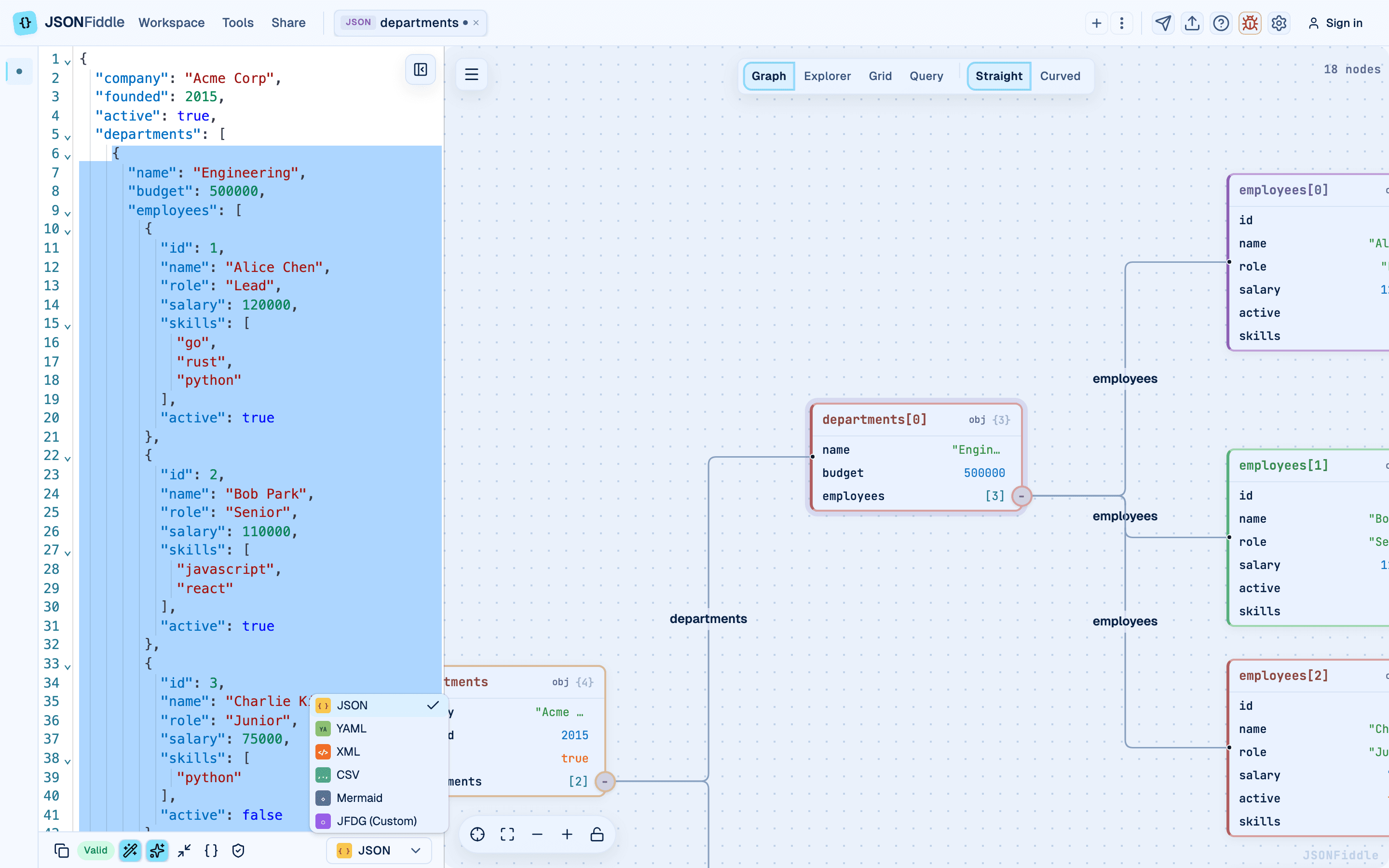 Screenshot: The format selector dropdown open in the bottom bar.
Responsive Overflow Menu
When the bottom bar is too narrow to display all buttons (e.g., on mobile, narrow windows, or with the split-pane divider pushed far to the right), lower-priority buttons collapse into a three-dot overflow menu.
Collapse Priority
Buttons collapse from right to left in this order (highest priority stays visible longest):
| Priority | Button | Collapses |
|---|---|---|
| 1 (always visible) | Auto Sync | Last |
| 2 | Format / Beautify | Second to last |
| 3 | Minify | Mid |
| 4 | Generate Types | Early |
| 5 | Validate Schema | First to collapse |
The Copy button, Valid/Invalid badge, and Format selector are always visible and never collapse.
Using the Overflow Menu
When buttons are collapsed:
- A three-dot icon appears between the visible buttons and the format selector.
- Click it to open a dropdown menu.
- The collapsed buttons appear as labeled menu items with their icons.
- Click any item to trigger the action.
Screenshot: The overflow menu open in the bottom bar.
Mermaid Mode
When the active tab's format is Mermaid, the bottom bar changes:
- Auto Sync, Format, Minify, Generate Types, and Validate Schema are hidden (these are data-format-only tools).
- Only Copy and the Format selector remain visible.
- The Valid/Invalid badge is hidden (Mermaid uses its own error rendering in the diagram panel).
Troubleshooting
"All buttons are disabled"
The content is invalid. Check the "Invalid" badge and fix the syntax error in the editor.
"The Validate Schema button says 'attached'"
A JSON Schema has been previously loaded for this tab. Click the button to open the modal, where you can see, modify, or clear the attached schema.
"I cannot see some buttons"
The bottom bar is responsive. If your window is narrow, buttons collapse into the overflow menu. Look for the three-dot icon and click it.
"Beautify is not changing anything"
If the content is already beautified (properly indented), the button has no visible effect. Try Minify first, then Beautify to see the difference.
FAQ
Q: Is there a keyboard shortcut for Beautify? A: Not directly. Use the button in the bottom bar.
Q: Can I change the indentation (e.g., 4 spaces instead of 2)? A: Not currently. JSONFiddle uses 2-space indentation for JSON and YAML.
Q: Does Minify work for YAML? A: Minify converts to JSON format and compresses. It does not produce minified YAML.
Q: What does the Auto Sync toggle actually sync? A: It syncs the editor content with the visual views (Graph, Explorer, Grid, Query). When OFF, views update less frequently to save performance.
Related Guides
- Getting Started -- overview of the entire editor layout.
- Format Conversion -- how the format selector dropdown converts data.
- Type Generation -- deep dive on the Generate Types modal.
- Schema Validation -- deep dive on the Validate Schema modal.
- Keyboard Shortcuts -- keyboard equivalents for common actions.