Dark Mode and Theming
JSONFiddle separates app appearance from diagram styling. Use app preferences when you want the editor, grid, explorer, query panel, menus, and canvas to feel lighter or darker. Use diagram theme settings when you want a JFDG diagram export to have its own visual treatment.
Change App Appearance
- Click the Preferences button in the workbench header.
- Choose Light or Dark under Appearance.
- Choose an accent color if you want a different highlight color for selected tabs, focus states, and primary actions.
JSONFiddle remembers your choice locally. Saved workspaces can also restore appearance preferences when cloud save is enabled.
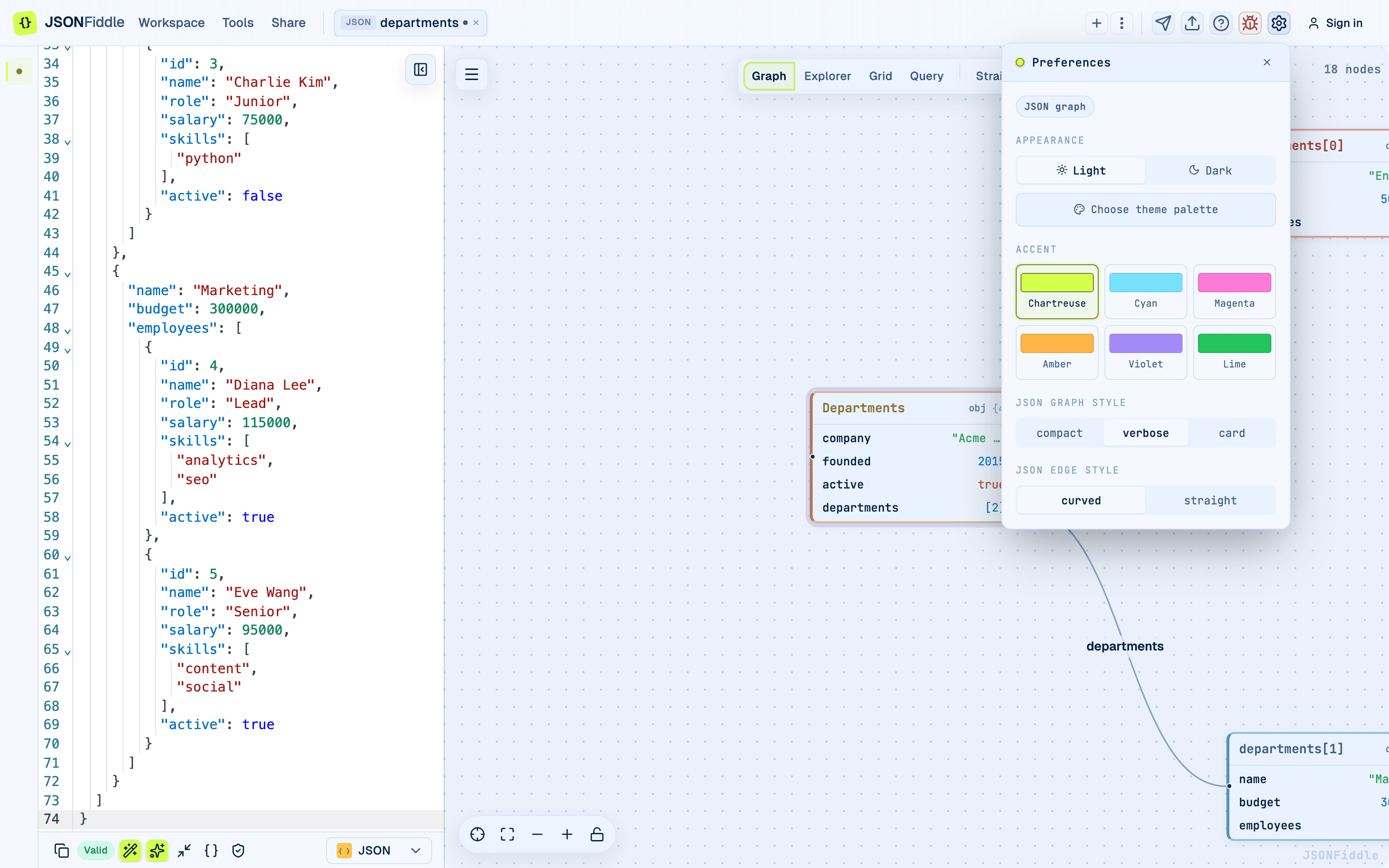 Screenshot: Preferences opened from the workbench header.
Theme Palettes
The theme palette controls the broader color system for the app. Palettes tune surfaces, borders, text, syntax colors, grid lines, and canvas dots so the interface stays readable in both light and dark modes.
| Preference | What It Changes |
|---|---|
| Light / Dark | Overall brightness of the workspace. |
| Theme palette | Surface color, canvas color, borders, and syntax tones. |
| Accent | Primary action color, selected controls, focus rings, and highlights. |
| Graph node style | Compactness and information density of generated JSON graph nodes. |
| Edge style | Straight or curved edges for generated JSON graphs. |
Tip: Chartreuse is intentionally high-energy, but it is used with darker text, borders, and shadows in light mode so it does not disappear into pale backgrounds.
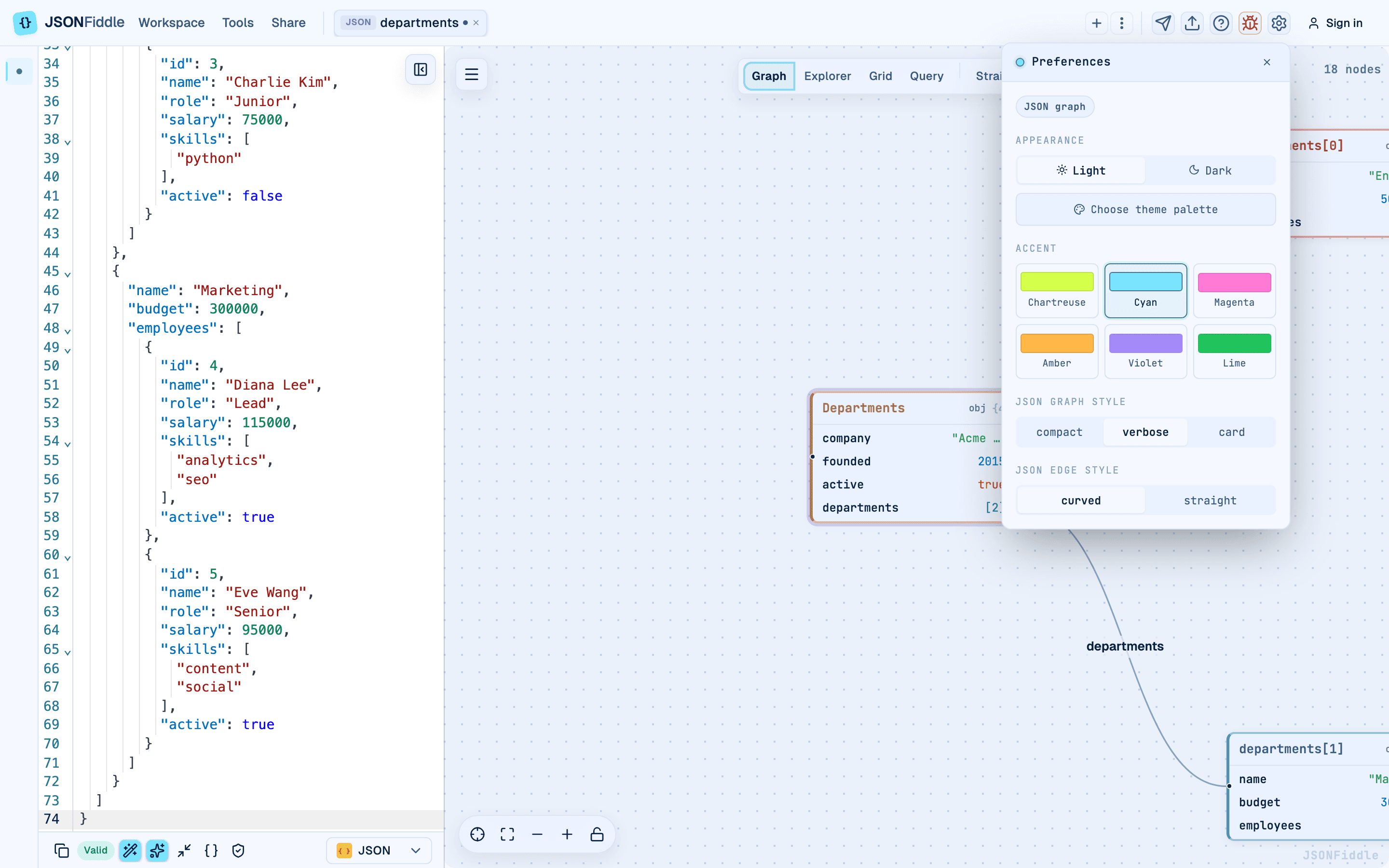 Screenshot: The same Preferences panel after choosing a different accent.
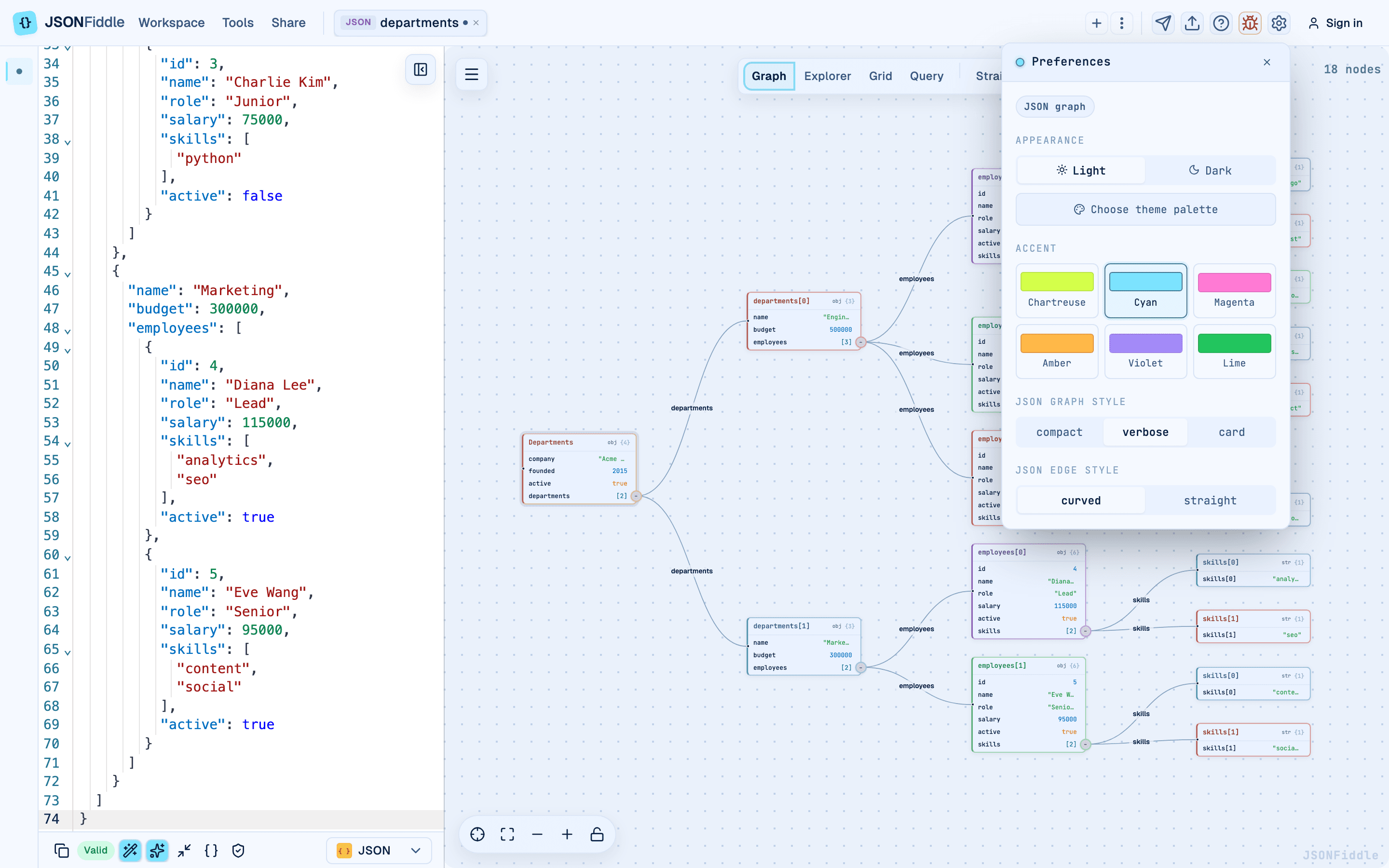 Screenshot: Generated graph nodes in verbose mode, the preferred style for documentation captures.
Diagram Theme vs App Theme
JFDG custom diagrams have a separate Customize diagram theme modal from the canvas controls. This is deliberate:
- App preferences affect the JSONFiddle workspace.
- Diagram theme settings affect the selected JFDG diagram and its exports.
- Diagram presets include their own node, edge, and text color controls.
If you are building architecture diagrams for sharing, tune the diagram theme from the canvas control bar before exporting.
How Views Adapt
Code Editor
The editor updates syntax colors, gutters, selection color, and focus rings for the selected appearance.
Graph View
The canvas background, dot grid, node cards, edge colors, selected node state, and bottom controls all adapt to the active theme and accent.
Explorer View
Tree rows, column view, breadcrumbs, type icons, search, and copy controls remain readable across light and dark modes.
Grid View
Grid headers, rows, nested tables, filter panels, column dialogs, density controls, and CSV controls use the same theme tokens as the rest of the app.
Query View
Query tabs, smart suggestion chips, helper text, result panels, and the run button use the current theme and accent.
Mermaid Diagrams
Mermaid diagrams are rendered with mode-aware colors so nodes, edges, and labels remain legible.
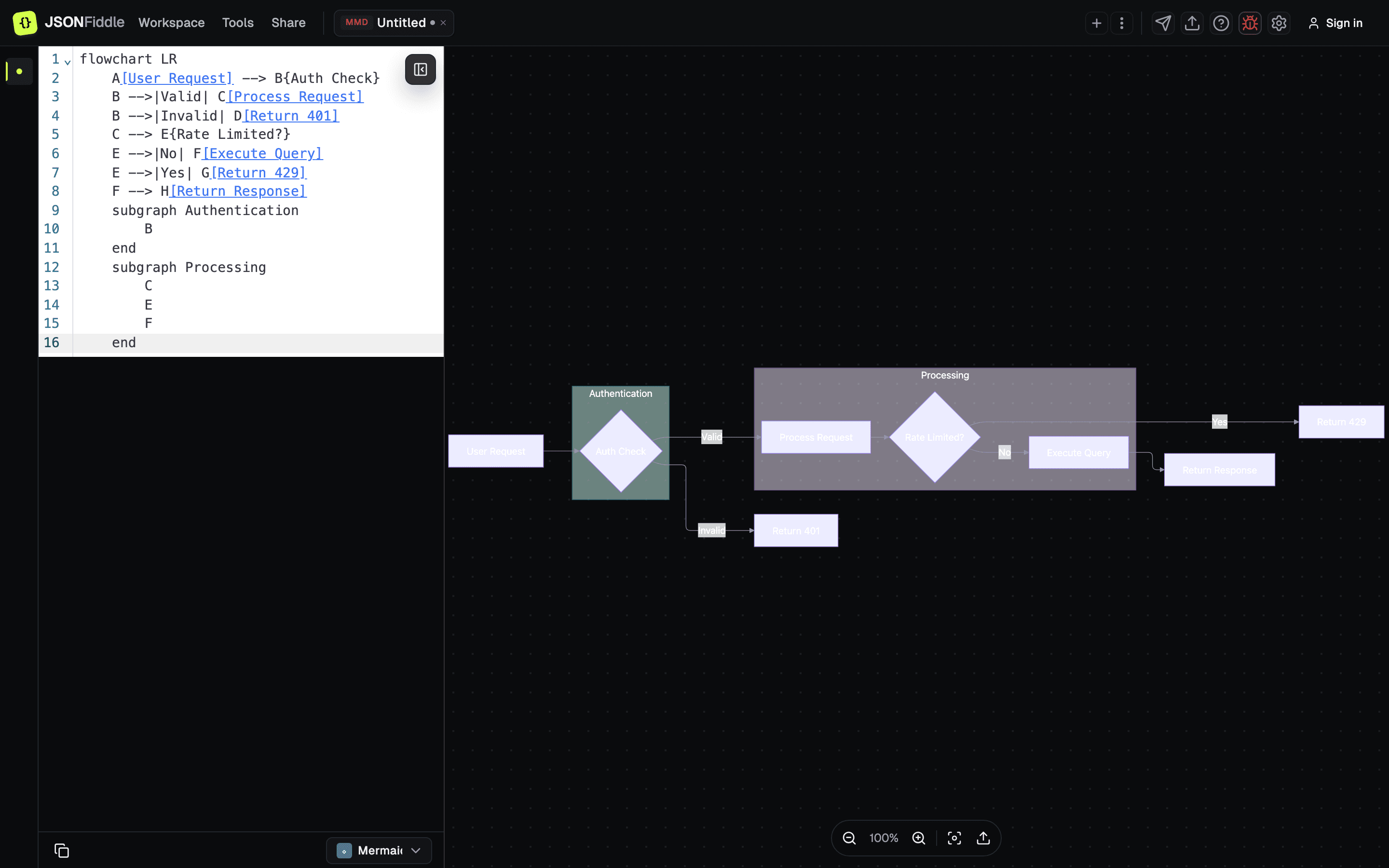 Screenshot: A Mermaid flowchart in dark mode with adapted colors.
Export Notes
Image exports capture the current visual state. If you need a light-themed image, switch to a light appearance before exporting. If you need a branded custom diagram export, update the JFDG diagram theme first.
Troubleshooting
"The theme resets after refresh"
Check whether your browser blocks local storage or whether you are using a private browsing session. Local preferences need browser storage.
"A diagram still looks like the previous theme"
Some diagram renderers need a re-render after a theme change. Switch views and back, or refresh the page if the diagram does not update.
"Chartreuse feels too subtle on a light background"
Try a different accent from Preferences, or use a darker app palette. Chartreuse remains available, but accents are intentionally adjustable because light-mode contrast preferences vary.
"My exported image has the wrong theme"
Exports use the theme currently visible on screen. Change the app or diagram theme first, then export again.
Related Guides
- Getting Started -- overview of the workbench header and Preferences.
- Graph View -- how graph nodes, edges, and canvas controls behave.
- Custom Diagrams -- JFDG diagram theme controls.
- Mermaid Diagrams -- Mermaid rendering and export notes.
- Export Options -- theme considerations when exporting files and images.