Keyboard Shortcuts
A complete reference of every keyboard shortcut in JSONFiddle, organized by view and task. Press ? anywhere in the app to open this reference as an in-app modal.
JSONFiddle uses platform-aware shortcuts: Cmd on macOS and Ctrl on Windows/Linux. All Alt-based shortcuts use physical key detection on macOS to avoid conflicts with special characters.
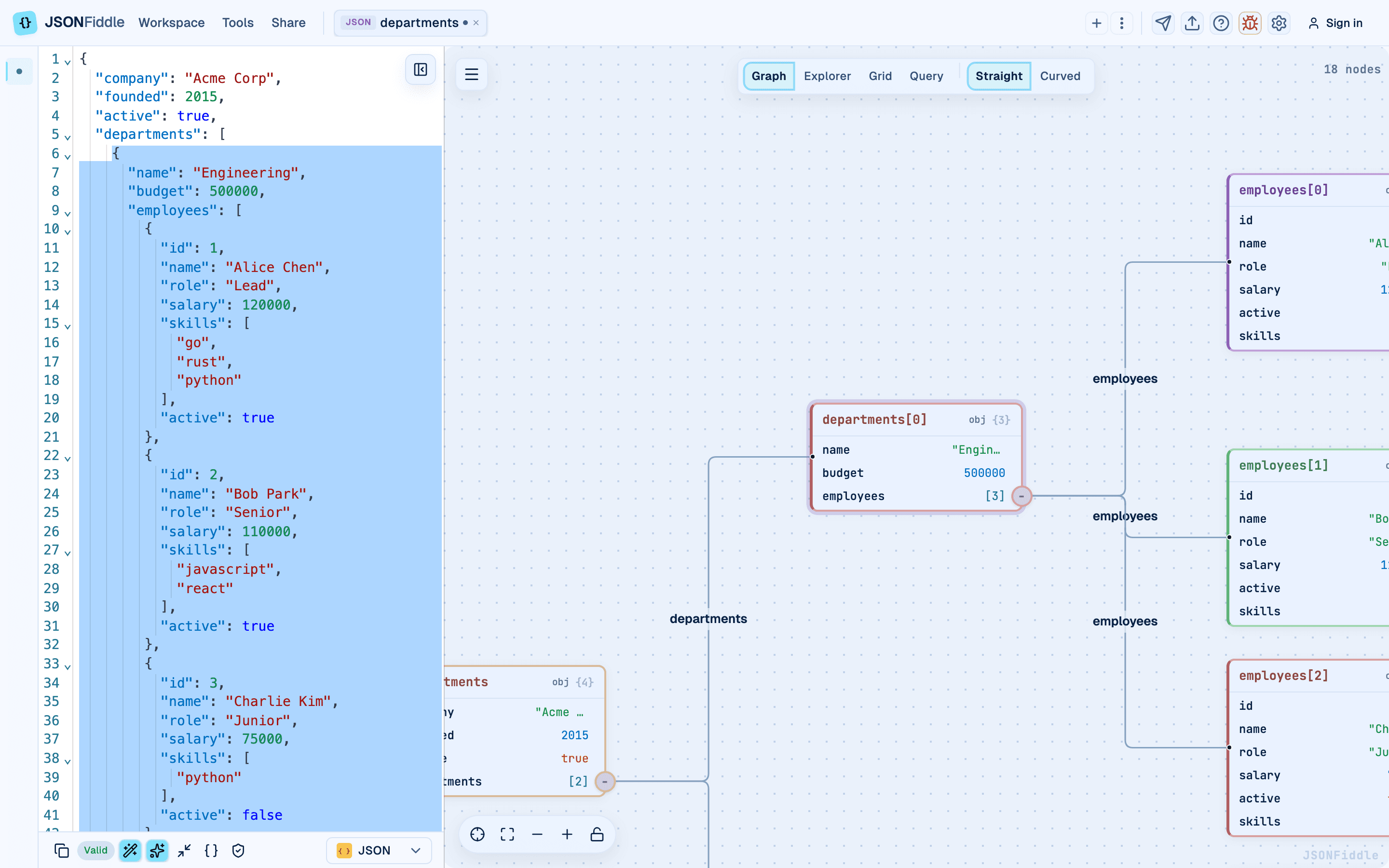 Screenshot: The keyboard shortcuts modal showing all available shortcuts.
Global Shortcuts
These shortcuts work from anywhere in the app, regardless of which view is active.
| Mac | Windows / Linux | Action | When to Use |
|---|---|---|---|
Cmd+S | Ctrl+S | Open the export modal | Save your work as a file or export a diagram image. |
Alt+N | Alt+N | Create a new tab | Start a new document without closing the current one. |
Alt+W | Alt+W | Close the current tab | Done with a document and want to free up a tab slot. |
Alt+1 | Alt+1 | Switch to Graph view | See the visual node graph. |
Alt+2 | Alt+2 | Switch to Explorer view | Browse data as a tree or column layout. |
Alt+3 | Alt+3 | Switch to Grid view | See tabular data as a sortable spreadsheet. |
Alt+4 | Alt+4 | Switch to Query view | Write a query expression to extract or transform data. |
? | ? | Open the shortcuts modal | Quick reference when you forget a shortcut. Only triggers when not focused in a text input. |
Tip: The
?shortcut only triggers when you are not typing in a text input, the code editor, or a modal. Click outside the input first.
Graph View Shortcuts
Active when the Graph view is displayed in the right panel.
| Mac | Windows / Linux | Action | When to Use |
|---|---|---|---|
Cmd+F | Ctrl+F | Open the node search panel | Find a specific key or value in a large graph. |
Cmd+Shift+D | Ctrl+Shift+D | Rotate layout direction (LR -> TB -> RL -> BT) | Change the graph orientation. |
Cmd+Shift+S | Ctrl+Shift+S | Toggle scroll-to-zoom on/off | When scroll-to-zoom conflicts with page scrolling. |
Alt+C | Alt+C | Collapse all nodes | See only the top-level structure. |
Alt+X | Alt+X | Expand all nodes | Reveal the full graph after collapsing. |
Alt+E | Alt+E | Toggle edge labels | Show or hide the key names on edges. |
Alt+A | Alt+A | Start step-through animation | Walk through the graph one node at a time. |
Alt+L | Alt+L | Lock/unlock canvas positions | Prevent accidental movement after arranging nodes manually. |
Shift+1 | Shift+1 | Center view on the first node | Snap back to the root after panning away. |
Shift+2 | Shift+2 | Fit all nodes to the viewport | See the entire graph at once. |
Explorer View Shortcuts
Active when the Explorer view (Tree or Column layout) is displayed.
| Mac | Windows / Linux | Action | When to Use |
|---|---|---|---|
Cmd+F | Ctrl+F | Open the search bar | Find a key or value in the tree. |
Up / Down | Up / Down | Navigate between rows | Browse the tree. |
Left / Right | Left / Right | Collapse/expand the selected node, or navigate columns | Drill into or back out of a nested object. |
Alt+Left | Alt+Left | Go back in navigation history | Return to a previous location. |
Alt+Right | Alt+Right | Go forward in navigation history | Go forward after going back. |
Home | Home | Jump to the first row | Return to the top of the tree quickly. |
End | End | Jump to the last row | Jump to the bottom of the tree. |
Grid View Shortcuts
Active when the Grid view is displayed.
| Mac | Windows / Linux | Action | When to Use |
|---|---|---|---|
Cmd+F | Ctrl+F | Open/close the search and filter panel | Search or apply filters. |
Esc | Esc | Close the search/filter panel | Return to the full grid view. |
Tip: Grid view also responds to mouse interactions for sorting (click column headers), editing (double-click cells), and context menus (right-click rows). See the Grid View Guide for details.
Query View Shortcuts
Active when the Query view is displayed.
| Mac | Windows / Linux | Action | When to Use |
|---|---|---|---|
Cmd+Enter | Ctrl+Enter | Run the current query | Execute a modified query expression. |
Tab | Tab | Accept the suggested query completion | Accept an autocomplete suggestion. |
Ctrl+Space | Ctrl+Space | Open the autocomplete suggestion widget | See available completions. |
Esc | Esc | Close the suggestion widget | Dismiss autocomplete. |
Animation Control Shortcuts
Active while a step-through animation is running in the Graph view. Start with Alt+A.
| Shortcut | Action | When to Use |
|---|---|---|
Space | Pause or resume the animation | Freeze on a specific node to examine it. |
Right Arrow | Step forward one node (when paused) | Advance to the next node manually. |
Esc | Stop the animation | Return to normal graph interaction. |
Note: Animation controls override normal keyboard behavior. Pressing Space while animating pauses instead of scrolling the page.
Diagram View Shortcuts
Active when viewing a JFDG diagram.
| Mac | Windows / Linux | Action | When to Use |
|---|---|---|---|
Shift+1 | Shift+1 | Center the view on the first node | Snap back to the starting position. |
Shift+2 | Shift+2 | Fit all nodes to the viewport | See the entire diagram at once. |
Shortcuts by Task
"I want to navigate between views"
| Task | Shortcut |
|---|---|
| Go to Graph view | Alt+1 |
| Go to Explorer view | Alt+2 |
| Go to Grid view | Alt+3 |
| Go to Query view | Alt+4 |
"I want to search for something"
| Task | Shortcut | View |
|---|---|---|
| Search nodes in the graph | Cmd+F | Graph |
| Search the explorer tree | Cmd+F | Explorer |
| Search/filter grid rows | Cmd+F | Grid |
"I want to manage tabs"
| Task | Shortcut |
|---|---|
| Create a new tab | Alt+N |
| Close the current tab | Alt+W |
| Save / Export | Cmd+S |
"I want to work with the graph"
| Task | Shortcut |
|---|---|
| Collapse all branches | Alt+C |
| Expand all branches | Alt+X |
| Rotate layout direction | Cmd+Shift+D |
| Toggle edge labels | Alt+E |
| Start animation | Alt+A |
| Lock/unlock canvas | Alt+L |
| Center on first node | Shift+1 |
| Fit all nodes to view | Shift+2 |
| Toggle scroll-to-zoom | Cmd+Shift+S |
"I want to run a query"
| Task | Shortcut |
|---|---|
| Run the query | Cmd+Enter |
| Accept autocomplete | Tab |
| Open autocomplete | Ctrl+Space |
| Dismiss autocomplete | Esc |
Power User Combos
Combo 1: Quick Query from Graph
- Press
Alt+1to switch to Graph view. - Right-click the node you want to query.
- Click Copy as JSONPath.
- Press
Alt+4to switch to Query view. - Paste (
Cmd+V) the path into the query input. - Press
Cmd+Enterto run.
Combo 2: Collapse, Animate, Present
- Press
Alt+Cto collapse all nodes (clean starting point). - Press
Alt+Ato start the animation. - Press
Spaceto pause on a key node. - Press
Right Arrowto step through manually. - Press
Escwhen done.
Combo 3: Quick Format Check
- Press
Alt+Nto create a new tab. - Paste JSON from your clipboard.
- Check the "Valid" badge in the bottom bar.
- Press
Alt+Wto close the tab when done.
Combo 4: Multi-Tab Comparison
- Press
Alt+Nto create tabs for each JSON document you want to compare. - Paste different JSON into each tab.
- Click between tabs to visually compare the graphs.
- Press
Alt+4in each tab to run the same query and compare results.
macOS Compatibility: Physical Key Detection
On macOS, pressing Alt (Option) together with a letter key produces special Unicode characters. JSONFiddle solves this by using physical key detection (e.code instead of e.key).
- The shortcut fires based on the physical position of the key you press, not the character it produces.
- No keyboard settings changes required.
- Applies to all
Alt+lettershortcuts (Alt+N,Alt+W,Alt+C,Alt+X,Alt+E,Alt+A,Alt+L,Alt+1throughAlt+4).
Standard key detection:
  Alt + C key pressed -> e.key = "c" (special char) -> shortcut fails

JSONFiddle's physical key detection:
  Alt + C key pressed -> e.code = "KeyC" (physical key) -> shortcut works
Note: If you use a non-QWERTY keyboard layout (Dvorak, Colemak, AZERTY), the shortcut fires based on the physical key position, not the labeled key.
Browser Shortcut Conflicts
| Shortcut | Browser Behavior | Workaround |
|---|---|---|
Cmd+S | Some browsers show a "Save page" dialog | JSONFiddle intercepts this and opens the export modal instead. |
Ctrl+Space | macOS Spotlight (if configured) | Remap Spotlight in System Settings, or click the autocomplete button instead. |
Customizing Shortcuts
JSONFiddle does not currently support custom key bindings. All shortcuts are fixed as documented above.
Troubleshooting
"Pressing ? does not open the modal"
Make sure your cursor is not inside a text input, the code editor, or a modal. Click on the page background first.
"Alt shortcuts produce special characters instead of triggering actions"
This should not happen because JSONFiddle uses physical key detection. If it does:
- Make sure you are pressing the keys simultaneously.
- Try refreshing the page.
- Check if a browser extension is intercepting the key event.
"Cmd+F opens the browser's Find bar instead of the view search"
Click anywhere on the right panel first, then press Cmd+F.
FAQ
Q: Can I customize the keyboard shortcuts? A: Not currently.
Q: Do shortcuts work on mobile devices? A: Shortcuts require a physical keyboard. On tablets with a Bluetooth keyboard, most shortcuts work normally.
Q: Why do some shortcuts use Alt and others use Cmd?
A: Cmd-based shortcuts follow standard conventions (e.g., Cmd+S for save, Cmd+F for find). Alt-based shortcuts are JSONFiddle-specific actions.
Related Guides
- Getting Started -- overview of the editor layout and views.
- Graph View -- details on every graph interaction these shortcuts control.
- Explorer View -- tree and column navigation with keyboard.
- Grid View -- grid search and filter shortcuts.
- Query & Transform -- query execution shortcuts.