Query and Transform JSON
The Query view is JSONFiddle's data extraction and transformation engine. Write expressions to pull specific values from your JSON, reshape the data, compute aggregations, and apply the result back to your source document.
Switch to the Query view by clicking "Query" in the view selector or pressing Alt+4.
Prerequisites
- Valid JSON, YAML, XML, or CSV content in the editor (the Query view is disabled for Mermaid and JFDG formats).
- Basic familiarity with path expressions. If you have used XPath, CSS selectors, or SQL, the concepts are similar.
Three Query Languages
Use the segmented control at the top of the Query tab to switch between them.
| Language | Best For | Syntax Style | Example |
|---|---|---|---|
| JSONPath | Simple path extraction, familiar to XPath users | $.path.to.value | $.store.book[*].title |
| JQ | Complex filtering, piping, chaining transforms | .path | filter | transform | .store.book[] | select(.price < 10) |
| JSONata | Declarative mapping, aggregation, functional transforms | path.subpath | $sum(Account.Order.Product.Price) |
Tip: Start with JSONPath for simple extractions, JQ for filtering and piping, and JSONata for aggregations and restructuring.
Which Language for Which Task?
| Task | JSONPath | JQ | JSONata | Recommendation |
|---|---|---|---|---|
| Get a value by path | Yes | Yes | Yes | Any. |
| Filter by condition | Limited | Best | Good | JQ for complex filters. |
| Count items | No | Yes | Best | JSONata has native $count(). |
| Sum / Average / Min / Max | No | Yes | Best | JSONata has native aggregation functions. |
| Reshape / restructure | No | Best | Good | JQ for piped transformations. |
| String manipulation | No | Yes | Yes | Both JQ and JSONata support string ops. |
| Recursive descent (search all levels) | Best | Yes | Yes | JSONPath's .. operator is simplest. |
| Extract unique values | No | Yes | Yes | JQ's unique or JSONata's $distinct(). |
Running a Query
- Switch to the Query tab (Alt+4).
- Select your query language (JSONPath, JQ, or JSONata).
- Type your expression in the query input field.
- Press Cmd+Enter (Mac) or Ctrl+Enter (Windows/Linux), or click the play button.
- The result appears below the query bar as formatted JSON.
Tip: Press Tab to accept an autocomplete suggestion, or Ctrl+Space to open the autocomplete widget.
Smart Placeholder Queries
When you place your cursor on a specific value in the code editor, JSONFiddle automatically generates a query expression targeting that value. The placeholder text in the query input updates in real time as you move your cursor.
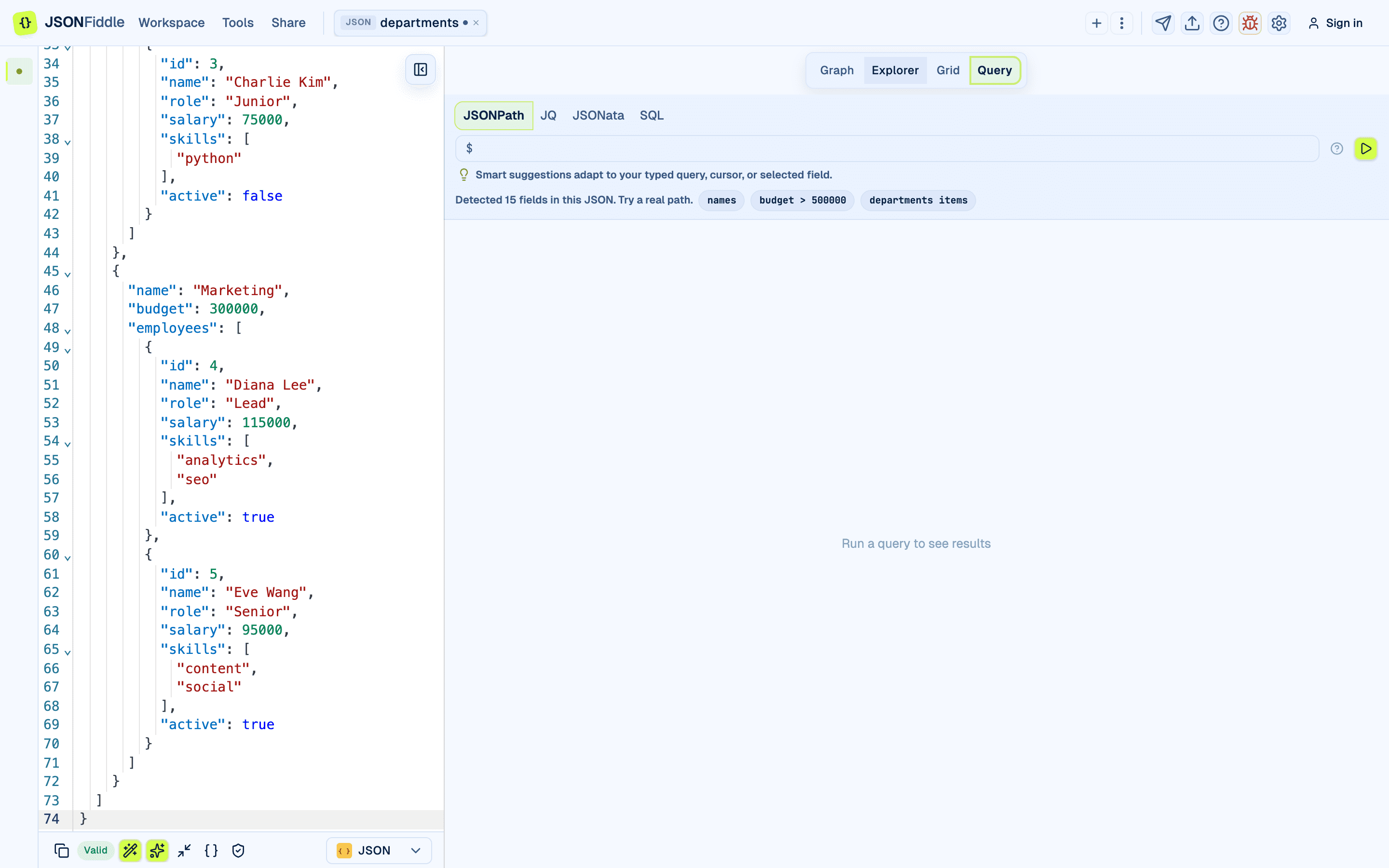 Screenshot: The Query tab showing a smart placeholder expression based on cursor position.
- Click on any value in the code editor.
- Switch to the Query tab.
- The query input's placeholder shows the path to the value at your cursor.
- Click the placeholder (or press Enter with an empty input) to use it.
Data-Aware Help
The helper text and example chips are generated from the current document and selected query language. JSONFiddle looks at the fields, arrays, primitive values, and cursor path in your content, then offers examples that fit the data you actually pasted.
For example:
- JSONPath examples start from
$and target real paths in the current JSON. - JQ examples use dot paths and pipes that match current arrays or objects.
- JSONata examples use field paths and aggregation functions for detected arrays and numbers.
- SQL examples are available from the SQL on JSON tool when your data is more table-like.
If a pasted document is very small or irregular, the suggestions stay conservative so they do not invent fields that are not present.
Transform Suggestion Chips
Below the query bar, JSONFiddle displays type-aware suggestion chips -- small buttons suggesting common operations based on the data type of the current result or cursor path.
Array Suggestions
| Chip | What it Does |
|---|---|
| Length | Counts the number of elements. |
| First | Extracts the first element. |
| Last | Extracts the last element. |
| Sort | Sorts the array. |
| Flatten | Flattens nested arrays. |
| Unique | Removes duplicate values. |
| Reverse | Reverses the order of elements. |
String Suggestions
| Chip | What it Does |
|---|---|
| Length | Returns the string's character count. |
| Uppercase | Converts to uppercase. |
| Lowercase | Converts to lowercase. |
| Split | Splits the string into an array by a delimiter. |
Number Suggestions
| Chip | What it Does |
|---|---|
| Sum | Sums all values. |
| Average | Calculates the mean. |
| Min / Max | Finds the smallest or largest value. |
Screenshot: The Query tab showing type-aware suggestion chips below the query bar.
Click any chip to populate the query input and run it automatically.
The Transform Workflow
Write -> Run -> Preview -> Apply -> (optionally) Revert.
Step 1: Write and Run
Type your expression and press Cmd+Enter. The result panel shows the output.
Step 2: Preview the Result
Review the output. Modify the query and run again if needed.
Step 3: Apply
Click Apply to replace the source JSON in the editor with the query result.
Step 4: Revert
Click Revert to restore the previous content. JSONFiddle keeps one level of undo for applied transformations.
Original JSON --[Run Query]--> Result Preview --[Apply]--> Updated JSON
                                                              |
                                                        [Revert] --> Original JSON
Warning: Applying replaces the entire editor content. If you apply and then make more edits, Revert restores to the pre-apply state, not to the latest edits.
Copy As: Get Any Node's Path
In the Graph, Explorer, and Grid views, right-click any node, row, or cell to access the Copy As submenu.
| Copy As Option | Example Output |
|---|---|
| Copy as JSONPath | $.users[0].name |
| Copy as JQ | .users[0].name |
| Copy as JSONata | users[0].name |
| Copy as XPath | /users/0/name |
Paste the copied expression directly into the Query tab's input field.
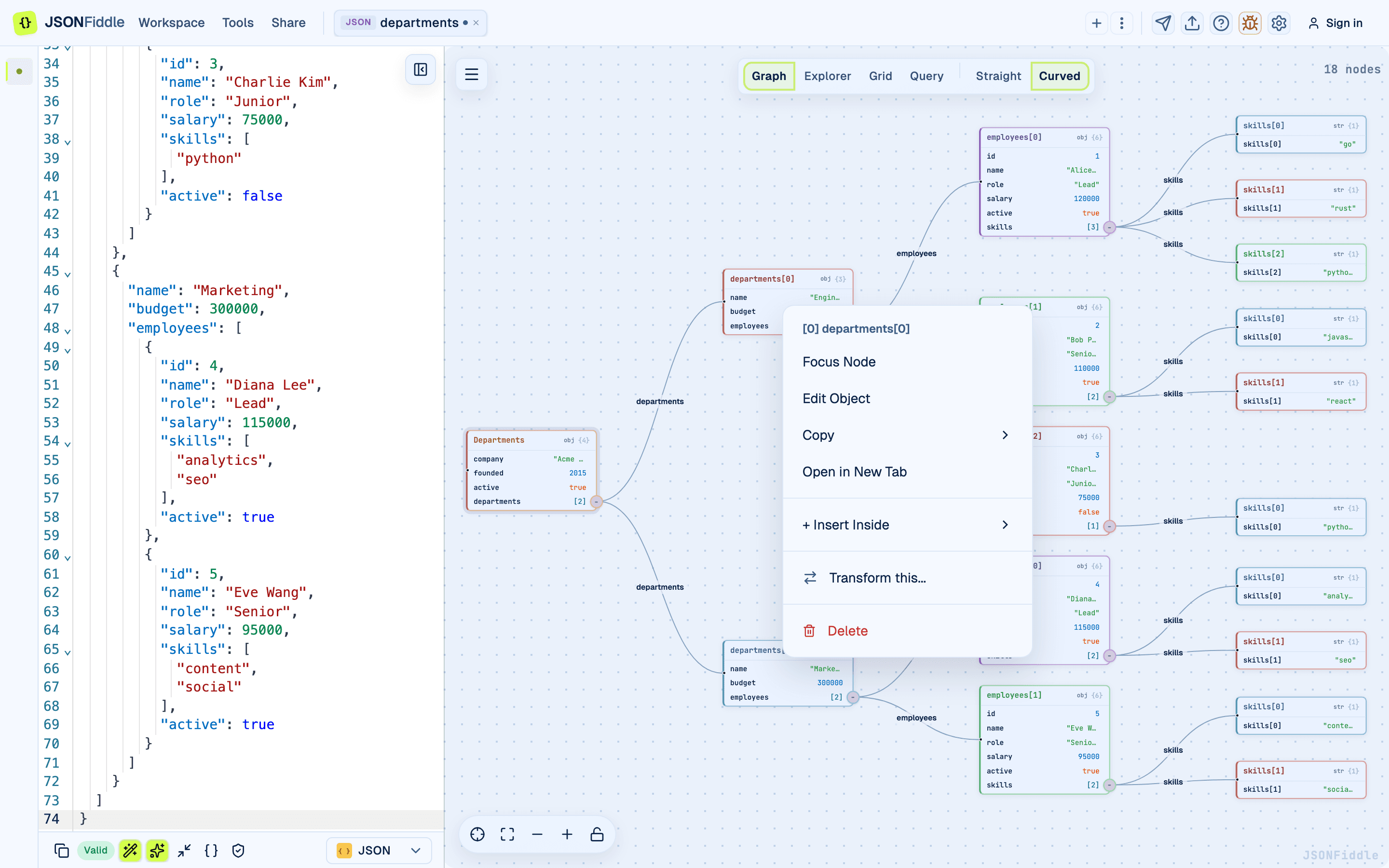 Screenshot: The Graph view context menu with Copy As options.
"Transform This..." Action
Right-click a node, row, or cell in any visual view, then click Transform this.... JSONFiddle switches to the Query tab with the path pre-filled.
JSONPath Reference (10+ Examples)
JSONPath uses a $.path.to.value syntax similar to XPath. The root is $.
Sample Data
All examples use this JSON:
{
  "store": {
    "name": "Book Haven",
    "books": [
      { "title": "The Great Gatsby", "author": "Fitzgerald", "price": 12.99, "genre": "fiction", "in_stock": true },
      { "title": "Clean Code", "author": "Martin", "price": 35.99, "genre": "technical", "in_stock": true },
      { "title": "1984", "author": "Orwell", "price": 9.99, "genre": "fiction", "in_stock": false },
      { "title": "Design Patterns", "author": "GoF", "price": 45.00, "genre": "technical", "in_stock": true },
      { "title": "The Hobbit", "author": "Tolkien", "price": 14.99, "genre": "fiction", "in_stock": true }
    ],
    "location": {
      "city": "Portland",
      "state": "OR",
      "zip": "97201"
    }
  }
}
Examples
| # | Expression | Result | Explanation |
|---|---|---|---|
| 1 | $.store.name | "Book Haven" | Get a single value by path. |
| 2 | $.store.books[0] | { "title": "The Great Gatsby", ... } | Get the first array element (0-indexed). |
| 3 | $.store.books[*].title | ["The Great Gatsby", "Clean Code", "1984", ...] | Get all titles from the array. |
| 4 | $.store.books[-1].title | "The Hobbit" | Get the last element using negative index. |
| 5 | $.store.books[0:2] | First two books | Array slice (start inclusive, end exclusive). |
| 6 | $.store.books[?(@.genre=="fiction")] | Three fiction books | Filter by condition. |
| 7 | $.store.books[?(@.price<15)] | Books under $15 | Numeric comparison filter. |
| 8 | $.store.books[?(@.in_stock==true)].title | Titles of in-stock books | Chained filter + extract. |
| 9 | $..author | All author values (recursive) | Recursive descent. |
| 10 | $..price | All price values | Recursive descent for prices. |
| 11 | $.store.books.length | 5 | Array length. |
| 12 | $.store.location.* | ["Portland", "OR", "97201"] | All values of an object. |
JQ Reference (10+ Examples)
JQ uses a piped filter syntax. The root is . (dot).
Examples (same sample data)
| # | Expression | Result | Explanation |
|---|---|---|---|
| 1 | .store.name | "Book Haven" | Get a single value. |
| 2 | .store.books[0] | First book object | Get by index. |
| 3 | .store.books[].title | All titles (streamed) | Iterate and extract. |
| 4 | [.store.books[].title] | ["The Great Gatsby", ...] | Wrap in array. |
| 5 | .store.books[] | select(.genre == "fiction") | Fiction books | Filter with select(). |
| 6 | .store.books[] | select(.price < 15) | .title | Titles of cheap books | Chained pipe. |
| 7 | .store.books | length | 5 | Array length. |
| 8 | [.store.books[].price] | add | 118.96 | Sum all prices. |
| 9 | [.store.books[].price] | add / length | 23.792 | Average price. |
| 10 | [.store.books[].price] | min | 9.99 | Minimum price. |
| 11 | .store.books | sort_by(.price) | Books sorted by price | Sort an array of objects. |
| 12 | .store.books | sort_by(.price) | reverse | Expensive first | Sort descending. |
| 13 | [.store.books[] | select(.in_stock) | {title, price}] | Array of {title, price} for in-stock | Reshape while filtering. |
| 14 | .store.books | group_by(.genre) | map({genre: .[0].genre, count: length}) | Count by genre | Group and aggregate. |
| 15 | [.store.books[].genre] | unique | ["fiction", "technical"] | Distinct values. |
JSONata Reference (10+ Examples)
JSONata uses a declarative, XPath-like syntax with built-in functions.
Examples (same sample data)
| # | Expression | Result | Explanation |
|---|---|---|---|
| 1 | store.name | "Book Haven" | Get a single value (no $ prefix needed). |
| 2 | store.books[0] | First book | Get by index. |
| 3 | store.books.title | ["The Great Gatsby", ...] | Extract all titles. |
| 4 | store.books[genre = "fiction"] | Fiction books | Filter by condition. |
| 5 | store.books[price < 15].title | Titles of cheap books | Filter + extract. |
| 6 | $count(store.books) | 5 | Count items. |
| 7 | $sum(store.books.price) | 118.96 | Sum values. |
| 8 | $average(store.books.price) | 23.792 | Average value. |
| 9 | $min(store.books.price) | 9.99 | Minimum. |
| 10 | $max(store.books.price) | 45.00 | Maximum. |
| 11 | store.books^(price) | Books sorted by price ascending | Sort operator. |
| 12 | store.books^(>price) | Books sorted by price descending | Sort descending. |
| 13 | store.books{genre: $count($)} | {"fiction": 3, "technical": 2} | Group and count. |
| 14 | $distinct(store.books.genre) | ["fiction", "technical"] | Unique values. |
| 15 | { "total": $sum(store.books.price), "avg": $average(store.books.price), "count": $count(store.books) } | Summary object | Build a new structure. |
Cookbook: 15+ Real-World Recipes
Recipe 1: Extract All Emails from a Nested API Response
Input:
{
  "data": {
    "departments": [
      { "name": "Sales", "members": [
        { "name": "Alice", "email": "alice@acme.com" },
        { "name": "Bob", "email": "bob@acme.com" }
      ]},
      { "name": "Engineering", "members": [
        { "name": "Charlie", "email": "charlie@acme.com" }
      ]}
    ]
  }
}
| Language | Expression |
|---|---|
| JSONPath | $..email |
| JQ | [.. | .email? // empty] |
| JSONata | data.departments.members.email |
Output: ["alice@acme.com", "bob@acme.com", "charlie@acme.com"]
Recipe 2: Filter Users by Role
| Language | Expression |
|---|---|
| JSONPath | $.users[?(@.role=="admin")] |
| JQ | [.users[] | select(.role == "admin")] |
| JSONata | users[role = "admin"] |
Recipe 3: Rename All Keys (JQ)
Transform { "first_name": "Alice" } to { "firstName": "Alice" }:
.users[] | { firstName: .first_name, lastName: .last_name, emailAddress: .email }
Recipe 4: Flatten a Nested Structure (JSONata)
data.departments.{
  "department": name,
  "members": members.name
}
Recipe 5: Count Items by Category
| Language | Expression |
|---|---|
| JQ | group_by(.category) | map({category: .[0].category, count: length}) |
| JSONata | $each($reduce(products, function($acc, $item) { $merge([$acc, {($item.category): ($lookup($acc, $item.category) + 1)}]) }, {}), function($v, $k) { {"category": $k, "count": $v} }) |
Recipe 6: Calculate Statistics (Sum, Average, Min, Max)
| Statistic | JQ | JSONata |
|---|---|---|
| Sum | [.items[].price] | add | $sum(items.price) |
| Average | [.items[].price] | add / length | $average(items.price) |
| Min | [.items[].price] | min | $min(items.price) |
| Max | [.items[].price] | max | $max(items.price) |
Recipe 7: Merge Two Arrays (JQ)
.array1 + .array2 | unique_by(.id)
Recipe 8: Remove Null Values (JQ)
walk(if type == "object" then with_entries(select(.value != null)) else . end)
Recipe 9: Transform API Response to a Different Shape
Input:
{ "data": { "users": [{ "id": 1, "attributes": { "name": "Alice", "email": "alice@example.com" }}]}}
JQ:
[.data.users[] | { id, name: .attributes.name, email: .attributes.email }]
JSONata:
data.users.{ "id": id, "name": attributes.name, "email": attributes.email }
Recipe 10: Extract Unique Values
| Language | Expression |
|---|---|
| JQ | [.items[].category] | unique |
| JSONata | $distinct(items.category) |
Recipe 11: Conditional Value Mapping (JSONata)
Add a "tier" field based on price:
products.(
  $ ~> | $ | { "tier": price > 100 ? "premium" : price > 50 ? "standard" : "budget" } |
)
Recipe 12: Nested Object to Flat Key-Value Pairs (JQ)
[to_entries[] | { key, value: (.value | tostring) }]
Recipe 13: Date Filtering (JQ)
Filter items created after a specific date:
[.events[] | select(.created_at > "2024-01-01")]
Recipe 14: Pivot a Table (JSONata)
{
  "months": $distinct(sales.month),
  "data": $distinct(sales.product).(
    $product := $;
    { "product": $product, "values": $$.sales[product = $product].amount }
  )
}
Recipe 15: Extract All Leaf Values (JQ)
[.. | scalars]
Debugging Queries
Common Errors and Fixes
| Error | Cause | Fix |
|---|---|---|
| "No match" | The path does not exist | Check for typos; use Copy As to get the correct path. |
| "Unexpected token" | Syntax error in the expression | Check parentheses, brackets, and quotes. |
| "Cannot iterate over null" | Intermediate path resolves to null | Add a null check: .field? // empty (JQ). |
Empty result [] | Filter matches nothing | Loosen the filter condition or check the field name. |
Debugging Strategies
- Start simple. Begin with the root path (
.in JQ,$in JSONPath) and add one path segment at a time. - Use Copy As. Right-click a node in the Graph view and copy its path -- this guarantees accuracy.
- Check the type. If you expect an array but get an object, add
[]to iterate. - Inspect the placeholder. The smart placeholder shows what JSONFiddle thinks the path is at your cursor.
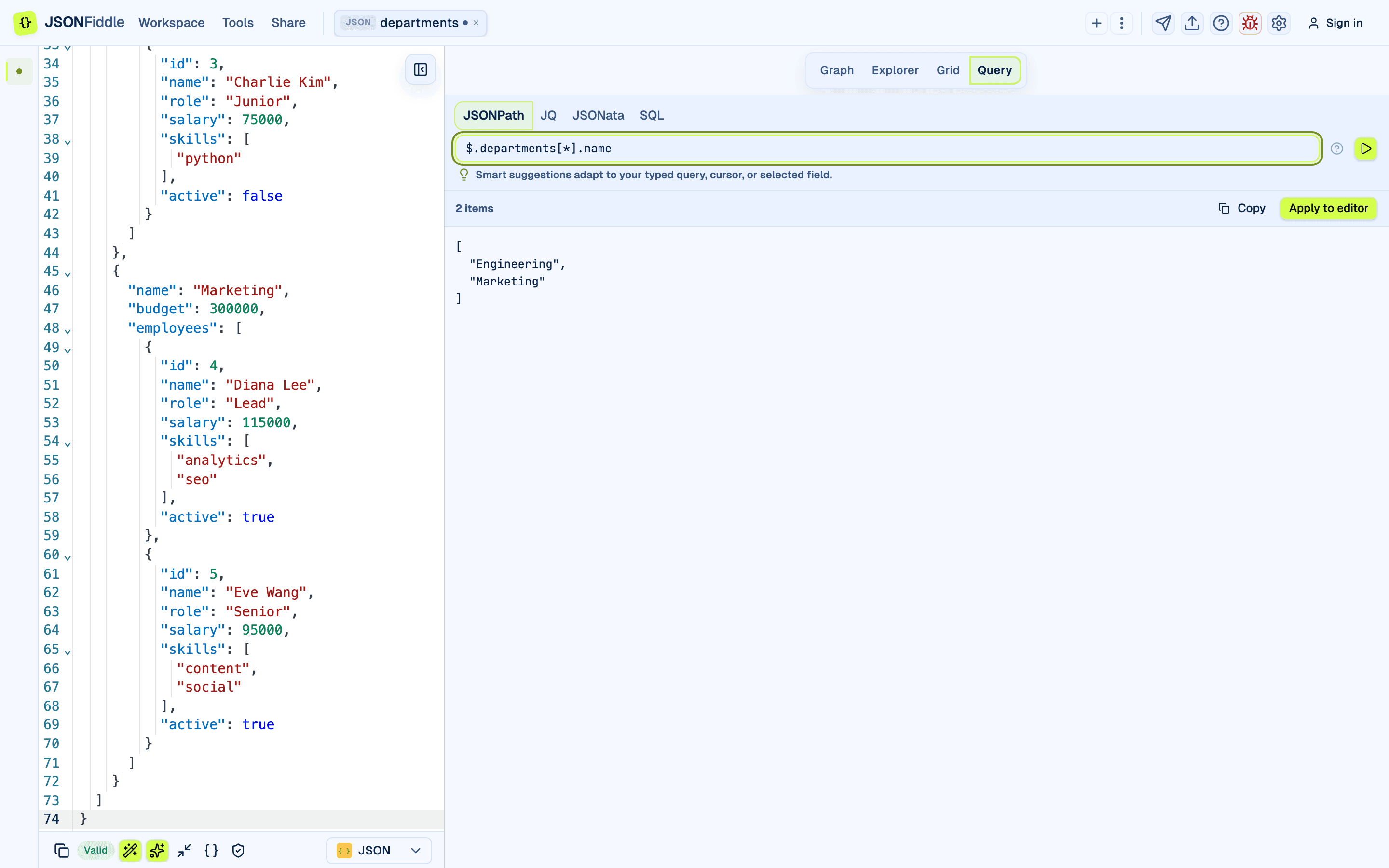 Screenshot: The Query tab showing a JSONPath result in the output panel.
Troubleshooting
"The Query tab is disabled"
The Query view is not available for Mermaid or JFDG formats. Switch to JSON, YAML, XML, or CSV.
"My query runs but returns nothing"
Check if the path exists in your data. Use the Graph or Explorer view to verify. JSONPath returns undefined if the path is invalid; JQ returns nothing; JSONata returns undefined.
"The Apply button does nothing"
Run the query first (Cmd+Enter), then click Apply.
"I applied a transformation and lost my original data"
Click Revert to restore the pre-apply content. If you have already made additional edits after applying, those post-apply edits are lost.
FAQ
Q: Can I use regular expressions in queries?
A: JQ supports regex with test() and capture(). JSONata supports $match(). JSONPath has limited regex support with the =~ operator.
Q: Can I query YAML or XML data? A: Yes. JSONFiddle reads YAML and XML as structured data first, so queries run against the same shape you see in the visual views.
Q: How large can the data be before queries get slow? A: JSONPath and JQ handle millions of rows efficiently. JSONata can be slower on very large datasets.
Q: Can I chain multiple queries?
A: In JQ, yes -- use pipes (|). In JSONata, yes -- use nested expressions. In JSONPath, no.
Related Guides
- Getting Started -- overview of the editor and all four views.
- Keyboard Shortcuts -- Query tab shortcuts (
Cmd+Enter,Tab,Ctrl+Space). - Graph View -- Copy As and Transform this... from the graph context menu.
- Grid View -- Copy As and Transform this... from grid rows.
- Explorer View -- Copy As and Transform this... from the explorer context menu.