Graph View
The Graph view renders your JSON as a directed graph powered by React Flow. Every structural element becomes a visual node on an infinite canvas that you can pan, zoom, search, collapse, animate, and interact with.
Switch to Graph view by clicking "Graph" in the view selector or pressing Alt+1.
Prerequisites
- Valid JSON, YAML, XML, or CSV content in the editor.
- The Graph view is the default view for data formats. For Mermaid and JFDG, a dedicated Diagram view is used instead.
Understanding the Graph: The Mental Model
- Every object becomes a card (node) on the canvas.
- Every property with a primitive value (string, number, boolean, null) appears as a row inside its parent node.
- Every nested object or array becomes a separate node connected to its parent by an edge.
- The root of your JSON (whether
{}or[]) is the leftmost node.
JSON Structure:           Graph Representation:
{                         ┌─────────────┐
  "name": "Alice",   →   │ $ (root)     │
  "address": {            │ name: Alice  │──edge──→ ┌─────────────┐
    "city": "Seattle"     └──────────────┘          │ address      │
  }                                                 │ city: Seattle│
}                                                   └──────────────┘
Node Types
Object Nodes
Each JSON object becomes a card with:
- A header showing the key name (e.g.,
user,address,[0]). - Rows for each primitive property.
Nested objects and arrays do not appear as rows -- they become separate connected nodes.
Array Nodes
Arrays display numbered children ([0], [1], [2]...). Each array element that is an object or array becomes its own connected node. Primitive array elements display inline.
Root Node
The root of your JSON appears as the leftmost node, labeled $ or with the structure type.
Edges
Edges connect parent nodes to their children, representing containment.
Edge Styles
Switch between two edge styles using the segmented control next to the view selector when Graph is active:
| Style | Description | Best For |
|---|---|---|
| Straight | Direct lines between nodes | Clean, minimal look; small graphs |
| Curved | Smooth bezier curves | Large graphs where straight lines overlap |
Edge Labels
Press Alt+E to toggle edge labels on or off. When enabled, labels show the key or index connecting parent to child.
Bidirectional Edge Animation
Edges can display animated flow indicators showing the parent-child direction. Pulses travel along the edges as a visual cue for the data flow direction.
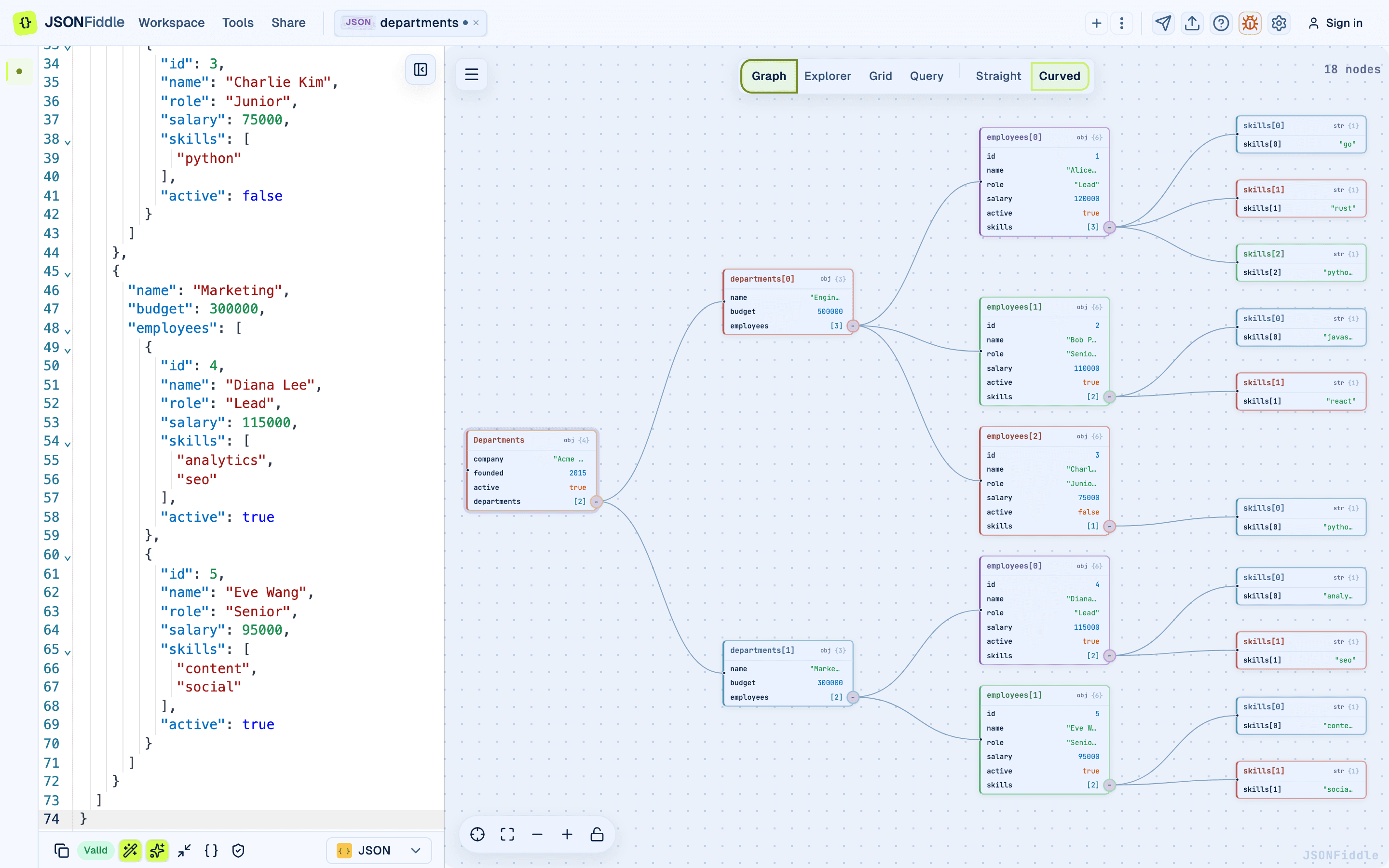 Screenshot: Graph edges with labels showing the connection direction.
Navigation
Pan and Zoom
| Action | How |
|---|---|
| Pan | Click and drag the canvas background. |
| Zoom in | Scroll the mouse wheel up, or use the + button in the bottom-left controls. |
| Zoom out | Scroll the mouse wheel down, or use the - button in the bottom-left controls. |
| Toggle scroll-to-zoom | Press Cmd+Shift+S (Mac) or Ctrl+Shift+S (Windows/Linux). |
| Center on first node | Press Shift+1. |
| Fit all nodes to viewport | Press Shift+2. |
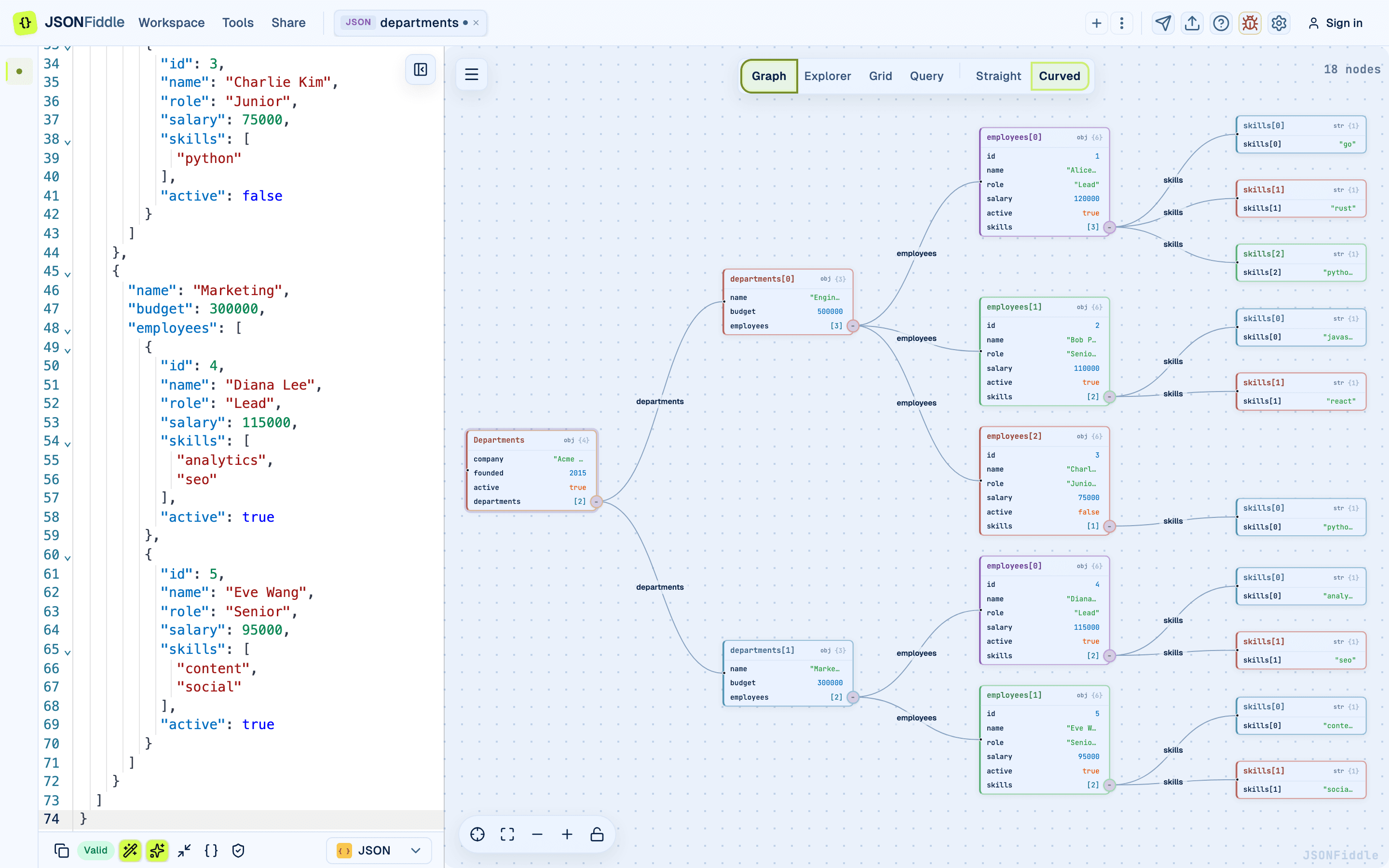 Screenshot: The Graph view canvas showing multiple nodes and edges.
Control Bar (Bottom-Left)
| Button | Icon | Action |
|---|---|---|
| Zoom in | + | Increases zoom level. |
| Zoom out | - | Decreases zoom level. |
| Fit view | Expand icon | Fits all nodes into the viewport. |
| Lock | Lock icon | Locks/unlocks node positions. |
Search
Press Cmd+F (Mac) or Ctrl+F (Windows/Linux) to open the search panel.
- Type a search term. It matches against node keys and values.
- Matching nodes are highlighted with a glow effect.
- The view pans to the first match.
- Use the arrow buttons in the search panel to step through results.
- The panel shows "X of Y matches" as you navigate.
Collapse and Expand
Collapse Individual Branches
Click the collapse handle on a node to hide its child subtree. Click again to expand.
Collapse All
Press Alt+C to collapse every branch. Only the root and top-level nodes remain visible.
Expand All
Press Alt+X to expand all collapsed branches.
Tip: Collapse all first (
Alt+C), then expand individual branches to focus on the parts of the graph you care about.
Layout Direction
Press Cmd+Shift+D (Mac) or Ctrl+Shift+D (Windows/Linux) to rotate through four layout directions:
| Direction | Root Position | Flow |
|---|---|---|
| LR (Left to Right) | Left edge | Children flow right. Default. |
| TB (Top to Bottom) | Top edge | Children flow down. |
| RL (Right to Left) | Right edge | Children flow left. |
| BT (Bottom to Top) | Bottom edge | Children flow up. |
The layout is computed using the ELK (Eclipse Layout Kernel) engine, which produces clean, overlap-free arrangements.
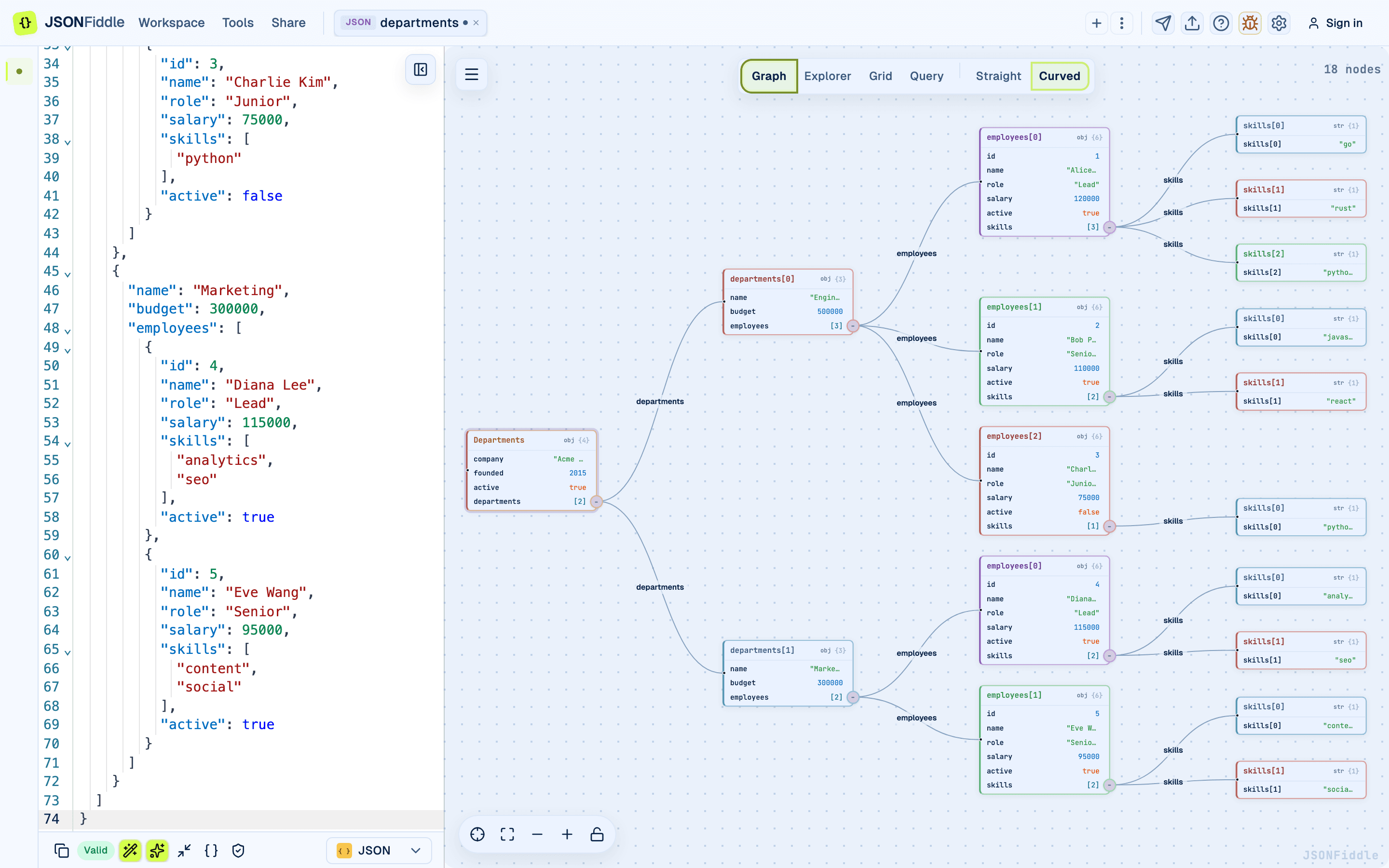 Screenshot: The Graph view in left-to-right layout with nodes flowing right from the root.
Lock Canvas
Press Alt+L to lock the canvas. When locked, nodes cannot be dragged to new positions. Press Alt+L again to unlock.
Animation
The Graph view includes a step-through animation that reveals nodes one at a time, panning the camera to each node as it appears.
Starting an Animation
Press Alt+A to start.
Animation Controls
An animation control bar appears at the bottom of the graph during playback:
| Control | Action |
|---|---|
| Space | Pause or resume the animation. |
| Right Arrow | Step forward one node (when paused). |
| Esc | Stop the animation and return to normal view. |
| Speed slider | Adjust speed from 0.25x to 3.0x. Speed is saved per tab. |
The control bar shows the current step number and total steps (e.g., "5 / 23").
When to Use Animation
| Use Case | Why |
|---|---|
| Presentations | Walk through a JSON structure for an audience. |
| Understanding structure | See how deeply nested the data is, one node at a time. |
| Debugging | Step through to locate a specific subtree. |
| Documentation | Record the animation for tutorials or onboarding. |
Context Menu
Right-click any node to open the context menu.
Node-Level Actions
| Action | Description |
|---|---|
| Copy | Copies the JSON content of the selected node to your clipboard. |
| Copy As... | Opens a submenu to copy the path in a specific query language. |
| Transform this... | Switches to the Query tab with the path pre-filled. |
| Edit | Opens the Edit modal for the selected node. |
Copy As Submenu
| Option | Example Output |
|---|---|
| Copy as JSONPath | $["users"][0]["name"] |
| Copy as JQ | .users[0].name |
| Copy as JSONata | users[0].name |
| Copy as XPath | /users/0/name |
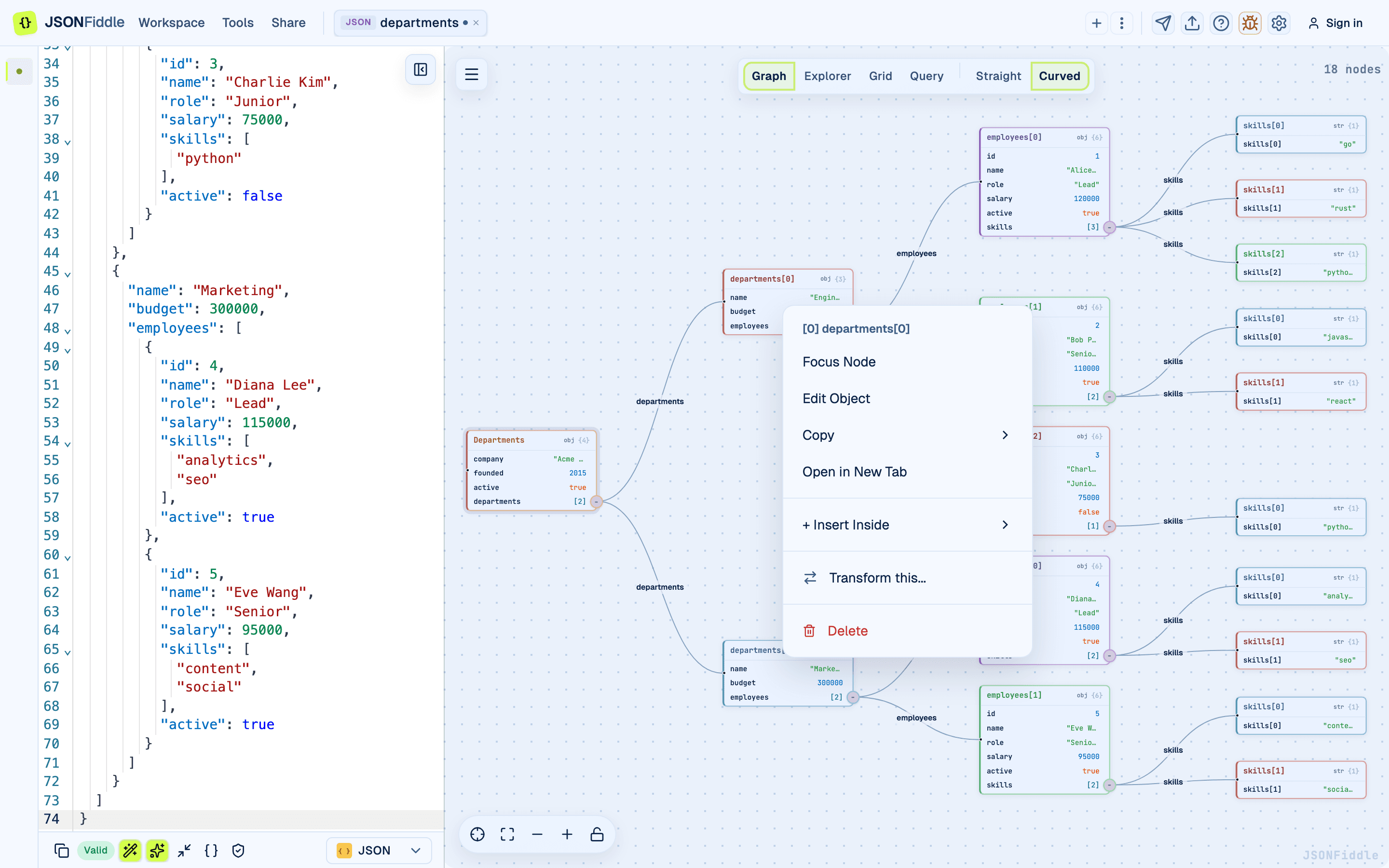 Screenshot: The Graph view node right-click context menu with Copy As submenu options.
Field-Level Context Menu
Right-clicking a specific field row within a node opens additional actions:
| Action | Description |
|---|---|
| Edit field | Opens the Edit Field modal to modify the value. |
| Delete field | Removes the field from the parent object. |
| Insert field | Adds a new field to the parent object. |
| Copy value | Copies just the value to your clipboard. |
Edit Modals
Edit Field Modal
When you edit a primitive field, the Edit Field modal opens with:
- Field name displayed at the top.
- Value input for editing.
- Type selector showing the current data type.
- Accordion sections showing the path in JSONPath, JQ, and JSONata syntax.
Edit Object Modal
When you edit a node containing an object or array, the Edit Object modal opens with:
- A full JSON editor for the object content.
- Accordion sections for JSONPath, JQ, JSONata, and Linked Objects.
See the Editing Data Guide for complete details.
Editor Synchronization
- Click a node in the graph -> The editor scrolls to the corresponding JSON block and highlights it.
- Move your cursor in the editor -> The corresponding node in the graph receives a highlight (when Auto Sync is enabled).
Screenshot: The Graph view with a node selected and the corresponding editor line highlighted.
Canvas Menu
The canvas menu button groups secondary graph actions near the canvas. Use it when you need graph-specific commands that are not part of the global workbench header.
| Menu Item | Icon | Shortcut | Description |
|---|---|---|---|
| Export | Upload | Cmd+S / Ctrl+S | Opens the export flow for the current graph. |
| Rotate layout | Rotate | Cmd+Shift+D | Cycles through LR, TB, RL, BT. |
| Search | Search | Cmd+F | Opens the search panel. |
| Collapse / Expand | Collapse | Alt+C / Alt+X | Collapses or expands visible branches. |
| Show / Hide Edge Labels | Eye | Alt+E | Shows or hides labels on edges. |
| Toggle scroll zoom | Zoom | Cmd+Shift+S | Enables/disables zoom on scroll. |
| Animate | Play | Alt+A | Starts the step-through animation. |
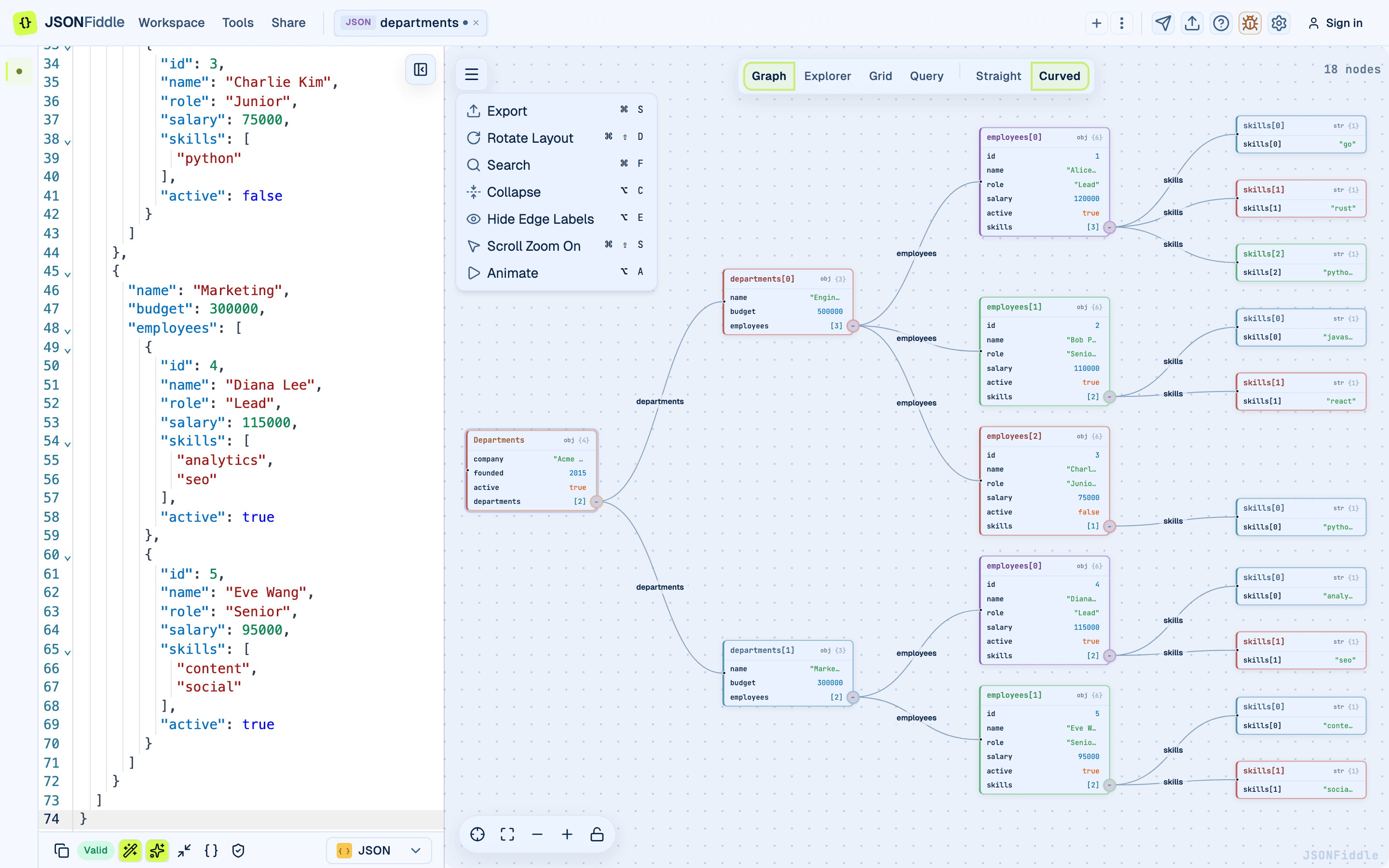 Screenshot: The Graph view canvas menu open with graph-specific actions visible.
Canvas Controls
The bottom-left canvas control bar handles positioning and navigation:
| Control | Shortcut | What it does |
|---|---|---|
| Center first item | Shift+1 | Recenters on the first visible node cluster. |
| Fit view | Shift+2 | Fits the visible graph into the canvas. |
| Zoom out / Zoom in | -- | Adjusts canvas zoom one step at a time. |
| Lock / Unlock canvas | Alt+L | Prevents or allows accidental pan/zoom movement. |
Performance Tips for Large JSON Documents
| Strategy | How |
|---|---|
| Collapse branches | Press Alt+C to collapse all, then expand only the branches you need. |
| Use Grid or Explorer | Switch to a view that does not render the entire structure at once. |
| Query first | Use the Query tab to extract a subset, apply it, then view the smaller result in the graph. |
| Disable Auto Sync | Turn off Auto Sync in the bottom bar to prevent re-rendering on every keystroke. |
| Disable edge labels | Press Alt+E to hide edge labels, reducing rendering overhead. |
| Use straight edges | Straight edges are cheaper to render than curved edges. |
Troubleshooting
"The graph looks empty after pasting"
Check the "Valid" badge in the bottom bar.
"Nodes overlap each other"
Press Shift+2 to fit all nodes. If they still overlap, try rotating the layout direction (Cmd+Shift+D).
"I dragged a node and now the layout is messy"
Press Shift+2 to re-fit the view. Or switch to a different view and back to reset the auto-layout.
"The animation is too fast (or too slow)"
During animation, use the speed slider in the control bar to adjust from 0.25x to 3.0x.
"The graph is slow with my large JSON"
See the Performance Tips section above. Consider extracting a subset with a query first.
FAQ
Q: Can I drag nodes to rearrange them?
A: Yes. Click and drag any node. Press Alt+L to lock positions after arranging.
Q: Can I export the graph as an image? A: Yes. Use the Export icon in the top bar, then choose Export diagram image. See Export Options.
Q: Why does the graph layout look different from what I expected? A: JSONFiddle uses the ELK layout engine, which optimizes for minimal edge crossings and even spacing. The visual layout does not change the data.
Q: Can I zoom with a trackpad?
A: Yes. Pinch to zoom. If this conflicts with browser zoom, toggle scroll-to-zoom off (Cmd+Shift+S).
Q: Do all four views show the same data? A: Yes. All views render the same parsed data. Edits in any view update the source JSON, and all other views refresh.
Related Guides
- Getting Started -- overview of the editor layout and all four views.
- Keyboard Shortcuts -- complete shortcut reference for the Graph view.
- Query & Transform -- use Copy As and Transform this... from the context menu.
- Editing Data -- details on the Edit Field and Edit Object modals.
- Explorer View -- alternative visual navigation for deep structures.
- Export Options -- exporting the graph as PNG, JPEG, or SVG.