Getting Started with JSONFiddle
JSONFiddle is a split-pane editor that combines a code editor on the left with visual data views on the right. Paste or type structured data into the editor, and the right panel renders it as an interactive graph, tree, spreadsheet, or query result.
No sign-up is required for local work. Your data stays in your browser until you explicitly use a cloud feature such as Save workspace or Create share snapshot.
Prerequisites
- A modern browser: Chrome, Firefox, Safari, or Edge (latest version recommended).
- JSON, YAML, XML, CSV, or Mermaid content to work with.
The Top Bar: Every Element Explained
The top bar is the primary navigation area. It spans the full width of the window and contains menus, tabs, and quick-action icons.
 Screenshot: The top bar with each element labeled.
Logo
The JSONFiddle logo sits at the far left. Click it to return to the homepage.
Workspace Menu
Use the Workspace menu when you want to manage a full session, add content, or move work between local and cloud storage.
Common workspace actions:
| Menu Item | Description |
|---|---|
| New workspace | Starts a clean workspace. |
| Open workspace | Opens a saved workspace for signed-in users. |
| Save workspace | Saves the current files, layout, queries, and preferences. |
| Save workspace as | Creates a named copy. |
| New tab | Creates a new empty tab and makes it active. |
| Add file/data source | Opens a file picker. Select a .json, .yaml, .yml, .xml, .csv, .mmd, or .jfdg file. JSONFiddle creates a new tab with the file content and auto-detects the format. |
| Export workspace package | Downloads a portable local backup. |
| Open saved diagrams (legacy) | Opens older saved diagram records while workspace save rolls out. |
Export Menu
Use the Export icon on the right side of the header for file and image exports.
| Menu Item | Shortcut | Description |
|---|---|---|
| Export file | Cmd+S / Ctrl+S | Downloads the current file. |
| Export as JSON Canvas | -- | Downloads the active canvas content in JSON Canvas format where available. |
| Export diagram image | -- | Downloads the visible diagram canvas when a diagram view is active. |
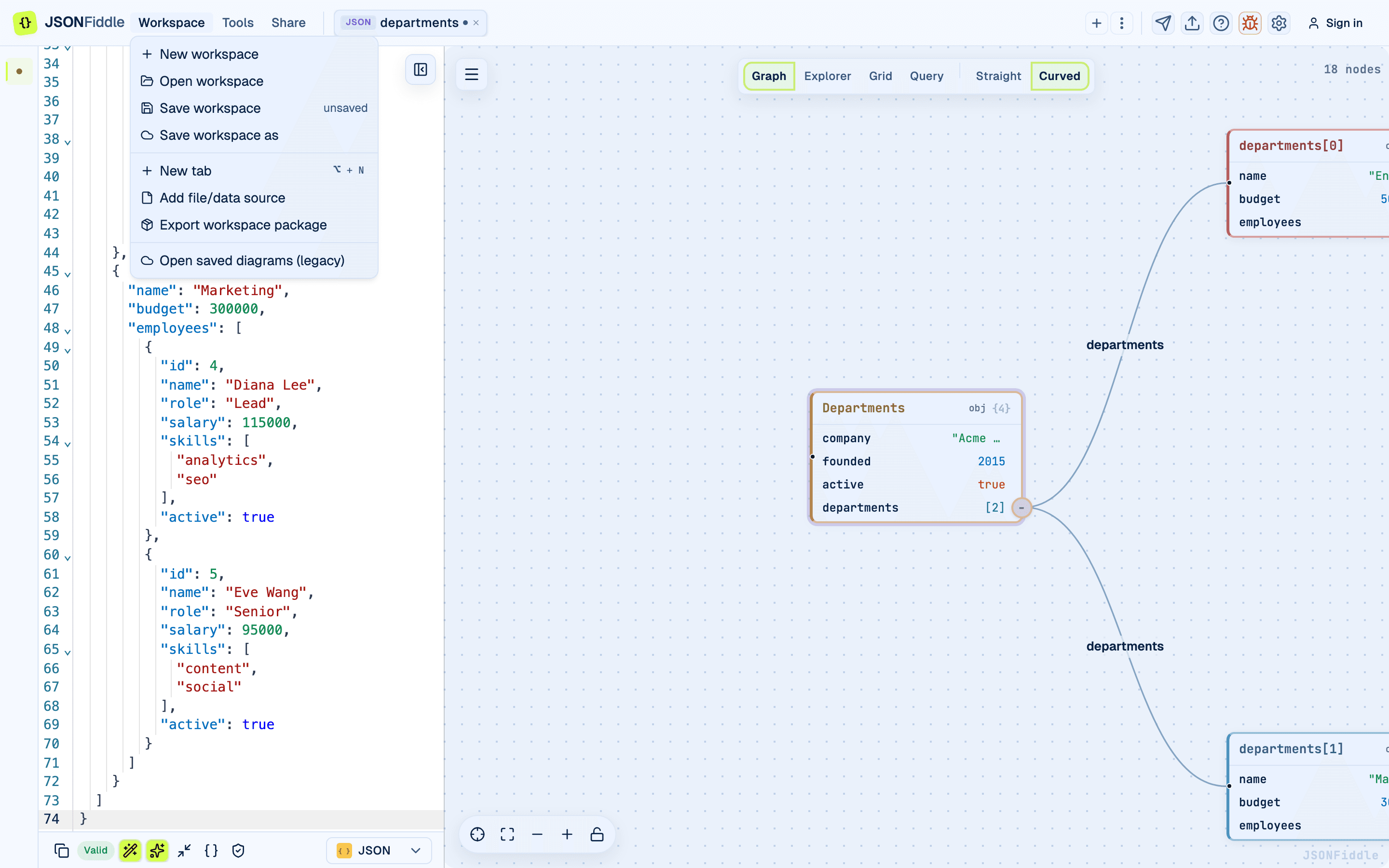 Screenshot: The Workspace menu with session and file actions.
Preferences and Theme
Use the Preferences button on the right side of the header to change app appearance, accent color, graph node style, and edge style. JFDG diagram theme settings are available from the diagram canvas controls.
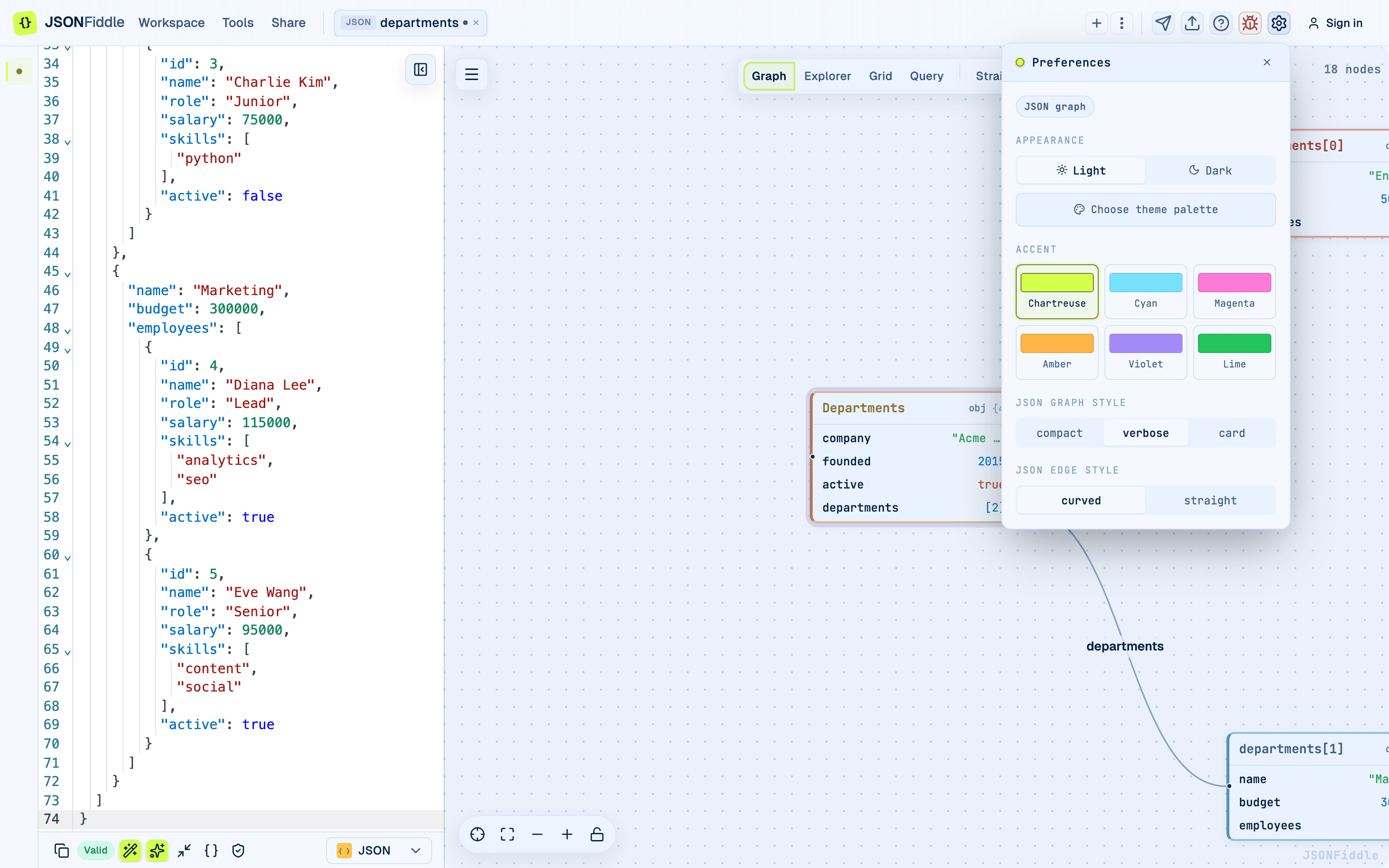 Screenshot: Preferences keeps app appearance, accent colors, graph node style, and edge style in one panel.
Tip: Press
?at any time (when not focused in a text input) to open the shortcuts modal without using the menu.
Share Menu
Click Share to access:
| Menu Item | Description |
|---|---|
| Copy editor link | Copies the current app route without source data. |
| Create share snapshot | Creates a secure, expiring snapshot after confirmation. |
Tools Menu
Click Tools to switch to focused utilities such as formatter, diff, flatten, schema validator, type generator, converters, SQL on JSON, and query tools.
Help Menu
Click Help to open documentation or keyboard shortcuts. Use the bug icon in the right-side actions to report an issue.
Tab Bar
The tab bar occupies the center of the top bar. It displays all open tabs with their format badge and name.
| Element | Description |
|---|---|
| Format badge | A colored label showing the format (JSON, YAML, XML, CSV, MMD, JFDG). Each format has a unique color. |
| Tab name | Auto-derived from the content or manually renamed. Double-click to edit. |
| Dirty dot | A small dot appears next to the name when the tab has unsaved changes. |
| Close button (X) | Click to close the tab. If it has unsaved changes, a confirmation dialog appears. |
At the right end of the tab bar:
| Element | Description |
|---|---|
| + button | Creates a new empty tab. Disabled when you have 10 tabs open. |
| Three-dot menu | Opens bulk close actions: Close All, Close Saved, Close Others. |
Note: You can have up to 10 tabs open simultaneously.
See the Tab Management Guide for full details.
Right-Side Actions
The right side of the top bar contains quick actions that stay close to the active workspace.
| Action | Description |
|---|---|
| Report issue | Opens the feedback dialog with safe diagnostics. |
| Export | Opens file, JSON Canvas, and diagram image export options. |
| Help | Opens documentation and keyboard shortcuts. |
| Preferences | Opens app appearance and graph preferences. |
| Sign in / user menu | Opens account actions when authentication is available. |
Screenshot: The workbench toolbar with menus, tabs, and quick actions.
The Left Panel: Code Editor
The left panel is a syntax-highlighted editor for JSON, YAML, XML, CSV, Mermaid, and JFDG content.
Editor Features
| Feature | Description |
|---|---|
| Syntax highlighting | JSON, YAML, XML, CSV, and Mermaid syntax are color-coded. |
| Bracket matching | Matching brackets highlight when your cursor is next to one. |
| Auto-closing | Opening brackets and quotes auto-close. |
| Line numbers | Displayed in the gutter on the left edge. |
| Code folding | Click the arrow in the gutter to collapse or expand a block. |
| Inline errors | Red squiggly underlines mark syntax errors. Hover for the error message. |
| Cursor sync | Placing your cursor on a value highlights the corresponding node in the active view (when Auto Sync is enabled). |
Pasting Content
Paste any content into the editor. JSONFiddle auto-detects the format:
- XML -- content starting with
<?xmlor an opening XML tag. - JFDG -- JSON with top-level
nodesandedgesarrays. - JSON -- content starting with
{or[that parses as valid JSON. - CSV -- two or more lines with a consistent comma count per line.
- Mermaid -- content starting with a Mermaid keyword (
flowchart,sequenceDiagram,classDiagram, etc.). - YAML -- content with key-value lines using colon syntax.
The Right Panel: Views
A segmented control at the top lets you switch between four views:
| View | Shortcut | Best For |
|---|---|---|
| Graph | Alt+1 | Visualizing the full structure as an interactive node graph. |
| Explorer | Alt+2 | Browsing nested objects in a tree or column layout. |
| Grid | Alt+3 | Viewing arrays of objects as a sortable, filterable table. |
| Query | Alt+4 | Writing expressions to query and transform your data. |
View Selector Extras
When Graph is active, an additional segmented control lets you switch between Straight and Curved edge styles.
When Explorer is active, an additional segmented control lets you switch between Tree and Column layouts.
The Bottom Bar: Every Button
The bottom bar sits below the code editor. It contains quick-access tools that apply to the editor content.
 Screenshot: The bottom bar with each button labeled.
Reading from left to right:
| Button | Icon | Description |
|---|---|---|
| Copy | Clipboard icon | Copies the entire editor content to your clipboard. Shows a checkmark for 2 seconds. |
| Valid / Invalid | Green or red badge | Real-time validation indicator. Hidden when empty or in Mermaid format. |
| Auto Sync | Wand icon | Toggles live synchronization between the editor and the views. |
| Format / Beautify | Sparkles icon | Pretty-prints the content with consistent indentation. Disabled when content is invalid. |
| Minify | Compress icon | Compresses JSON to a single line. Useful for API payloads. |
| Generate Types | Braces icon | Opens the Type Generation modal. |
| Validate Schema | Shield icon | Opens the JSON Schema Validation modal. |
| Format selector | Dropdown | Shows the current format. Click to change and convert. |
Note: On narrow windows, lower-priority buttons collapse into a three-dot overflow menu.
See the Bottom Bar Guide for a deep dive on each button.
The Split-Pane Resizer
Between the left editor and the right view panel, there is a vertical divider you can drag to resize.
- Hover over the divider. Your cursor changes to a resize cursor.
- Click and drag left or right.
- Release to set the new split position.
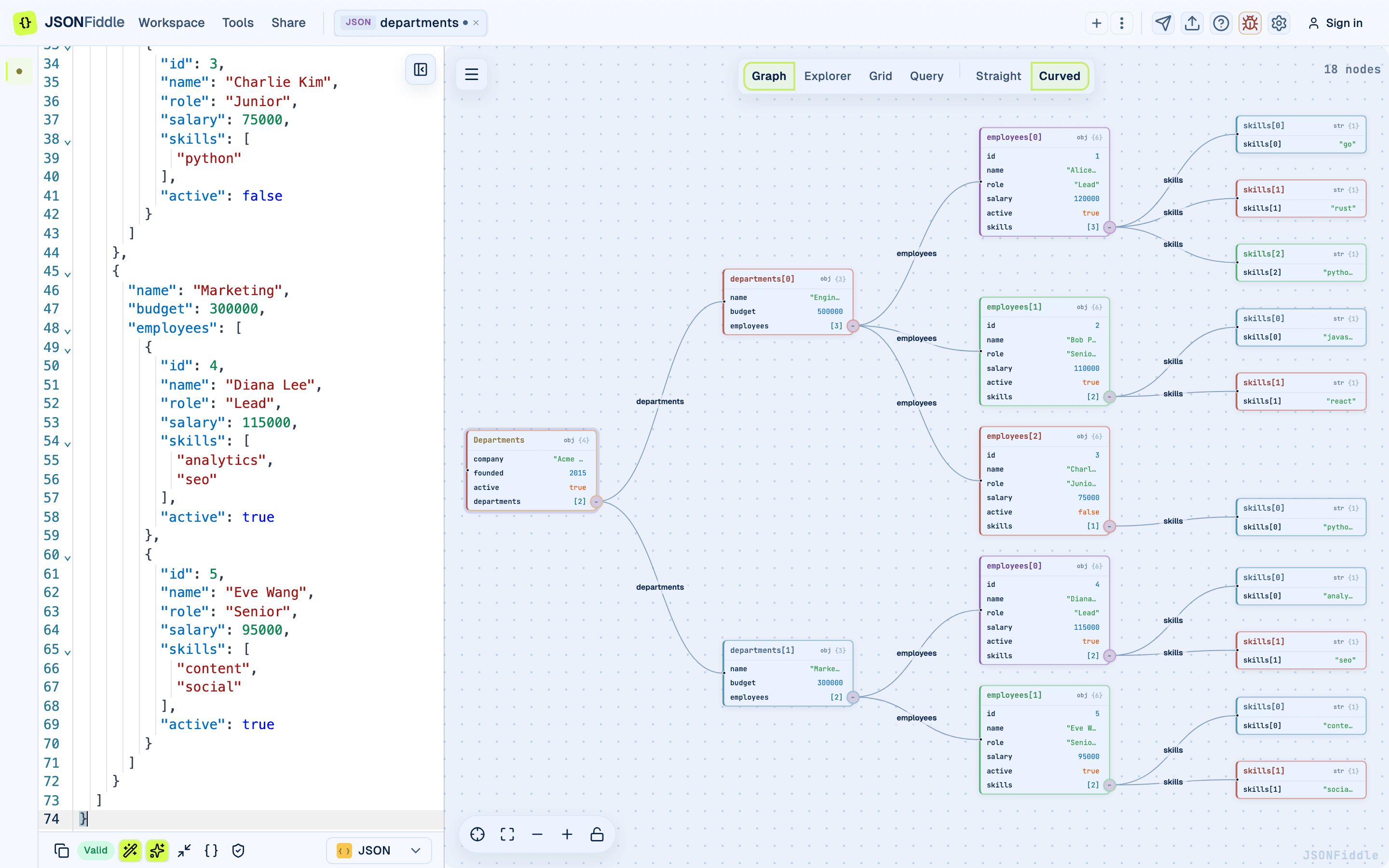 Screenshot: The editor overview showing the split-pane divider between the code editor and view panel.
Tip: Drag the divider all the way to the left to hide the editor and give the view panel full width.
Your First 5 Minutes: Complete Tutorial
Step 1: Paste Sample JSON
Copy the following JSON and paste it into the editor:
{
  "company": "Acme Corp",
  "employees": [
    {
      "id": 1,
      "name": "Alice Johnson",
      "role": "Engineering Manager",
      "department": "Engineering",
      "salary": 145000,
      "active": true
    },
    {
      "id": 2,
      "name": "Bob Smith",
      "role": "Senior Developer",
      "department": "Engineering",
      "salary": 125000,
      "active": true
    },
    {
      "id": 3,
      "name": "Charlie Brown",
      "role": "Product Designer",
      "department": "Design",
      "salary": 110000,
      "active": false
    },
    {
      "id": 4,
      "name": "Diana Lee",
      "role": "Data Analyst",
      "department": "Analytics",
      "salary": 95000,
      "active": true
    }
  ]
}
Expected result: The Graph view renders a root node with two branches: company (a string value displayed inline) and employees (connected to four child nodes, one for each employee).
Step 2: Explore the Graph
- Zoom in: scroll your mouse wheel up to zoom into the employee nodes.
- Pan: click and drag the canvas background to move around.
- Click a node: the code editor on the left scrolls to and highlights the corresponding JSON block.
Step 3: Switch to Grid View
Press Alt+3 or click "Grid" in the view selector.
Expected result: The employees array renders as a table with columns: id, name, role, department, salary, active.
- Click the name column header to sort alphabetically (A-Z).
- Click it again to sort descending (Z-A).
- Click a third time to remove the sort.
Step 4: Run a Query
Press Alt+4 or click "Query" in the view selector.
- Make sure JSONPath is selected in the language switcher.
- Type the following in the query input:
$.employees[?(@.department=="Engineering")] - Press Cmd+Enter (Mac) or Ctrl+Enter (Windows/Linux).
Expected result: The result panel shows two employees -- Alice and Bob -- both in the Engineering department.
- Click Apply to replace the editor content with the query result.
- Click Revert to restore the original JSON.
Step 5: Convert to YAML
Click the format dropdown in the bottom-right corner and select YAML.
Expected result:
company: Acme Corp
employees:
  - id: 1
    name: Alice Johnson
    role: Engineering Manager
    ...
Click the dropdown again and switch back to JSON to restore the original format.
Step 6: Export
- Click the Export icon (upload arrow) in the top-right corner.
- Click Export file.
Expected result: A file named Acme Corp.json (or Acme Corp.yaml, depending on your format) downloads to your computer.
Common Workflows
Workflow 1: Developer Debugging an API Response
- Copy the API response from your browser DevTools or terminal.
- Paste it into JSONFiddle.
- Press Alt+1 to view the Graph. Zoom in to explore the structure visually.
- Press Alt+2 to switch to Explorer. Use the tree view to drill down into nested objects.
- When you find the field you need, right-click and select Copy as JSONPath.
- Paste the path into your code.
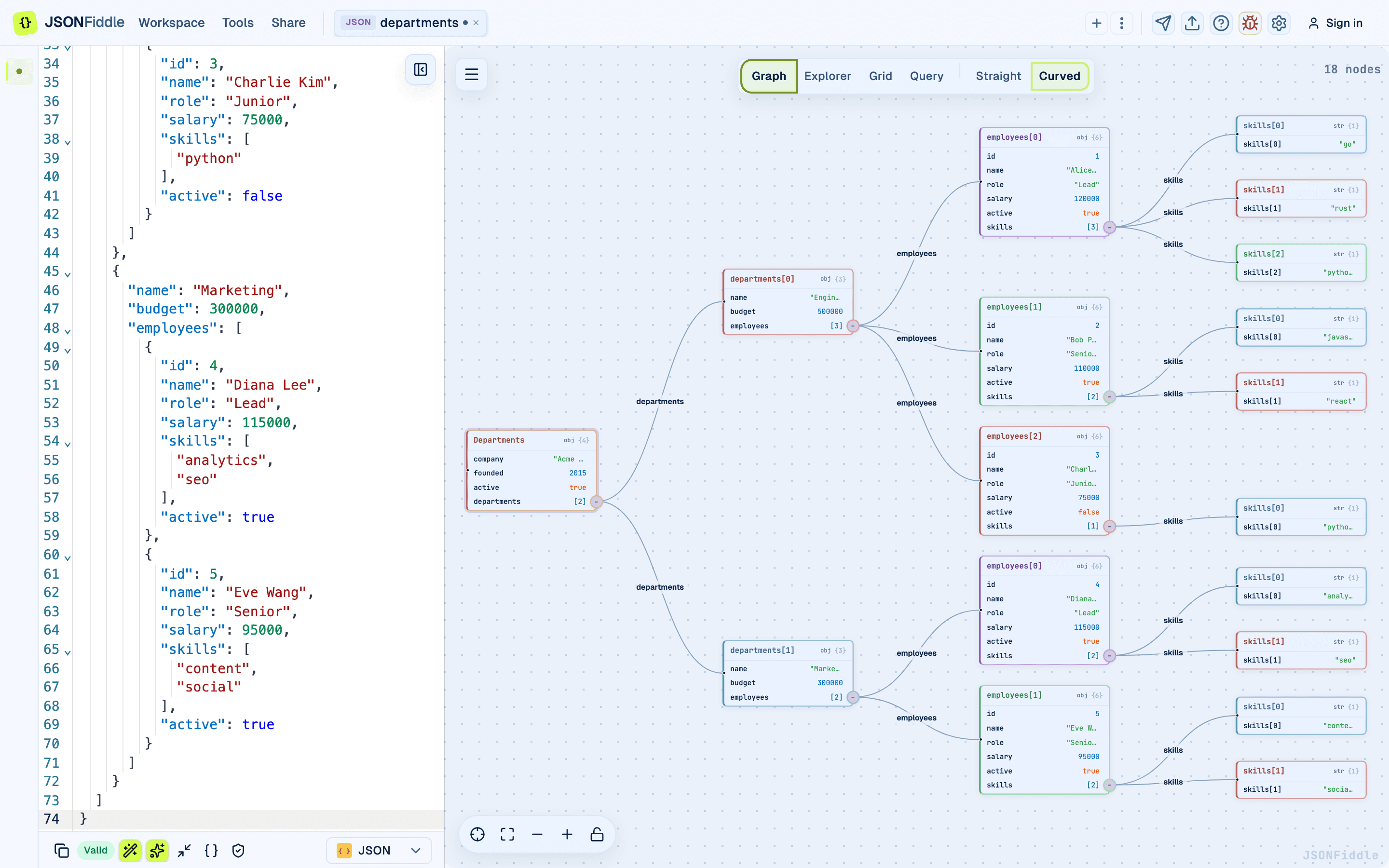 Screenshot: The Graph view showing a complex JSON structure.
Workflow 2: DevOps Engineer Editing a Config File
- Click Workspace > Add file/data source and select your
.yamlfile. - Make your edits in the code editor. The "Valid" badge confirms your YAML is syntactically correct.
- Switch to the format dropdown and select JSON to see the YAML as JSON.
- Switch back to YAML.
- Click Export icon > Export file to download the edited YAML file.
Workflow 3: Data Analyst Exploring a CSV Dataset
- Click Workspace > Add file/data source and select your
.csvfile. - JSONFiddle converts it to an array of objects and opens the Grid view automatically.
- Click column headers to sort by any field.
- Press Cmd+F to open the search panel. Type a search term to filter rows.
- Add a column filter: select the "region" column, choose "equals", type "West".
- Click CSV in the grid toolbar to export the filtered, sorted data.
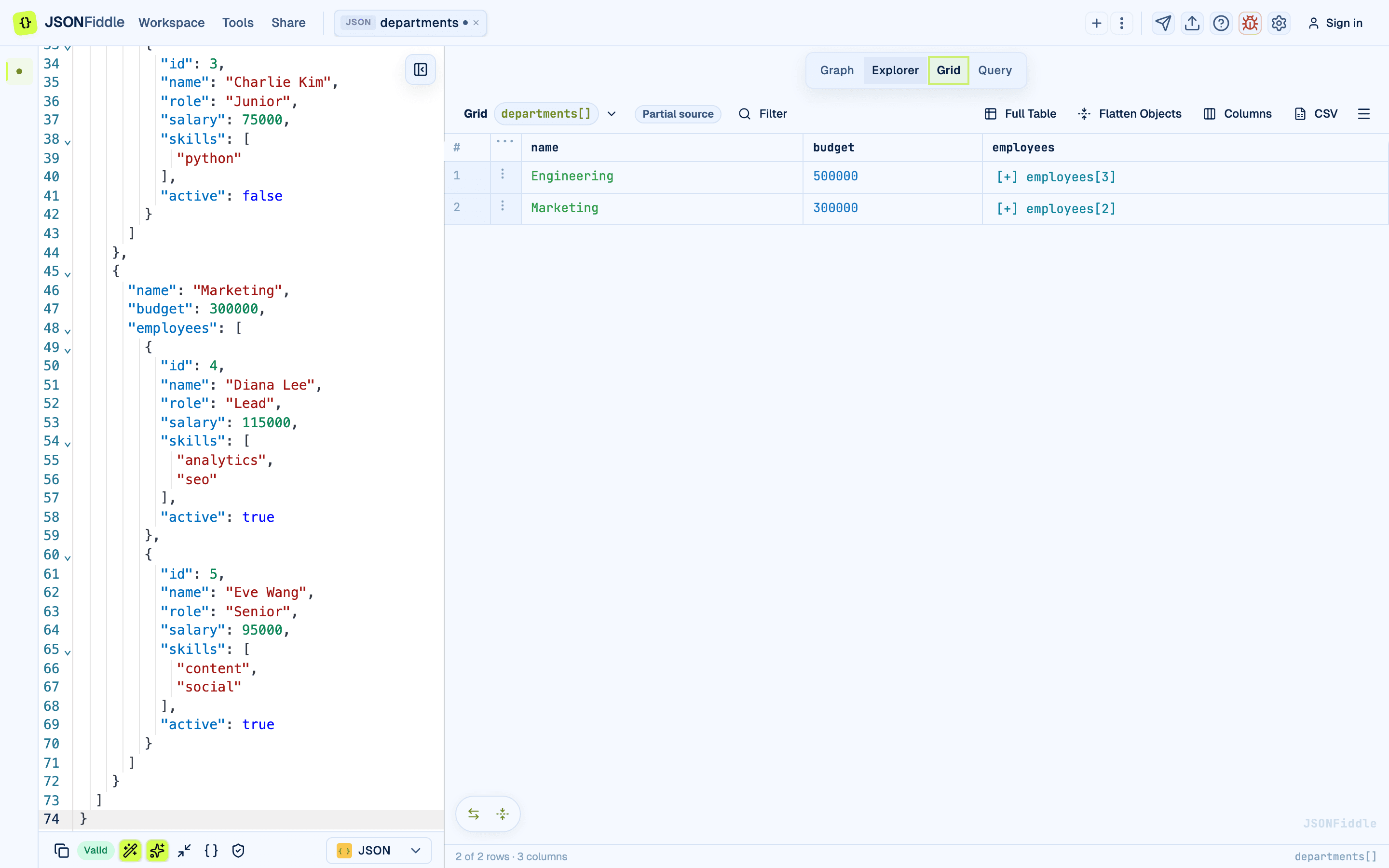 Screenshot: The Grid view showing tabular CSV data.
Supported Formats
| Format | Extensions | Description | Views Available |
|---|---|---|---|
| JSON | .json | JavaScript Object Notation. The default format. | Graph, Explorer, Grid, Query |
| YAML | .yaml, .yml | Human-readable data serialization for config files. | Graph, Explorer, Grid, Query |
| XML | .xml | Extensible Markup Language for enterprise data. | Graph, Explorer, Grid, Query |
| CSV | .csv | Comma-separated values for tabular data. | Graph, Explorer, Grid, Query |
| Mermaid | .mmd | Text-based diagram syntax. Renders in the Diagram view. | Diagram only |
| JFDG | .jfdg, .diagram | JSONFiddle Diagram Graph. A JSON schema with nodes and edges arrays. | Diagram only |
Note: Mermaid and JFDG formats disable the Query view because they are not data formats.
Troubleshooting
"I pasted JSON but the Graph view is empty"
Check the bottom bar for a red "Invalid" badge. Common issues:
- Missing quotes around keys.
- Unescaped special characters in strings.
"The format auto-detected wrong"
Click the format dropdown in the bottom bar and manually select the correct format.
"The right panel shows nothing"
Make sure the split-pane divider has not been dragged all the way to the right. Drag it back toward the center.
"My JSON is too large and the graph is slow"
Large JSON documents (1MB+) can slow down the Graph view. Use the Grid or Explorer view, or run a query to extract a smaller subset first.
FAQ
Q: Does JSONFiddle send my data to a server? A: Local editing, viewing, conversion, and query execution happen in your browser. Cloud workspace save and secure share snapshots upload only after you explicitly choose those actions.
Q: How many tabs can I have open? A: Up to 10 simultaneous tabs.
Q: Does my work persist if I refresh the page? A: Yes. Tab state is stored in session storage and survives page refreshes. Closing the browser tab loses all state.
Q: Can I use JSONFiddle offline? A: JSONFiddle requires the initial page load, but once loaded it works without an internet connection.
Q: What is the maximum JSON file size? A: There is no hard limit, but performance degrades with very large files (10MB+).
Next Steps
- Keyboard Shortcuts -- learn every shortcut to work faster.
- Query & Transform -- extract and reshape data with JSONPath, JQ, or JSONata.
- Graph View -- master the interactive node graph.
- Grid View -- sort, filter, and edit data in a spreadsheet.
- Working with Tabs -- manage multiple documents.
- Bottom Bar -- understand every button below the editor.
Related Guides
- Format Conversion -- convert between JSON, YAML, XML, and CSV.
- Explorer View -- browse data as a tree or column layout.
- Mermaid Diagrams -- render text-based diagrams.
- Dark Mode & Theming -- toggle theme and understand the design system.