Grid View
The Grid view renders JSON arrays as an interactive table. Each object in the array becomes a row, and each key becomes a column header. You can sort, filter, search, flatten, edit, and export -- all from within the grid.
Switch to Grid view by clicking "Grid" in the view selector or pressing Alt+3.
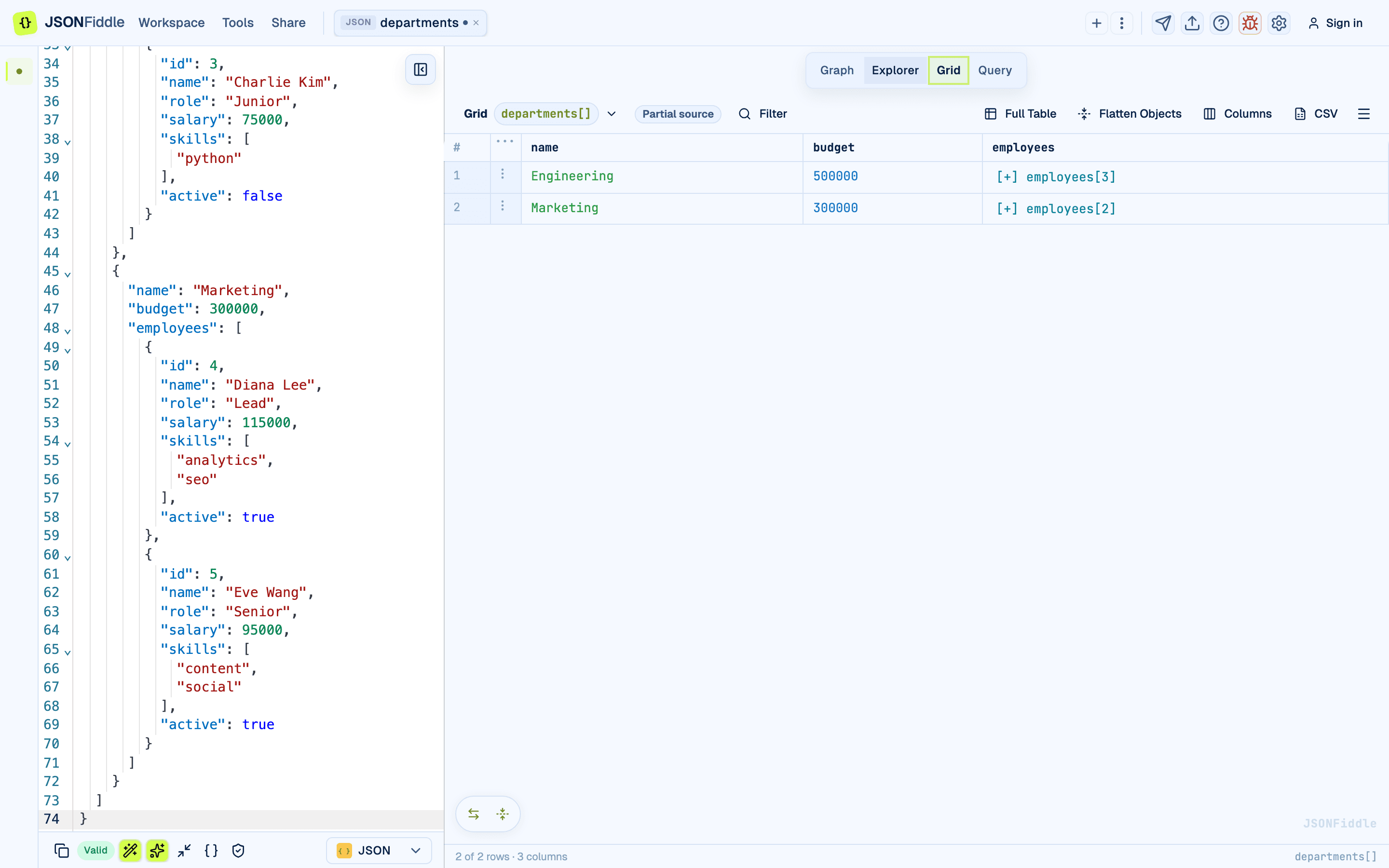 Screenshot: The Grid view showing an array of objects as a sortable table with column headers.
Prerequisites
- Valid JSON, YAML, XML, or CSV content containing an array of objects.
- The Grid view works best with homogeneous arrays (every object has the same keys). Heterogeneous data still works but may have empty cells.
When to Use Grid vs. Explorer vs. Graph
| Scenario | Best View | Why |
|---|---|---|
| Array of objects (table-like data) | Grid | Purpose-built for tabular display. |
| Single deeply nested object | Explorer | Tree navigation is more natural. |
| Visualize relationships and structure | Graph | Node connections show hierarchy. |
| Mixed data (some arrays, some objects) | Explorer or Graph | Grid only renders the first array found. |
| CSV-like flat data | Grid | Direct table representation. |
Column Headers
Column headers appear in the first row, derived from the keys in your JSON objects.
Example data:
[
  { "id": 1, "name": "Widget", "price": 9.99, "category": "Tools" },
  { "id": 2, "name": "Gadget", "price": 24.99, "category": "Electronics" },
  { "id": 3, "name": "Doohickey", "price": 4.99, "category": "Tools" }
]
This renders four columns: id, name, price, category.
Sorting by Column
Click any column header to sort.
| Click | Behavior | Indicator |
|---|---|---|
| First click | Sort ascending (A-Z, 0-9) | Up arrow in header |
| Second click | Sort descending (Z-A, 9-0) | Down arrow in header |
| Third click | Remove sort, restore original order | No arrow |
Tip: You can only sort by one column at a time.
Reordering Columns
Click and drag a column header to move it to a new position. The column order is preserved until you reset it.
Expandable Rows
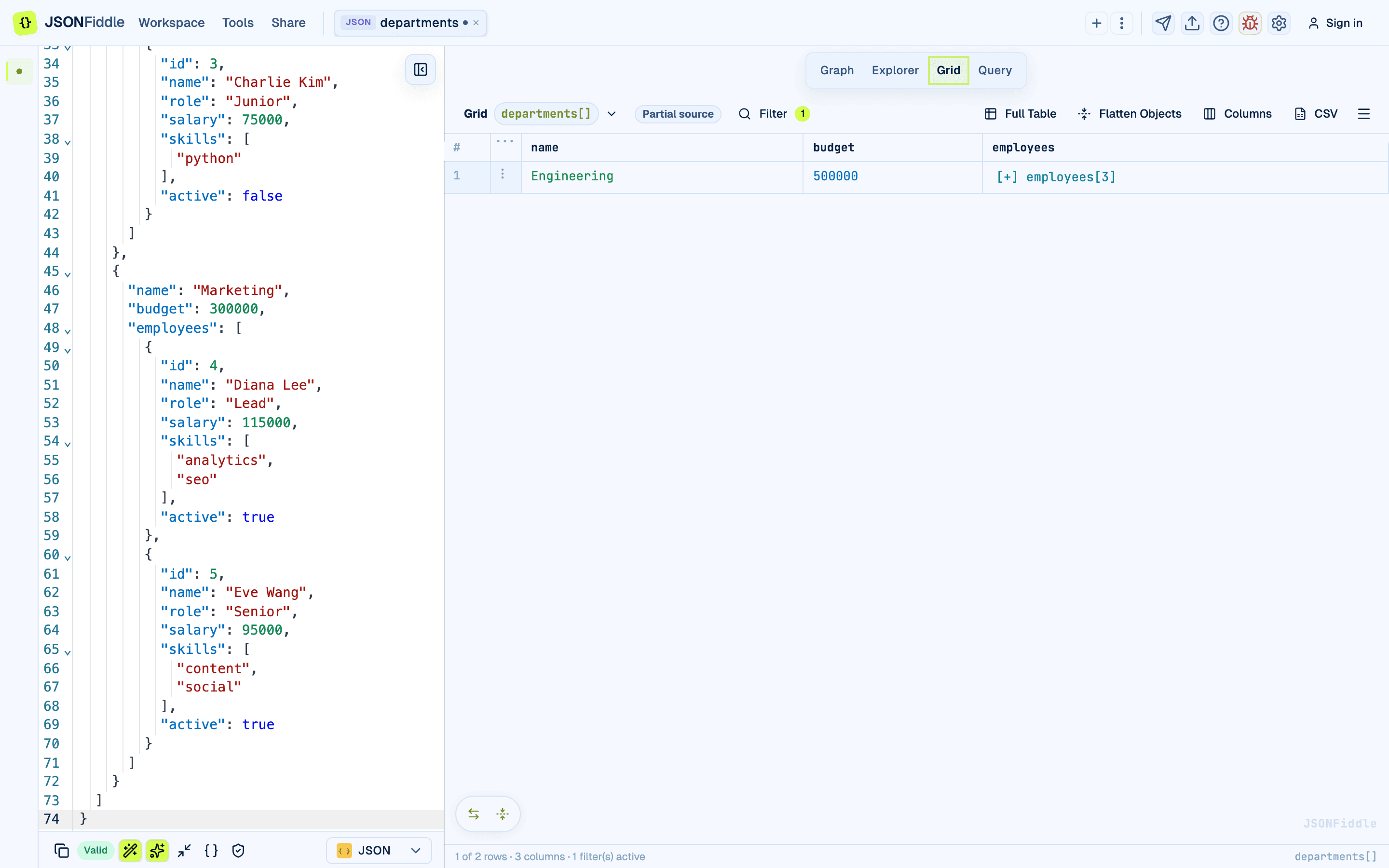
When a cell contains a nested object or array, it displays as a collapsed chip showing the type and size (e.g., {3 keys} or [5 items]).
Click the chip to expand it inline. The nested data renders as a sub-table within the row.
 Screenshot: An expanded nested cell showing the sub-table with nested keys and values.
Expand All / Collapse All
Use the floating control bar at the bottom-right of the grid:
| Button | Action |
|---|---|
| Expand All | Expands every nested cell in the table. |
| Collapse All | Collapses everything back to chips. |
Search and Filter
Opening the Search Panel
Press Cmd+F (Mac) or Ctrl+F (Windows/Linux) to open the search and filter panel on the right side of the grid. Press Esc to close it.
You can also click the Filter button in the grid toolbar.
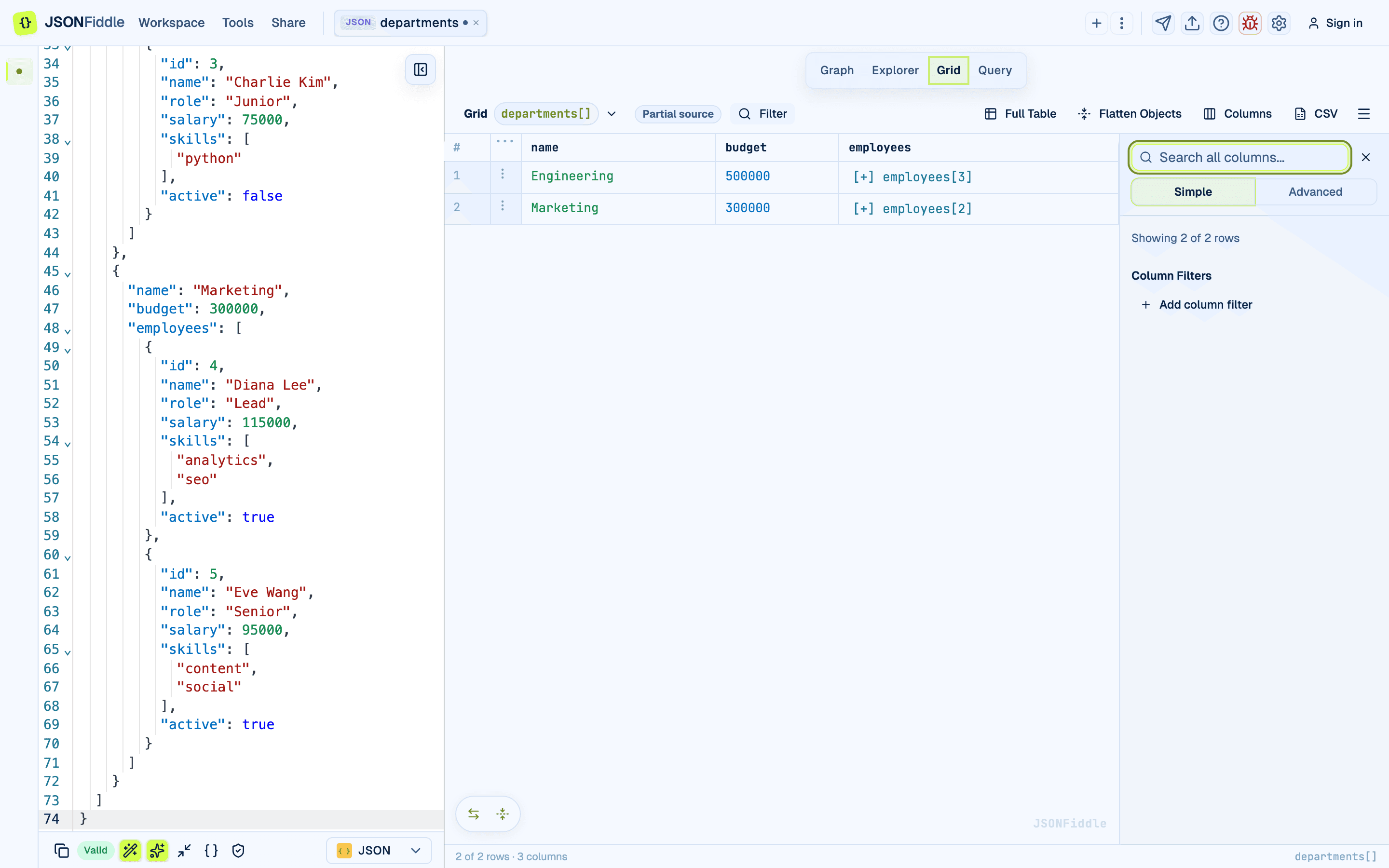 Screenshot: The Grid view with the search and filter panel open on the right side.
Simple Search
Type a search term in the search input. The grid filters to show only rows containing the term in any column. The search is case-insensitive.
Column Filters
Below the simple search, add column-specific filters:
- Select a column from the dropdown.
- Choose an operation (contains, equals, greater than, less than, starts with, ends with).
- Enter a value.
- Click Add to apply the filter.
Multiple column filters combine with AND logic. Active filters appear as removable chips.
Advanced Filter
Use the advanced filter area for more precise conditions when simple search and column filters are not enough. Prefer column operations for common checks such as equals, contains, greater than, less than, starts with, and ends with.
For complex reshaping or calculations, switch to Query & Transform or SQL on JSON. They provide clearer language-specific feedback and are easier to share as saved queries.
Filter Status
The footer bar at the bottom of the grid shows:
| Indicator | Example | Meaning |
|---|---|---|
| Row count | "3 of 50 rows" | How many rows match the current filters. |
| Column count | "5 columns" | How many columns are visible. |
| Filter count | "2 filters" | How many active filters are applied. |
Flatten Objects
Click Flatten Objects in the grid toolbar. Nested object fields become dot-notation columns, which makes wide payloads easier to scan and export.
Before and After
Before (nested):
[
  { "user": { "name": "Alice", "address": { "city": "Seattle", "zip": "98101" } } },
  { "user": { "name": "Bob", "address": { "city": "Portland", "zip": "97201" } } }
]
| user |
|---|
| {name: "Alice", address: {...}} |
| {name: "Bob", address: {...}} |
After (flattened):
| user.name | user.address.city | user.address.zip |
|---|---|---|
| Alice | Seattle | 98101 |
| Bob | Portland | 97201 |
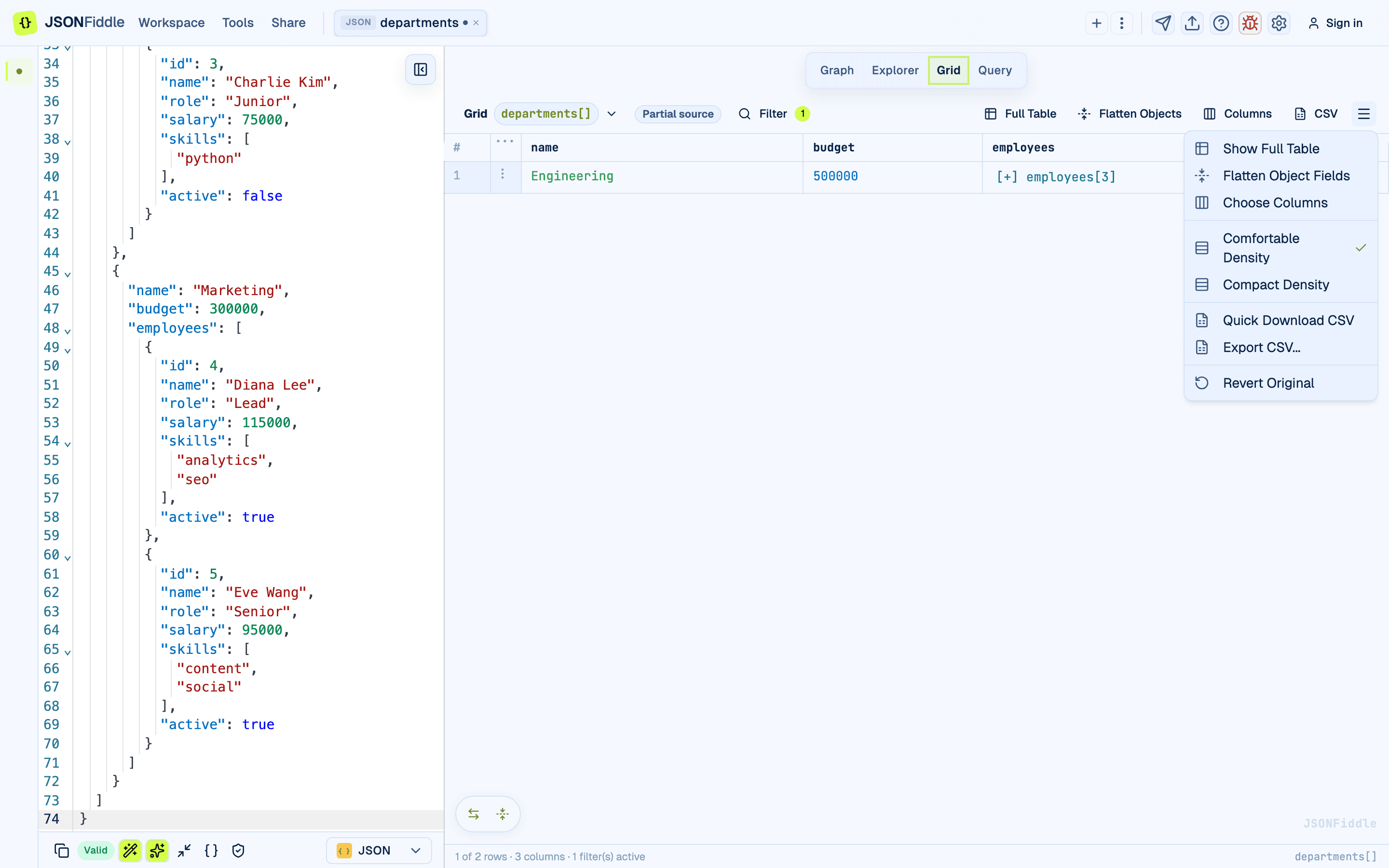 Screenshot: The Grid toolbar with data shaping controls.
Click Flatten Objects again to restore the original nested structure.
Tip: Flatten your data before exporting to CSV. CSV cannot represent nested data, so flattening ensures all fields are captured as individual columns.
Choose Visible Columns
- Click Columns in the grid toolbar.
- In the column modal:
- Search for fields by name.
- Check or uncheck columns to show or hide them.
- Drag selected columns to reorder them when the column set is small enough.
- Toggle Flatten object fields to include nested object fields as dot-notation columns.
- Click Apply.
Screenshot: The column chooser for selecting and arranging visible fields.
Cell Editing
Double-click any cell to edit its value inline.
- Double-click the cell. It becomes an input field.
- Type the new value.
- Press Enter to confirm or Escape to cancel.
Data Type Preservation
| Original Type | Input | Stored As |
|---|---|---|
| Number | 42 | 42 (number) |
| Boolean | true or false | true/false (boolean) |
| String | hello | "hello" (string) |
| Null | null | null |
When you confirm an edit, the source JSON in the code editor updates in real time.
Note: Only primitive values are editable inline. Expand nested objects/arrays and edit individual fields, or use the Graph view.
Row Context Menu
Right-click any row to open the context menu.
| Action | Description |
|---|---|
| Copy As... | Copy the path to the clicked cell as JSONPath, JQ, or JSONata. |
| Transform this... | Switch to the Query tab with the path pre-filled. |
| Row Detail | Open a modal showing all fields for the selected row. |
Row Detail Modal
The Row Detail modal shows every field in a vertical key-value layout. Useful when:
- The row has many columns and horizontal scrolling makes it hard to see everything.
- You want to see nested objects fully expanded.
Screenshot: The Grid view showing the row context menu options.
Grid Toolbar
| Element | Description |
|---|---|
| Filter button | Opens the search and filter panel (Cmd+F). |
| Full Table | Opens the grid in a full-screen modal. |
| Flatten Objects | Converts nested object fields into dot-notation columns. |
| Columns | Opens the column visibility, search, and ordering modal. |
| CSV | Exports the current grid view as a CSV file. |
| More menu | Opens secondary grid actions such as reset/revert actions when available. |
Full-Screen Table
Click Full Table to open the grid in a full-screen modal. All grid features work the same way. Press Escape to close.
Screenshot: The grid in its normal view, ready to be expanded to full screen.
Exporting to CSV
- Click CSV in the grid toolbar.
- Save the downloaded file.
The export respects your current state:
| State | Respected? |
|---|---|
| Visible columns | Yes -- only visible columns are exported. |
| Active filters | Yes -- only matching rows are exported. |
| Sort order | Yes -- the export preserves the current sort. |
| Flatten Objects | Yes -- flattened columns are exported with dot-notation headers. |
Screenshot: Grid export controls for downloading CSV-ready data.
Tip: Reset filters and column visibility first if you want to export the full dataset.
Editor Synchronization
- Click a cell in the grid -> The editor scrolls to the matching line and highlights it.
- Move your cursor in the editor -> The grid highlights the corresponding cell and scrolls it into view.
Best Practices
| Practice | Why |
|---|---|
| Use Grid for arrays of objects | The Grid is purpose-built for tabular data. |
| Flatten before CSV export | Nested data does not survive CSV round-trips. |
| Combine filter types | Use simple search for quick text matching, column filters for specific conditions, and advanced filters for complex logic. |
| Revert when done | Use Revert Original to return to a clean state. |
| Use full-screen for wide data | When your data has many columns, full-screen mode avoids horizontal scrolling. |
Troubleshooting
"The grid shows no data"
The Grid view requires an array of objects. If your JSON is a single object, switch to Graph or Explorer view instead.
"Some cells are empty"
Objects in the array have different keys. The Grid creates columns for all unique keys -- objects missing a key show empty cells for that column.
"The sort arrow disappeared"
Click the column header a third time. The sort cycles: ascending -> descending -> no sort.
"My edits did not stick"
Make sure you pressed Enter after editing, not Escape.
"The CSV export is missing columns"
Check if you have hidden columns using Choose Columns. Only visible columns are exported.
FAQ
Q: Can I sort by multiple columns? A: Not currently. The grid supports single-column sorting.
Q: Can I resize columns? A: Column widths are auto-calculated based on content. Manual resizing is not currently supported.
Q: Can I paste data directly into the grid? A: Not directly. Paste into the code editor on the left, and the grid updates automatically.
Q: Does the grid support pagination? A: Large datasets are handled best in Grid or Query. For very wide or deeply nested data, use source selection, filters, and visible columns to keep the table focused.
Q: Can I undo a cell edit?
A: There is no per-cell undo. Use Revert Original to reset all changes, or press Cmd+Z in the code editor.
Related Guides
- Getting Started -- overview of all four views.
- Keyboard Shortcuts -- Grid view shortcuts (
Cmd+F,Esc). - Query & Transform -- use Copy As and Transform this... from the grid context menu.
- Format Conversion -- convert JSON to CSV directly in the format selector.
- Editing Data -- inline editing and the Edit Field modal.
- Export Options -- file and image export options.