Editing Data
JSONFiddle is not just a viewer -- it is an editor. You can modify data from any visual view without touching the raw JSON in the code editor. Every edit updates the source JSON in real time, and all views refresh to reflect the change.
Prerequisites
- Valid JSON, YAML, XML, or CSV content in the editor.
- At least one visual view open (Graph, Explorer, or Grid).
- Auto Sync enabled (for real-time updates across views).
Edit Field Modal
The Edit Field modal appears when you edit a single primitive value (string, number, boolean, or null).
How to Open
- From Graph view: Right-click a field row in a node and select Edit field.
- From Explorer view: Right-click a value and select Edit.
- From Grid view: Double-click a cell (opens inline editing, not the modal).
Modal Layout
| Element | Description |
|---|---|
| Field name | Displayed at the top of the modal (read-only). |
| Value input | Pre-filled with the current value. Edit it and press Enter or click Save. |
| Type selector | Shows the current JSON type (string, number, boolean, null). |
| JSONPath accordion | Shows the full JSONPath to this field (e.g., $.users[0].name). |
| JQ accordion | Shows the JQ path (e.g., .users[0].name). |
| JSONata accordion | Shows the JSONata path (e.g., users[0].name). |
| Save button | Applies the edit and closes the modal. |
| Cancel button | Closes without saving. |
The Path Accordion
The accordion at the bottom shows the exact path to the field in three query languages, with syntax highlighting.
- Copy the path to use in the Query tab.
- Use the path in external tools (e.g.,
jqon the command line).
Type Selector
| Type | Input Example | Stored As |
|---|---|---|
| String | hello world | "hello world" |
| Number | 42 or 3.14 | 42 or 3.14 |
| Boolean | true or false | true or false |
| Null | (empty or null) | null |
Warning: Changing a type may cause validation errors if the data is used by a system that expects a specific type.
Edit Object Modal
The Edit Object modal appears when you edit an entire object or array node.
How to Open
- From Graph view: Right-click a node header and select Edit.
- From Explorer view: Right-click an object or array node and select Edit.
Modal Layout
| Element | Description |
|---|---|
| Full JSON editor | A mini code editor showing the entire object or array content. |
| JSONPath accordion | Path to this object. |
| JQ accordion | JQ path to this object. |
| JSONata accordion | JSONata path to this object. |
| Linked Objects accordion | Shows related nodes that reference or are referenced by this object. |
| Save button | Parses the edited JSON, validates it, and applies the change. |
| Cancel button | Closes without saving. |
Note: If the JSON in the editor is invalid, the Save button shows an error message and does not apply the change.
Editing from Graph View
Edit a Field (Primitive Value)
- Right-click on a field row inside a node card (e.g., the row showing
name: "Alice"). - Click Edit field in the context menu.
- Change the value and click Save.
Edit a Node (Object or Array)
- Right-click on a node's header bar.
- Click Edit in the context menu.
- Modify the JSON and click Save.
Delete a Field
- Right-click on a field row.
- Click Delete field.
Warning: Deleting a field is immediate and cannot be undone from the modal. Use
Cmd+Zin the code editor to undo.
Insert a Field
- Right-click on a field row.
- Click Insert field.
- A new empty field is added to the parent object.
Copy Value
- Right-click on a field row.
- Click Copy value.
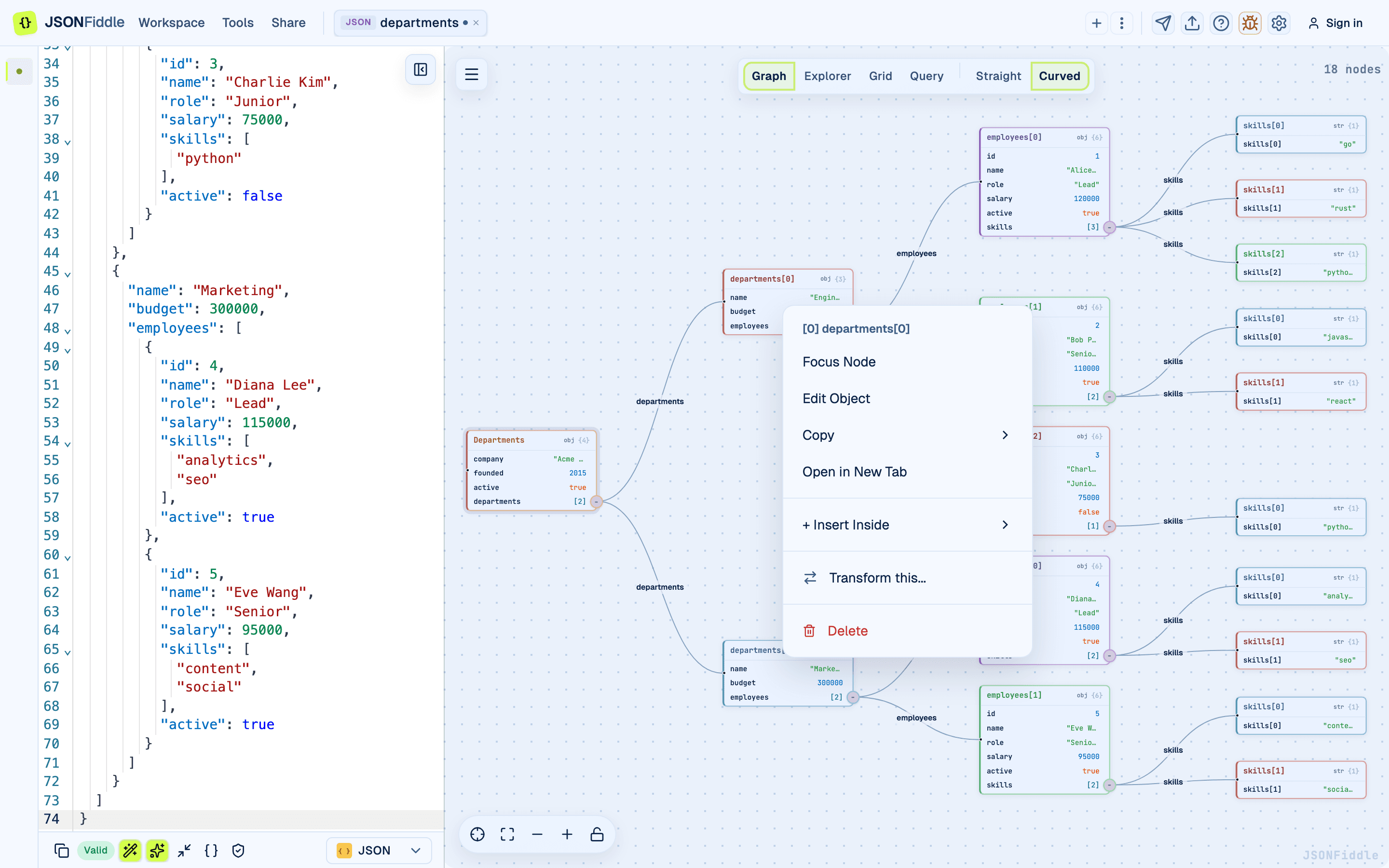 Screenshot: The Graph view context menu with editing options visible.
Editing from Grid View
Inline Cell Editing
- Double-click any cell.
- Type the new value.
- Press Enter to confirm, or Escape to cancel.
The source JSON updates in real time.
Data Type Preservation
| Cell contained | You type | Result |
|---|---|---|
Number (42) | 100 | Number 100 |
Boolean (true) | false | Boolean false |
String ("hello") | world | String "world" |
| Null | hello | String "hello" |
Note: Only primitive cells are directly editable. Cells containing nested objects or arrays -- expand them and edit individual fields, or use the Graph view.
Editing from Explorer View
- Right-click on a key or value.
- Click Edit in the context menu.
- The Edit Field modal (for primitives) or Edit Object modal (for objects/arrays) opens.
- Make your change and click Save.
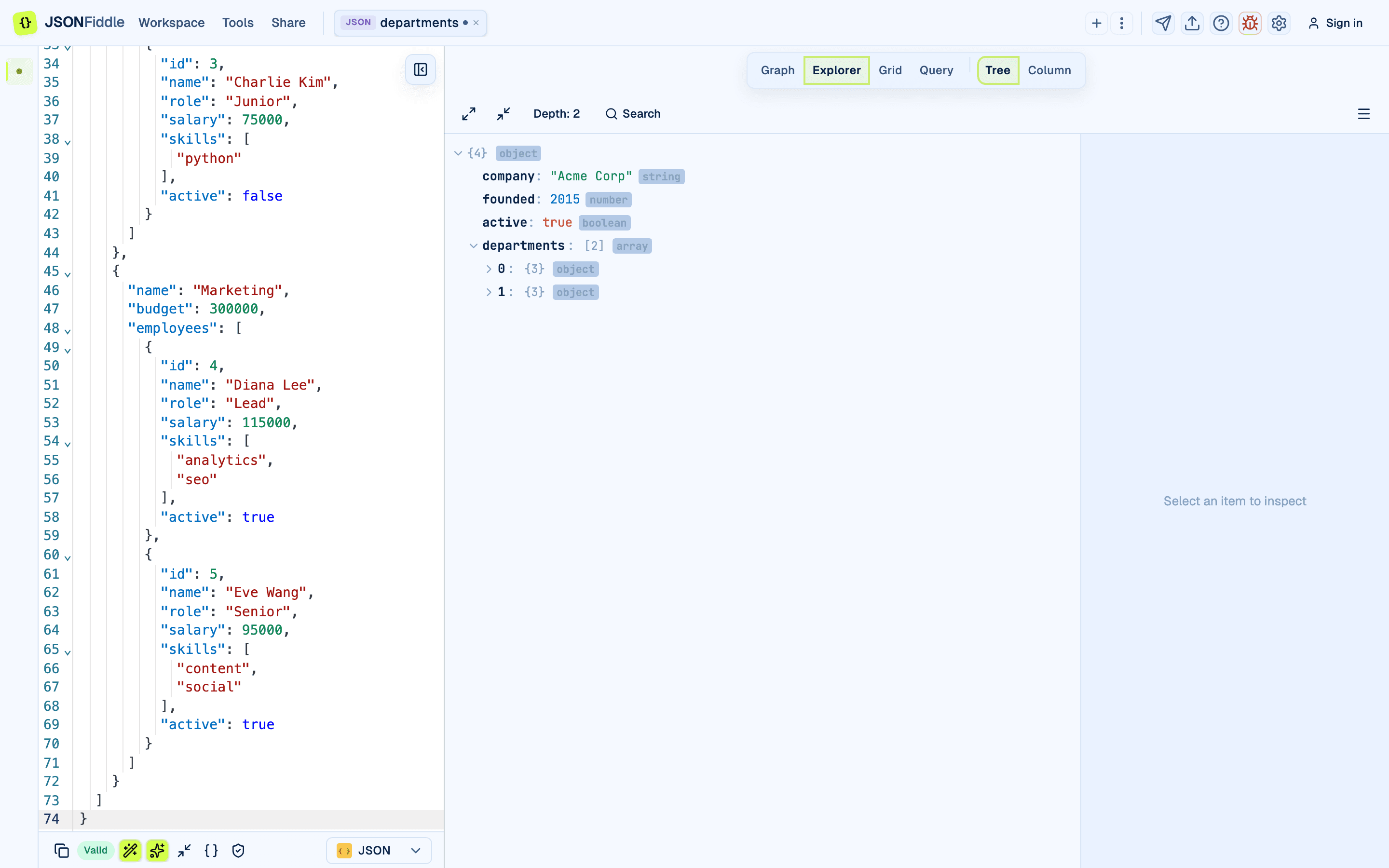 Screenshot: The Explorer view tree with the context menu visible.
Editing Workflow: Real-World Example
Scenario: You have an API response and need to change a user's email address.
- Paste the JSON into the editor.
- Press Alt+1 to open the Graph view.
- Navigate to the user node. Right-click the
emailfield row. - Click Edit field.
- Change the value from
alice@old.comtoalice@new.com. - Click Save.
- Export the modified JSON using Export icon > Export file.
How Edits Flow Through the System
When you edit a value from any visual view:
Visual Edit (Graph/Grid/Explorer)
  |
  v
Update the parsed JSON in memory
  |
  v
Serialize back to the current format (JSON/YAML/XML/CSV)
  |
  v
Update the code editor content
  |
  v
All views re-render from the updated content
Undo (Cmd+Z) in the code editor undoes the last edit, regardless of which view made it.
Troubleshooting
"I cannot find the Edit option in the context menu"
Make sure you are right-clicking on the correct element:
- Graph view: Right-click on a field row (not the node background or edge).
- Explorer view: Right-click on a key or value (not the whitespace).
- Grid view: Double-click a cell instead of right-clicking.
"The Save button shows an error"
In the Edit Object modal, the Save button validates the JSON you entered. Fix the JSON syntax and try again.
"My edit did not appear in the code editor"
Check if Auto Sync is enabled (bottom bar). If it is off, the editor may not update until you switch tabs or trigger a re-render.
"I want to undo an edit"
Press Cmd+Z (Mac) or Ctrl+Z (Windows/Linux) in the code editor. The undo history tracks all changes, including those made from visual views.
FAQ
Q: Can I undo a visual edit?
A: Yes. Press Cmd+Z in the code editor.
Q: Can I edit keys (not just values)? A: Not from the visual views directly. Edit the key in the code editor.
Q: Can I batch-edit multiple values at once? A: Not from the edit modals. Use the Query tab with a JQ or JSONata transformation to batch-modify values.
Q: Does editing work in YAML mode? A: Yes. The edit updates the structured value and then writes it back in the active format, such as YAML.
Q: Can I add a new key to an object from the grid? A: Not directly. Use the Graph view's "Insert field" context menu option, or edit the code editor.
Related Guides
- Graph View -- context menu and field-level editing.
- Grid View -- inline cell editing with double-click.
- Explorer View -- editing from the tree context menu.
- Query & Transform -- batch transformations as an alternative to manual editing.
- Keyboard Shortcuts --
Cmd+Zfor undo.